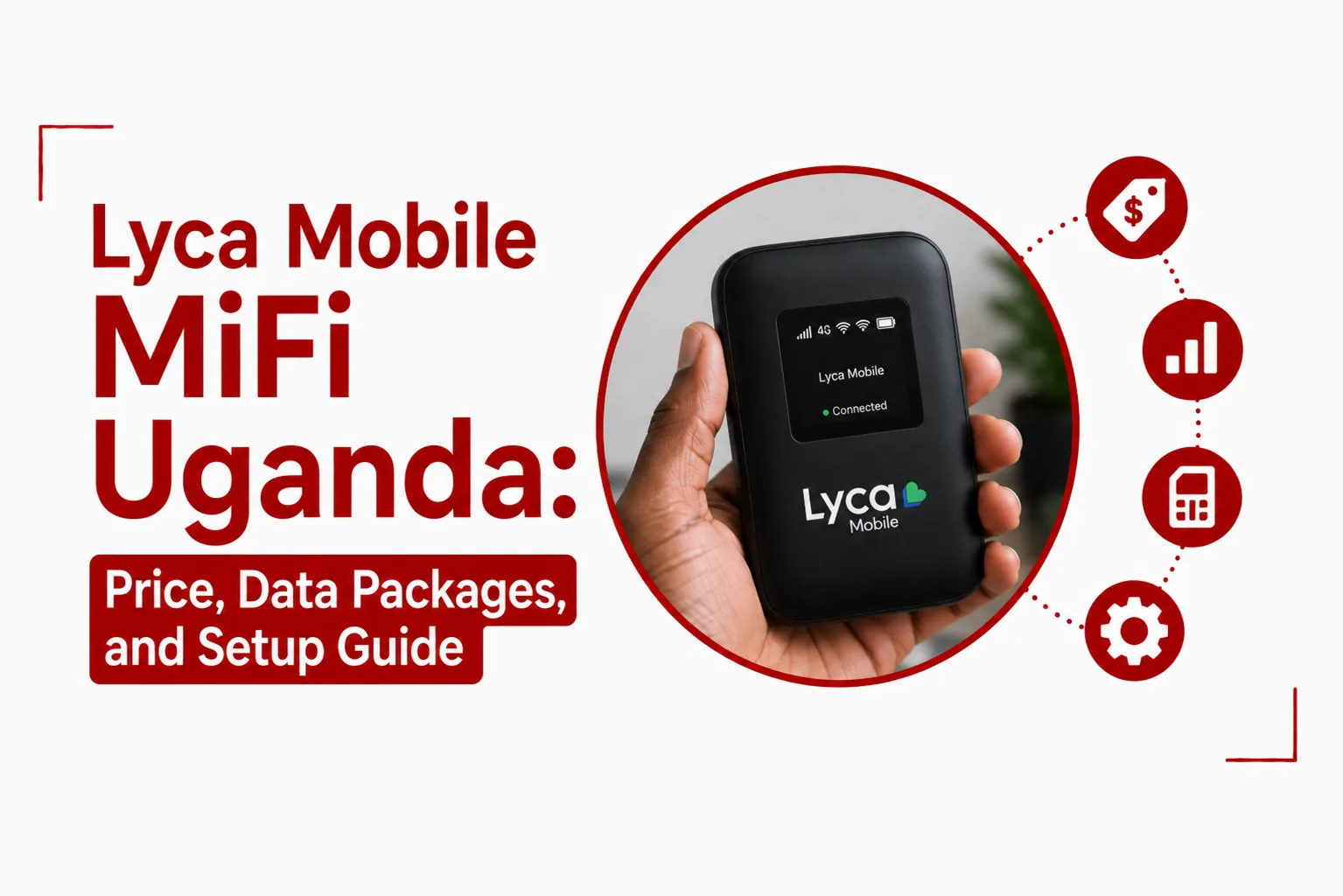

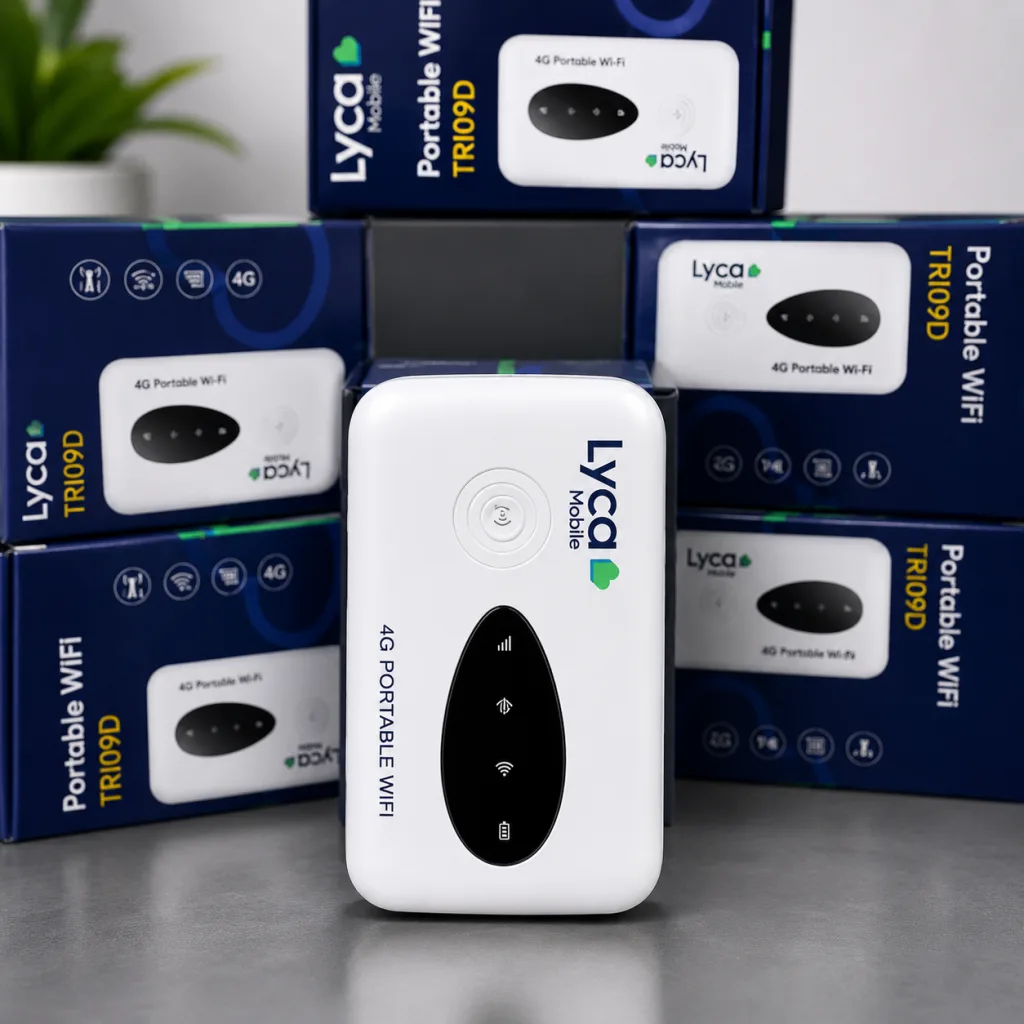
Lyca Mobile MiFi Uganda gives you a way to connect laptops, tablets, phones and other Wi Fi devices using a portable 4G router and a Lyca Mobile SIM. Instead of relying on the hotspot function on your phone, a MiFi has its own battery and mobile data connection, making it suitable for use at home, at work or while travelling.
The cost of getting started depends on the type of device you choose. An official Lyca Mobile MiFi package is available at UGX 65,000, while unlocked third party routers can cost more depending on their hardware and features. Once the device is ready, you can use regular Lyca Mobile data bundles and add data through USSD, MTN Mobile Money or the My Lyca Mobile Uganda app.
This guide covers the MiFi price, available data packages, ways to top up your line and the steps for setting up an unlocked router with the correct APN.
Quick Navigation
How Much Does a Lyca Mobile MiFi Cost in Uganda?
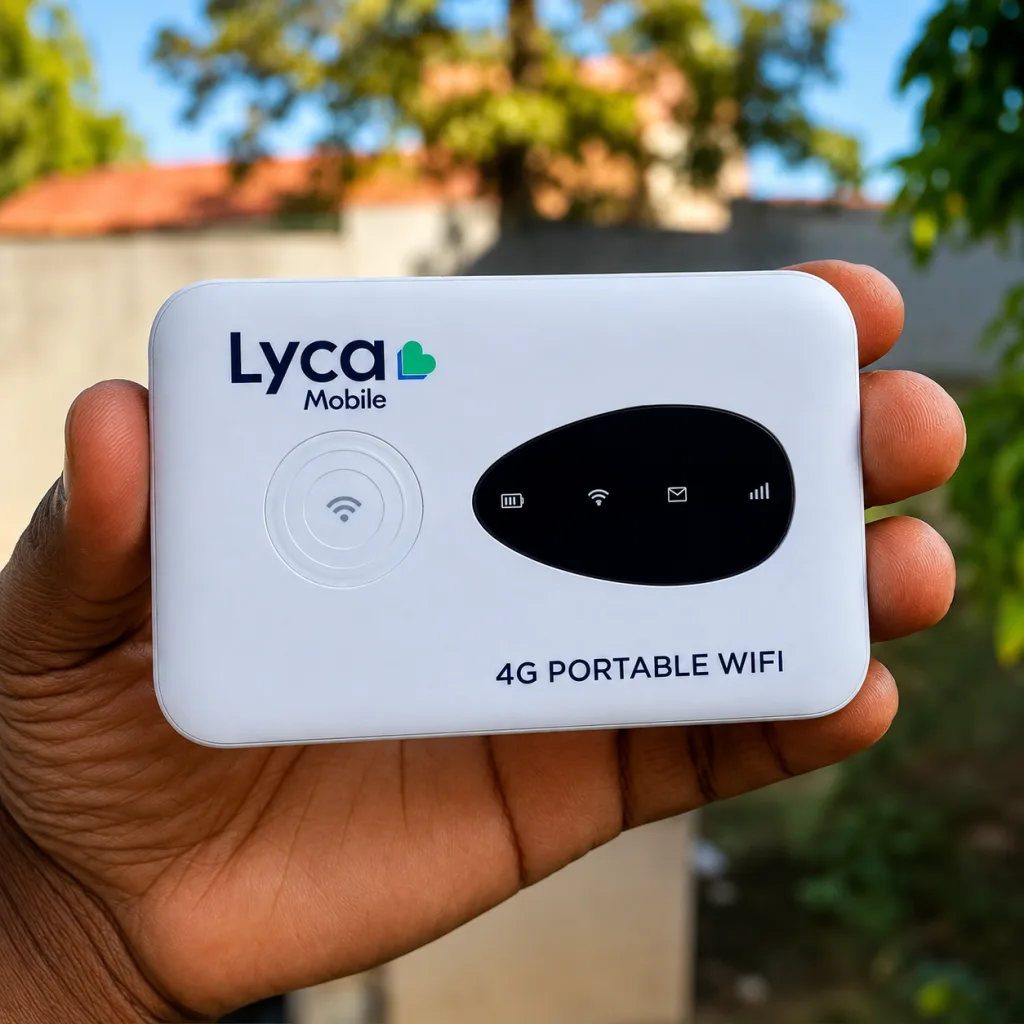
An official Lyca Mobile MiFi package costs UGX 65,000. The package includes a branded portable MiFi router and a registered Lyca Mobile SIM.
You can also use an unlocked 4G LTE MiFi from another manufacturer. Prices for these devices generally range from UGX 75,000 to UGX 150,000, depending on factors such as battery capacity and the number of devices the router can support at the same time.
A valid Ugandan National ID is needed for SIM registration. Foreign nationals can use a valid passport for registration.
Lyca Mobile MiFi Data Packages in Uganda
A Lyca Mobile MiFi uses standard Lyca Mobile Uganda data bundles. You can select a package based on the amount of data you need and its validity period.
Daily Data Packages
Daily bundles start at UGX 1,000, with options offering up to 400MB or 1GB depending on the package available. These smaller bundles can work well when you only need temporary access for browsing, messaging or other light online activity.
Monthly Data Packages
Monthly options include:
| Data | Price | Validity |
|---|---|---|
| 10GB | UGX 15,000 | 30 days |
| 20GB | UGX 20,000 | 30 days |
| 30GB | UGX 30,000 | 30 days |
Larger monthly packages can be useful when several devices connect to the MiFi or when you use the connection regularly throughout the month.
How to Buy Data for a Lyca Mobile MiFi
You can add data to your Lyca Mobile MiFi line in several ways. The easiest option depends on how you access the SIM and the payment method you want to use.
Buy Data Using Lyca Mobile USSD
You can use the Lyca Mobile USSD menu by dialing *100#. If the SIM is inside the MiFi, you can access its SMS or management interface where supported. You can also temporarily remove the SIM and place it in a compatible phone to complete the purchase. Select the data bundle you want and follow the prompts to complete the purchase.
Buy Lyca Data Using MTN Mobile Money
An MTN Mobile Money wallet can also be used to purchase data for your Lyca Mobile MiFi number.
Using your MTN line:
- Dial *217*402#.
- Enter the Lyca Mobile number in the MiFi.
- Select the bundle validity period.
- Select the data package.
- Review the transaction details.
- Continue with the payment.
- Enter your MTN Mobile Money PIN when prompted.
You can also use the MTN multi network menu by dialing *252#, selecting Airtime and Bundles, then Internet Bundles, followed by Lyca Mobile.
Buy Data Through the My Lyca Mobile Uganda App
The My Lyca Mobile Uganda app provides another way to add data to your MiFi line. Open the app, sign in with the registered Lyca Mobile number and select the data or bundle section. Choose your preferred package and complete the payment process available for your account.
How to Set Up a Lyca Mobile MiFi
An official Lyca Mobile MiFi may be ready to use once the SIM is registered and activated. An unlocked third party router may need additional configuration before it can connect to mobile data.
Follow these steps when setting up an unlocked 4G MiFi.
Step 1: Insert the Lyca Mobile SIM
Turn off the MiFi and insert your registered Lyca Mobile SIM into the SIM slot. Install the battery if the router uses a removable battery, then switch the device on. Give the router a moment to detect the SIM and connect to the mobile network.
Step 2: Connect Your Phone or Computer
Look for the Wi Fi network created by the MiFi on your phone, laptop or tablet. The default Wi Fi name and password are usually printed on a sticker inside the battery compartment or on the router itself. Connect to the network using those details.
Step 3: Open the Router Management Page
Open a browser while connected to the MiFi network and type the router management address into the URL bar.
- Official Lyca Mobile MiFi: Use 192.168.188.1 (the default gateway address for official Lyca hardware).
- Third-Party or Generic Routers: Common IP addresses include 192.168.8.1 or 192.168.1.1.
You can confirm the exact management address by checking the sticker printed under your router’s battery compartment or on the back cover.
Step 4: Sign In to the Admin Panel
Enter the router’s administrator credentials when prompted. For some devices, the default username and password are both ‘admin’. Check the label or documentation supplied with your router if those credentials do not work.
Step 5: Open Network Settings
Look for Network Settings, Mobile Network, Dial Up or Profile Management in the router interface. The exact menu name can differ between MiFi models.
Step 6: Create the Lyca Mobile APN Profile
Create a new connection profile using these settings:
| Setting | Value |
|---|---|
| Profile Name | Lycamobile |
| APN | internet |
| Username | Leave blank |
| Password | Leave blank |
Save the new profile and set it as the default connection profile.
Step 7: Restart the MiFi
Restart the router after saving the APN settings. Once it reconnects to the mobile network, connect your phone or computer to the MiFi Wi Fi network and test the internet connection. If the connection does not work immediately, check that the SIM is active, the correct APN is saved and the line has an active data bundle.
How Many Devices Can Connect to a Lyca Mobile MiFi?
The number of devices you can connect depends on the MiFi model you purchase. Different routers have different connection limits, so check the specifications of a third party device before buying it.
Phones, laptops, tablets and other Wi Fi enabled devices can share the MiFi connection once they have joined its wireless network.
Where to Buy a Lyca Mobile MiFi Device in Uganda
You can purchase an official Lyca Mobile MiFi device or compatible unlocked 4G router through several verified channels across the country:
- Official Lyca Mobile Service Centers: Visit main branches in major urban hubs like Kampala to buy the official bundled package directly.
- Authorized Dealer Shops and Retail Outlets: Independent telecommunication shops and franchise dealers located in central business districts stock registered Lyca SIMs and hardware.
- Electronics and Tech Retailers: Stores selling mobile accessories and computing hardware offer third-party unlocked 4G MiFi models that work with Lyca Mobile.
- E-Commerce Platforms: Online marketplaces like Jumia Uganda provide options for direct home or office delivery.
Lyca Mobile MiFi Uganda Price and Data Costs
| Item | Details |
|---|---|
| Official Lyca Mobile MiFi | UGX 65,000 |
| Third party unlocked MiFi | UGX 75,000 to UGX 150,000 |
| Entry daily data | From UGX 1,000 |
| 10GB monthly bundle | UGX 15,000 |
| 20GB monthly bundle | UGX 20,000 |
| 30GB monthly bundle | UGX 30,000 |
| Lyca data USSD | *100# |
| MTN Mobile Money shortcut | *217*402# |
| PayWay | *252# |
| APN | internet |
Is a Lyca Mobile MiFi Worth Getting?
A Lyca Mobile MiFi can be a useful option when you want a dedicated internet connection for several Wi Fi devices without keeping your phone’s hotspot running throughout the day. The official device costs UGX 65,000, while an unlocked router gives you more choice if you want specific hardware features.
Your ongoing cost comes from the Lyca Mobile data bundles you use. With daily options starting at UGX 1,000 and monthly packages such as 10GB for UGX 15,000, 20GB for UGX 20,000 and 30GB for UGX 30,000, you can select a package based on the amount of data you need.
Related Articles: