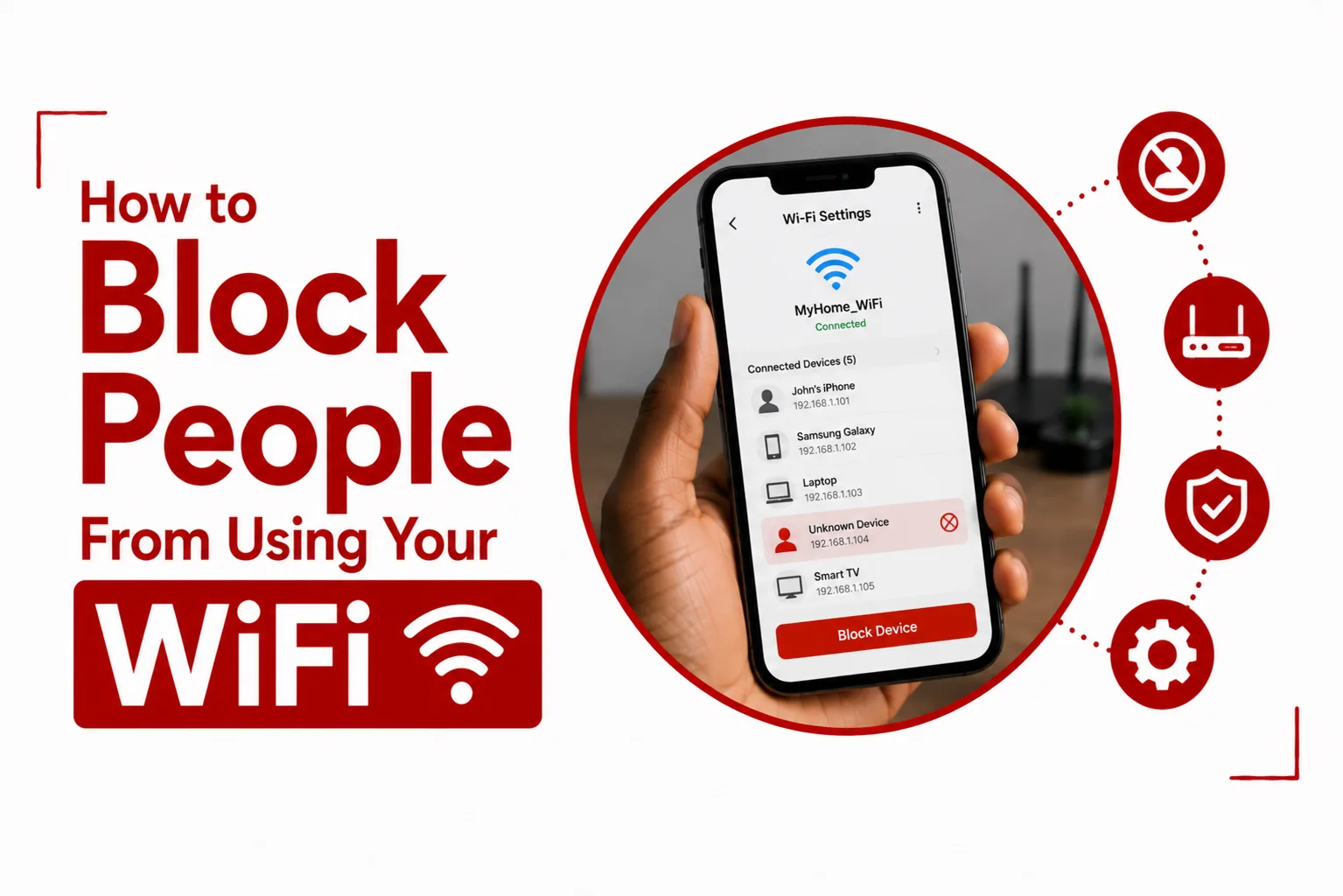

Block People From Using Your WiFi to stop strangers from slowing down your internet, using your bandwidth, or gaining access to devices connected to your home network. Even a single unauthorized user can affect streaming quality, online gaming, video calls, and overall browsing performance.
Most people only realize someone else is on their network after their internet suddenly becomes unusually slow or they notice unfamiliar devices connected to the router. While that can be worrying, fixing the problem is often much easier than many expect. Modern routers include tools that let you identify every connected device, remove unknown users, and improve your network security in just a few minutes.
In this guide, you’ll learn how to block unwanted users from your WiFi, check who is connected to your network, and put simple security measures in place to stop them from getting back in.
Table of Contents
How Do You Know Someone Is Using Your WiFi?
Before blocking anyone, it helps to confirm that an unfamiliar device is actually connected to your network. Some signs include:
- Your internet feels much slower than usual.
- Videos keep buffering even though your internet plan is fast.
- Your router lights flash heavily when nobody in your home is using the internet.
- You notice unknown phones, laptops, TVs, or smart devices connected to your network.
The easiest way to confirm this is to check the list of connected devices through your router or WiFi app.
How to See Who Is Connected to Your WiFi
Most routers let you view every device currently connected.
In many cases, the steps look like this:
- Connect your phone or computer to your WiFi.
- Open a web browser.
- Enter your router’s IP address. Common addresses include:
- 192.168.1.1
- 192.168.0.1
- 192.168.100.1
- Log in using the router’s administrator username and password.
- Open a section named Connected Devices, Device List, Clients, Network Map, or something similar.
You’ll usually see:
- Device name
- IP address
- MAC address
- Connection status
If you spot a device you do not recognize, it may be using your WiFi without permission.
Related Article: 10 Tips to Boost Your Internet at Home (For Router Owners)
How to Block People From Using Your WiFi
Once you identify an unwanted device, there are several ways to stop it from connecting again.
Block the Device Using Your Router
Many modern routers include a block or blacklist feature.
The process usually looks like this:
- Open your router settings.
- Find the connected device.
- Select the device.
- Choose Block, Blacklist, Deny, or Remove.
- Save the changes.
The device should lose internet access almost immediately.
Block the Device Using Your Router App
Many internet providers and router brands now offer mobile apps that make managing your network much easier.
Open the app, locate the connected devices list, tap the unwanted device, and choose the option to block or pause internet access. This method is often faster than logging into the router through a web browser.
Change Your WiFi Password
Changing your WiFi password is one of the most effective ways to remove everyone from the network at once.
After changing the password:
- Every connected device will be disconnected.
- Only people who know the new password can reconnect.
- Unknown users lose access immediately.
When creating a new password:
- Use at least 12 characters.
- Include uppercase and lowercase letters.
- Add numbers and symbols.
- Avoid names, birthdays, or simple words.
Related Article: Why Does My WiFi Keep Disconnecting?
How to Stop Someone From Connecting Again
Blocking a device works well, but changing a few security settings gives your network even better protection.
Use WPA3 or WPA2 Security
Your router should use WPA3 if it supports it. If not, WPA2 is still a good choice. Avoid older security modes like WEP because they are much easier to break.
Turn Off WPS
WiFi Protected Setup, also called WPS, lets devices connect using a PIN or button press. While convenient, it can also make your network easier to access. If you do not use WPS, turning it off adds another layer of protection.
Rename Your WiFi Network
Changing your network name will not stop hackers on its own, but it can help if your router still uses its default name.
Avoid including:
- Your home address
- Your surname
- Apartment number
- Internet provider account details
A simple custom name works best.
Update Your Router
Router software updates often fix security issues and improve stability. If your router supports automatic updates, leave the feature turned on. Otherwise, check for updates every few months.
Related Article: How to Block Websites on a Home Router
Can You Block a Device Without Changing the Password?
Yes. Many routers allow you to block individual devices using their MAC address or through the connected devices list. This means everyone else in your household stays connected while only the unwanted device loses access. Keep in mind that changing your WiFi password is still the better option if someone already knows your password.
Why Does Someone Keep Reconnecting to My WiFi?
If the same device keeps coming back, one of these reasons may be responsible:
- They still know your WiFi password.
- Your router did not save the blocked device list.
- MAC address filtering is turned off.
- Your router firmware needs updating.
- Your password is too easy to guess.
Changing your password and checking your router’s security settings usually fixes the problem.
Can Someone Hack Your WiFi?
Yes, although modern routers are much safer than older models. A weak password, outdated router software, or old security settings can make unauthorized access much easier. Simple habits like using WPA3, updating your router, and choosing a unique password go a long way toward protecting your network.
Frequently Asked Questions
Can I block someone from using my WiFi without them knowing?
Yes. If you block their device through your router, they will simply lose internet access. They will not receive a notification explaining why.
Will changing my WiFi password disconnect everyone?
Yes. Every phone, computer, TV, game console, and smart device will need to reconnect using the new password.
Can I see what someone is doing on my WiFi?
Most home routers only show connected devices and basic network information. They do not show everything someone is viewing online.
Can someone reconnect after I block them?
If they still know your password, they may reconnect using another device. Changing your WiFi password helps stop this.
Is MAC address blocking enough?
It helps, but changing your WiFi password and using WPA3 or WPA2 security gives better protection.
How often should I change my WiFi password?
You do not need to change it regularly if it is long and unique. Change it immediately if you think someone else has learned it.
Learning how to Block People From Using Your WiFi is one of the easiest ways to protect your internet connection. Checking your connected devices, blocking unfamiliar users, changing your WiFi password, and keeping your router updated can improve both your security and your internet speed.
If you notice unknown devices connecting again, review your router’s security settings and create a new password. A few minutes of maintenance can help keep your WiFi private and available only to the people you trust.