
WiFi that keeps disconnecting can be frustrating, especially when it interrupts a video call, stops a film or cuts off a download. The connection may return after a few seconds, only to drop again while you are using your phone, laptop or smart TV.
If you’re asking, “Why does my WiFi keep disconnecting?”, the cause could be your router, a weak signal, interference from nearby devices, settings on your phone or computer, or an interruption from your internet provider. Sometimes, your device stays connected to WiFi even though websites and apps cannot access the internet.
Start by checking if the problem affects just one device or every device on the network. This helps narrow down the cause before you try other fixes, such as restarting your router, changing its location, updating your network driver or checking for an internet service outage.
Table of Contents
Why Does My WiFi Keep Disconnecting?
Several problems can cause repeated WiFi disconnections. Some affect one device, while others interrupt the entire network.
1. Weak WiFi Signal
Your device may be too far from the router, or walls, floors, furniture and metal objects may weaken the wireless signal. When the signal becomes unreliable, your phone, laptop or smart TV may disconnect and attempt to reconnect. This often happens when the router is tucked inside a cabinet, placed on the floor or installed at the opposite end of a large house.
Try using your device in the same room as the router. If the connection becomes stable, the problem may be related to signal coverage.
2. Interference From Other Devices
WiFi signals can experience interference from nearby electronic equipment and other wireless networks. Microwaves, some bluetooth devices and neighbouring routers can affect the 2.4GHz band. If your router sits beside a microwave or is surrounded by several other wireless devices, moving it to a more open location may help.
Switching to the 5GHz band can also reduce interference in some environments, although its signal does not travel as far through walls as 2.4GHz.
3. Too Many Connected Devices
Phones, laptops, televisions, security cameras and smart home devices all share the router’s wireless capacity. Heavy activity, such as several people streaming videos while another person downloads a large file, can slow the connection. Some routers also struggle when many devices connect at once, particularly older models with limited processing capacity.
Heavy internet use more often causes slow speeds and buffering than a complete WiFi disconnection. If devices regularly lose their wireless connection, check the router’s capacity, temperature, firmware and wireless settings as well.
4. Router Overheating or Hardware Problems
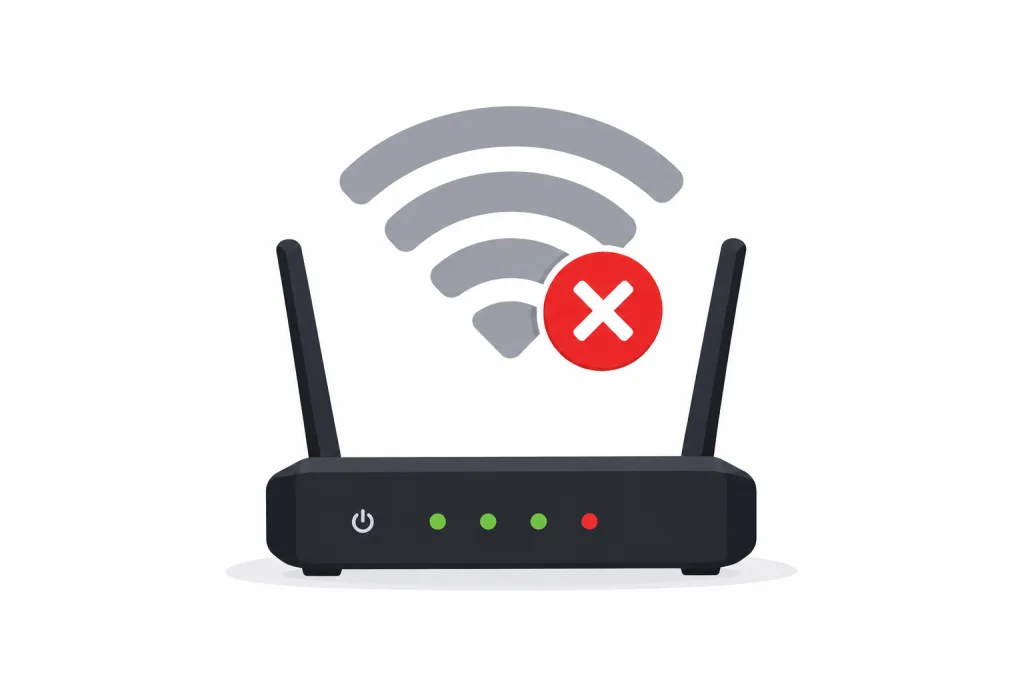
A router that becomes excessively hot may behave unpredictably or restart. Dust, poor ventilation, a faulty power adapter or ageing hardware can also contribute to connection failures. Check if the router feels unusually hot, its indicator lights restart frequently or the connection drops even when you are close to it.
Place the router in a ventilated area and keep its vents clear. If the router regularly restarts or loses WiFi across all connected devices, it may need further testing or replacement.
5. Outdated Router Firmware
Routers use firmware to manage wireless connections, security and communication with connected devices. An outdated or faulty version can contribute to instability. Check the router manufacturer’s app or administration page for a firmware update. Install updates intended for your exact model and follow the manufacturer’s instructions.
Some routers install updates automatically, so check the current firmware version before attempting a manual update.
6. Problems With Your Phone, Laptop or Other Device
If only one device keeps disconnecting while everything else works, the cause may be on that device. Possible causes include an outdated WiFi driver, power saving settings, corrupted network settings or a temporary software problem. A device may also struggle to connect to a particular router configuration even though it works on other networks.
Restart the affected device first. If the problem continues, forget the WiFi network and connect again using the correct password.
7. Internet Service Provider Problems
Sometimes the WiFi network works properly, but the router loses its connection to the internet. You may see a message such as “Connected, no internet” on your phone or computer. Websites stop loading, but the device remains connected to the WiFi network.
An outage, a fault with the modem, a damaged network cable or an interruption on the provider’s line may cause this problem. If the internet stops working across several devices at once, check the router’s internet indicator and contact your ISP if the connection does not return.
Related Article: 10 Tips to Boost Your Internet at Home (For Router Owners)
How to Fix WiFi That Keeps Disconnecting
Once you have an idea of where the problem lies, work through these checks before changing advanced settings or buying new equipment.
Restart Your Router and Modem
Restarting your network equipment can clear temporary connection problems. It does not erase the saved WiFi name or password when you use the normal power controls.
- Turn off the router and modem, if they are separate devices.
- Unplug their power cables.
- Wait at least 30 seconds, or follow your provider’s instructions if it specifies a longer period.
- Reconnect the modem first, if you have a separate modem.
- Allow the modem to reconnect to the internet and its status lights to settle.
- Turn on the router and wait for the WiFi network to become available.
- Reconnect your phone or computer and test the connection.
If you have a combined modem and router, restart that single unit. Do not press and hold the recessed factory reset button, as this can erase the network configuration.
Check if Other Devices Also Disconnect
Connect a second phone, laptop or tablet to the same WiFi network and see if it loses connection too. If only one device disconnects, focus on its settings, software and network adapter. If several devices disconnect at the same time, check the router, wireless signal and internet connection.
Also pay attention to the message displayed when the connection fails. A device that disconnects from the WiFi network has a different problem from one that stays connected but reports no internet access.
Move Closer to the Router
Use your phone or laptop near the router and watch the connection for a few minutes. If it stays connected nearby but drops in another room, weak signal coverage is a likely cause. Move the router away from walls and large metal objects, and place it on a raised surface in an open area.
Avoid placing it inside a cupboard or behind a television. A central position can improve coverage across several rooms.
Switch Between WiFi Frequency Bands
Many modern routers support the 2.4GHz and 5GHz bands. The 2.4GHz band generally reaches farther and passes through walls more effectively, but it can experience more interference from nearby networks and electronics. The 5GHz band can provide faster connections with less congestion in some locations, but its signal usually weakens more quickly through obstacles. The 6GHz band requires compatible equipment and often works best at shorter distances.
If your router displays separate network names for its frequency bands, connect to the other band and test the connection. If your router combines the bands under one WiFi name, check its app or settings for an option to separate them. Do not change several wireless settings at once, as this can make it harder to identify the cause.
Update Your Router Firmware
Sign in to your router’s administration page or open its official app. Find the firmware or software update section and check for an update for your model. Follow the manufacturer’s instructions and keep the router connected to power during the update. Interrupting a firmware installation can cause additional problems.
If the router already has the latest firmware, continue with the other checks instead of reinstalling it without a clear reason.
Forget the WiFi Network and Reconnect
A saved network profile can sometimes cause connection problems after a password change or router update. On your device, open the WiFi settings, select the affected network and tap ‘Forget’ or ‘Forget This Network’, depending on your device. Then select the network again and enter the password.
Have the correct password ready before doing this. Forgetting a network removes its saved login details, so you will need to enter them again. If the device keeps disconnecting from several different WiFi networks, the problem may be with the device itself.
Related Article: How to Block People From Using Your WiFi
How to Stop WiFi From Disconnecting on Windows
A Windows laptop or desktop may lose WiFi because of a network adapter problem, driver issue or power saving setting.
Update the WiFi Driver
- Open Settings > Windows Update and check for available updates.
- Restart the computer if an update is installed.
- If the problem continues, open Device Manager and expand Network adapters.
- Identify your wireless adapter and check for driver updates through Windows Update or your computer manufacturer’s support page.
Download drivers only from Windows Update or the official manufacturer website. Installing an incompatible driver may cause further connection problems.
Check the WiFi Adapter’s Power Settings
Some Windows computers have a power management option that allows the system to turn off the wireless adapter to save energy.
- Open Device Manager.
- Expand Network adapters.
- Right click your WiFi adapter and select Properties.
- Open the Power Management tab, if available.
- If the option appears, clear the checkbox for allowing the computer to turn off the device to save power.
This setting is not available on every computer or driver. Restart the computer and test the WiFi connection after changing it.
Reset Windows Network Settings
If other steps fail, Windows has a Network reset option that reinstalls network adapters and restores their settings to their defaults.
On Windows 11, open Settings > Network & internet > Advanced network settings > Network reset.
Use this as a later step, not the first fix. You may need to reconnect to WiFi and set up certain networking software again after the reset.
How to Fix WiFi Disconnections on iPhone and Android
If your phone is the only device losing its WiFi connection, restart it and check for a system update.
On an iPhone, open Settings, select WiFi and check the connection. You can forget the network and rejoin it if the problem continues. If several other steps fail, Reset Network Settings is available under the iPhone’s transfer or reset settings. This removes saved WiFi networks and passwords, along with certain VPN and network settings, so use it only after simpler fixes.
On Android, open the WiFi settings, select your network and reconnect. Restart the phone and check for system updates. Some models include a feature that switches between WiFi and mobile data when the wireless connection is poor. The option may have a different name or location on your phone.
If your phone stays connected to WiFi but apps cannot access the internet, test another device on the same network before resetting the phone’s settings.
Why Does WiFi Keep Disconnecting on My Smart TV?
Smart TVs can lose WiFi because of a weak signal, router compatibility, outdated TV software or a temporary network problem. Restart the TV and router, then check if the TV stays connected when it is closer to the router. Install any available software update for the television.
If the TV disconnects while other devices continue working, remove the saved WiFi network and connect again. You can also test the TV with an Ethernet cable, if it has an Ethernet port. If the wired connection works without interruptions while WiFi keeps dropping, the problem is more likely to involve the TV’s wireless connection, the router’s wireless settings or signal quality.
How to Tell if the Router or Internet Provider Is Causing the Problem
When WiFi disconnects frequently, a wired connection can help distinguish a wireless problem from an interruption affecting the internet service. Connect a computer to the router with an Ethernet cable, if possible, and test the connection while the WiFi problem occurs.
If the wired connection works normally but wireless devices keep disconnecting, focus on the router’s WiFi signal, interference, settings or wireless hardware.
If the wired connection also loses internet access, check the modem, router status lights and incoming service connection. The fault may involve the modem, router’s internet connection or ISP. If several devices lose internet access at the same time, contact your provider to check for an outage or line fault.
You can also inspect the Ethernet cable connecting the modem and router for loose plugs or visible damage. For a fibre connection, avoid sharply bending or pulling the fibre cable.
When Should You Replace Your Router?
Replacing the router should not be the first step. Start with the power supply, placement, firmware and device checks. A replacement may be worth considering if the router restarts repeatedly, overheats even with good ventilation, no longer receives security updates or cannot handle your household’s devices and internet plan.
If the signal is weak only in distant rooms, a mesh WiFi system or an additional access point may help. A wired access point can provide reliable coverage when running an Ethernet cable is possible. A newer WiFi 6 or WiFi 6E router may also help when your current equipment is limited, but it will not fix an ISP outage or a faulty incoming line.
Your WiFi connection should remain stable during ordinary use. If it repeatedly drops, first check if one device or the entire network is affected, then test the signal near the router and restart the network equipment. Driver updates, changes to wireless settings and a wired connection test can help narrow down the cause. If every device loses internet access, the router, modem or ISP may need further attention.