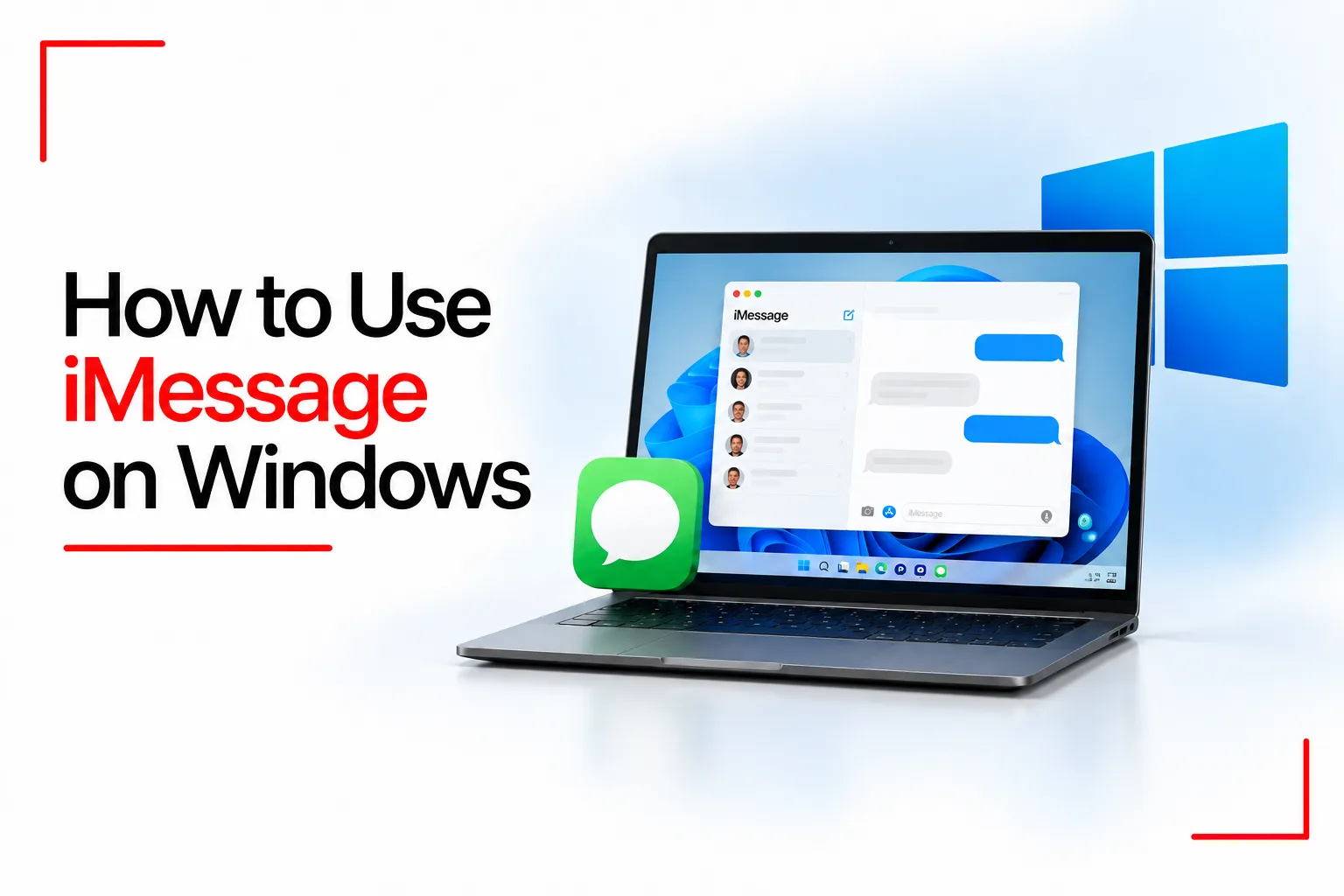

iMessage is one of the most popular features of the Apple ecosystem, giving iPhone users a convenient way to exchange messages, photos, videos and other content. It is built into Apple’s Messages app and works across iPhones, iPads, Macs and Apple Watches. You can send messages over Wi Fi or mobile data, see when someone is typing, check read receipts and take part in group conversations.
The challenge comes when you use an iPhone alongside a Windows computer. You might want to reply to a conversation while working, check incoming messages without picking up your phone or access your chats directly from your desktop. However, Apple’s messaging service is designed to work within its own ecosystem, leaving Windows users without a direct way to access their iMessage conversations.
Fortunately, there are ways around this limitation. In this guide, you’ll learn how to use iMessage on Windows, what each option involves and what you can expect when connecting your iPhone to your computer.
Table of Contents
Can You Use iMessage Directly on Windows?
Apple keeps its Messages app within its own devices, including the iPhone, iPad and Mac. There is no official Windows version of iMessage, and you cannot access your full iMessage account through a standard web browser. However, you can use third party tools to view and send messages on a Windows PC. Each method works in its own way, and the features available depend on the software you choose.
The main options include:
- Microsoft Phone Link: Connects your iPhone to Windows through Bluetooth and provides access to basic messaging features.
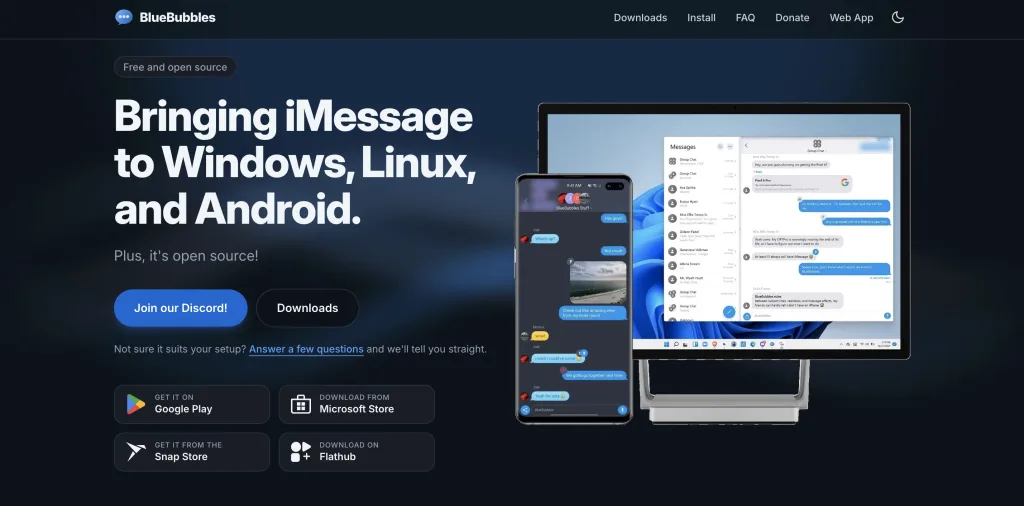
- BlueBubbles: Uses a Mac as a server to relay iMessages to a Windows app.
- Remote desktop software: Lets you access a Mac and use its Messages app through your Windows PC.
Method 1: Use Microsoft Phone Link
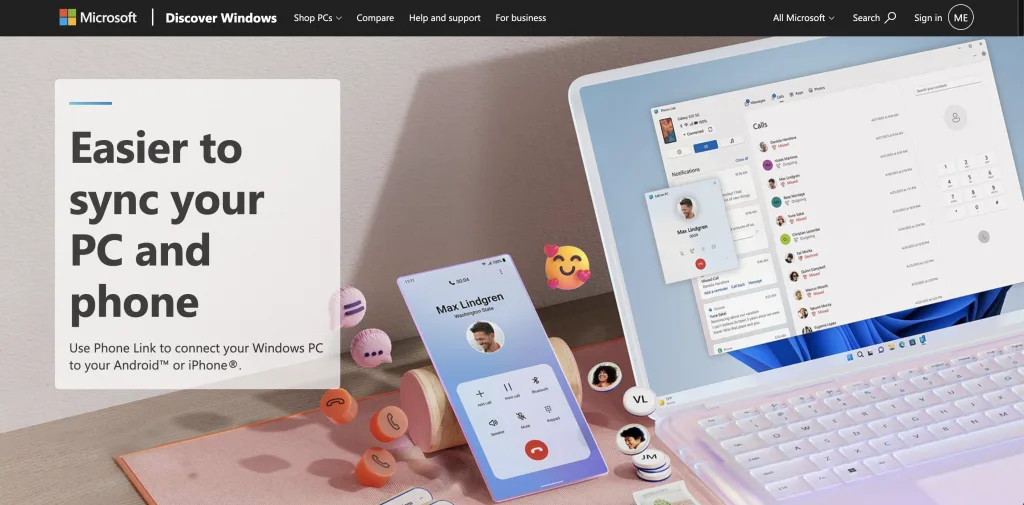
Microsoft Phone Link is the simplest option if you want to read and reply to messages without setting up a separate Mac server. It connects your iPhone to your Windows computer through Bluetooth.
What You Need
Before starting, make sure you have:
- A Windows 10 PC with the May 2019 update or later, or a Windows 11 PC.
- An iPhone running iOS 16 or later.
- Bluetooth support on your computer.
- An active Bluetooth connection between both devices.
- A Microsoft account.
You can also install the Link to Windows app on your iPhone, although it is not essential for pairing.
Related Article: How to Fix Bluetooth Pairing Issues on Windows 11
How to Connect Your iPhone to Phone Link
- Open the Start menu on your Windows PC and search for Phone Link.
- Launch the app and select iPhone as your device.
- A QR code will appear on your computer screen.
- Scan the code with your iPhone camera and follow the pairing instructions.
- Confirm the Bluetooth pairing code on both devices.
- Open Bluetooth settings on your iPhone and select the information icon beside your PC.
- Allow Show Notifications, Share System Notifications and Sync Contacts.
Once the setup is complete, open Phone Link on your PC to view messages and reply to conversations.
What Can You Do With Phone Link?
Phone Link provides basic messaging access, but it does not give you the full iMessage experience. You can read and reply to messages while your iPhone is connected to your computer.
There are a few limitations to keep in mind:
- You cannot send or receive group messages through Phone Link.
- Photo and video sharing are not supported.
- Previous conversations are not fully imported into the app.
- Messages sent directly on your iPhone may not show in Phone Link.
- Message history is limited to activity during the Bluetooth connection.
- You cannot delete conversations through the Windows app.
Phone Link is a convenient choice for basic messaging, but it may not be enough if you regularly use group chats or share media.
Method 2: Use BlueBubbles
If you want more iMessage features on Windows, you can use a Mac based relay service. BlueBubbles connect to the Messages app on a Mac and pass conversations to another device. This setup takes more work because you need a Mac that can stay powered on and connected to the internet.
What You Need
- A Mac computer, such as a MacBook or Mac mini.
- An active internet connection.
- An Apple Account with iMessage set up on the Mac.
- BlueBubbles Server .
- A compatible Windows client or web browser.
Setting Up BlueBubbles
BlueBubbles provides a Windows app that connects to its server running on your Mac.
- Download BlueBubbles Server from its official website or GitHub release page.
- Install and open the application on your Mac.
- Follow the setup instructions and grant the requested macOS permissions.
- Leave the Mac powered on and connected to the internet.
- Download the BlueBubbles client for Windows.
- Open the Windows app and follow the connection instructions.
- Sign in or enter your server details to connect the client to your Mac.
Once connected, you can access conversations through the Windows app. BlueBubbles supports text messages, group chats, media sharing, reactions and read receipts. Some advanced features need additional configuration.
Related Article: 7 Best Apps to Sync Notes Between iPhone and Windows PC
Method 3: Access Your Mac Remotely From Windows
If you already own a Mac, remote desktop software gives you another way to use iMessage on your Windows PC. You access the Mac screen remotely and open the Messages app as you normally would.
How to Set It Up
- Install a remote desktop application, such as Chrome Remote Desktop, on your Mac.
- Complete the setup and configure remote access.
- Install or open the corresponding remote desktop service on your Windows PC.
- Connect to your Mac using the access details you configured.
- Open the Messages app on the Mac.
- Sign in to iMessage if needed and use your conversations through the remote session.
This method gives you access to the actual macOS Messages app, including features that may be unavailable through Phone Link. However, your Mac must stay powered on and connected to the internet. Your messaging experience also depends on the quality of the remote connection.
What About Mirroring an iPhone Screen?
You can also use screen mirroring software to display your iPhone screen on a Windows computer. Tools such as AirDroid Cast and iMyFone MirrorTo provide options for displaying a phone screen through a PC.
However, screen mirroring does not automatically give you full control of iOS through your computer’s mouse and keyboard. Some tools support limited interaction, while others only display the phone screen. Check the software’s iOS control features before installing it.
Security Tips When Using iMessage on Windows
Be careful when downloading software that claims to provide iMessage access. Some websites advertise unofficial iMessage apps or Windows emulators that do not provide the service they promise.
Keep these precautions in mind:
- Download BlueBubbles and other tools through their official websites or trusted release pages.
- Avoid entering your Apple Account password into unknown websites claiming to provide instant iMessage access.
- Use a secure connection when accessing your Mac remotely.
- Keep your Mac and Windows software updated.
- Review the permissions granted to messaging and remote access applications.
- Avoid leaving your Mac server accessible through unsecured network settings.
With these options, you can keep up with your iMessage conversations while working on your Windows PC. Although the experience may not be exactly the same as using Messages on an Apple device, you can still send replies, check incoming texts and stay connected without constantly switching between your phone and computer.