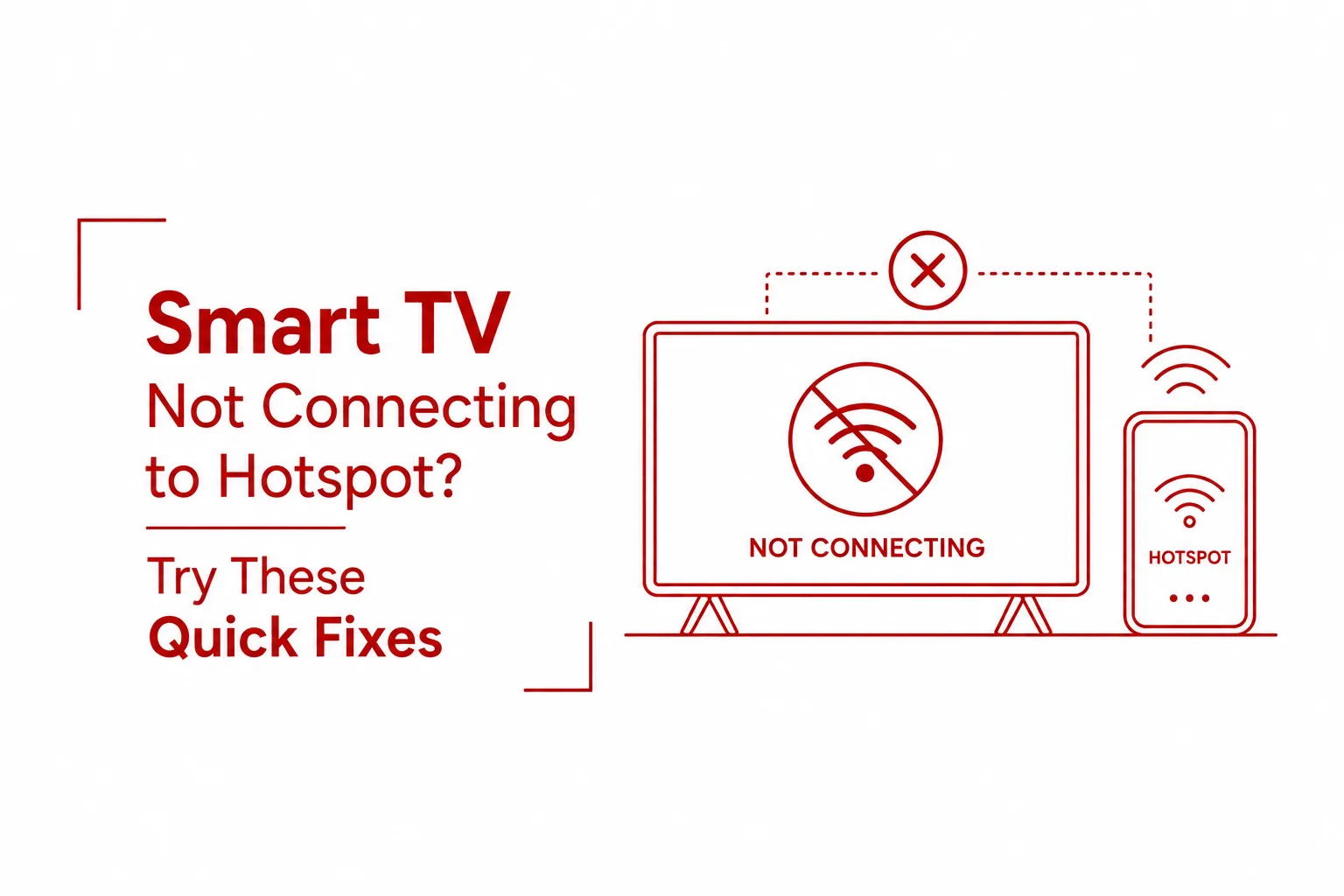

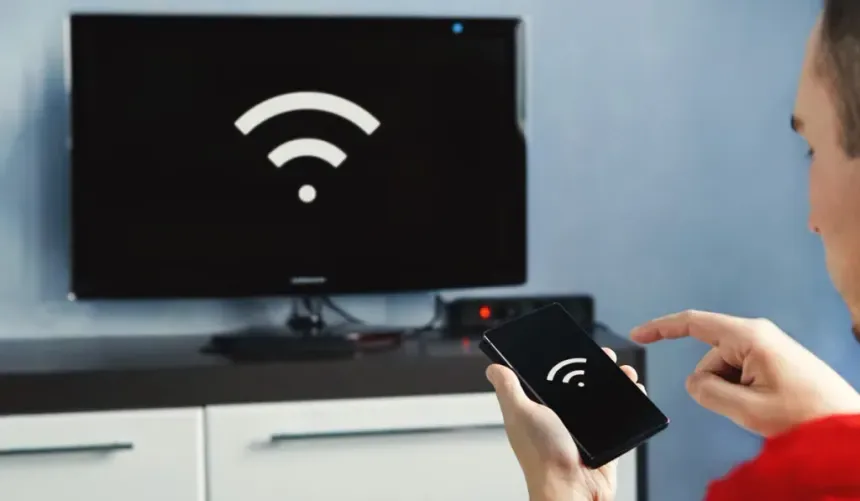
A smart TV not connecting to hotspot is rarely a signal issue, and it is almost never a reason to call your network provider. The problem is far more specific than that. Mobile hotspots and smart TVs operate under a surprisingly narrow set of compatibility conditions, and when one variable falls outside those conditions, the connection fails entirely or refuses to hold. Band frequencies have to align. Security protocols have to match. Connection limits, network addressing, and even the television’s internal clock all play a role that most users never think to check.
The causes covered in this guide account for the overwhelming majority of hotspot connection failures between a smartphone and a smart TV. Each one has a direct, testable fix that does not involve purchasing new hardware or contacting technical support.
Wi-Fi Band Mismatch
This is the single most frequent reason a smart TV cannot see a mobile hotspot at all. The TV literally cannot detect the network because it is broadcasting on a frequency the TV cannot receive.
Here is why this happens. Modern smartphones, by default, broadcast hotspots on the 5 GHz Wi-Fi band. This band delivers faster speeds and is ideal for phones, laptops, and newer devices. However, many older and budget-tier smart TVs ship with wireless hardware that only supports the 2.4 GHz band. When these two devices are speaking different frequencies, the TV will not display the hotspot name in its list of available networks, no matter how many times you refresh.
The fix: Open your phone’s hotspot settings and change the AP Band to 2.4 GHz. On iPhones running iOS 13 and later, this option appears as “Maximize Compatibility” in the Personal Hotspot settings. Toggle it on. On Android, the option is usually found under Hotspot settings as “AP Band” or “Wi-Fi Frequency Band”. Set it to 2.4 GHz, save, and ask your TV to scan for networks again.
Incompatible Security Protocols and Special Characters in the Password
Even when the band is correct, a connection can still fail at the handshake stage. This comes down to two separate but related issues: security protocol mismatches and problematic characters in your hotspot name or password.
Newer Android and iOS devices default to WPA3 security and may also broadcast using Wi-Fi 6 (802.11ax) transmission standards. These are modern improvements in wireless security and speed. The problem is that older smart TV firmware was written before WPA3 existed, and it cannot successfully complete the authentication exchange required to join such a network. The connection attempt simply fails or times out.
The second issue is less obvious. If your hotspot name or password contains special characters such as *, &, ^, %, or $, some smart TV network adapters misread these characters during authentication. A password like Myhot$pot&2024 may work on every other device and still block a TV.
The fix: In your phone’s hotspot settings, change the security type to WPA2-Personal. If your phone has a Wi-Fi 6 or advanced sharing toggle in its hotspot advanced settings, disable it. Then update your hotspot password to something straightforward: a mix of letters and numbers only, with no special characters. Save the changes, forget the network on your TV, and reconnect fresh.
Maximum Connection Limits and Accidental Blacklisting
Mobile hotspots are not designed to serve an entire household. Smartphones cap the number of devices that can connect simultaneously, and on many devices, that limit sits at five or fewer. In a home where laptops, tablets, gaming consoles, and other phones are also pulling from the same hotspot, a smart TV attempting to join may simply be turned away because the quota is full.
There is a second scenario that catches people off guard: accidental device blocking. Most smartphones allow hotspot users to block specific devices through a Connected Devices or Allowed Devices manager. If you once tapped “Block” on your TV during a previous session, the TV will be denied a connection every time thereafter.
The fix: Open the Connected Devices or Manage Devices section within your phone’s hotspot settings. Disconnect any device that does not need to be online at that moment, such as an old tablet or an idle laptop. Then check whether your TV’s MAC address appears on a blocked or denied list. If it does, remove it. Some Android devices also allow you to increase the maximum connected device count within advanced hotspot settings.
Data Roaming Settings and APN Protocol Conflicts
This cause sits at the carrier level, which is why it can be easy to overlook. Mobile carriers sometimes restrict or throttle tethering data based on your plan and the network protocol your phone is using. Two specific configurations tend to create problems for smart TVs.
First, phones operating on 5G networks can experience signal instability in certain areas, and a smart TV struggling to pull a stable IP address through an inconsistent 5G signal will fail to maintain a reliable connection. Second, if your phone’s cellular data is running on IPv6 network addressing, an older TV may be unable to obtain a valid IP address because its firmware only handles IPv4. The TV joins the hotspot but receives no usable address, leaving it connected in name only.
The fix: Go into your phone’s mobile network settings and switch from 5G Preferred to 4G/LTE. This provides a more stable signal for tethering. Next, check your Access Point Name (APN) settings. Under the APN protocol option, change it from IPv6 or IPv4/IPv6 to IPv4 only. Note that some carriers lock APN settings and do not allow user modification. If this option is greyed out, contact your carrier for guidance. Also confirm that data roaming is turned on if you are in an area where your phone is operating on a partner network.
Out-of-Sync TV System Time and Cached Memory Bugs
This final cause is one that most people would never guess. A smart TV that cannot sync its internal clock with actual network time will fail to complete secure network handshakes. Authentication protocols rely on timestamps to verify that both devices agree on when the connection is happening. A TV with a wrong date or time will be rejected during this verification step.
Beyond the clock issue, cached network data stored on the TV can also cause persistent connection failures. If the TV remembers an old configuration for the hotspot that no longer matches the current settings, it will keep attempting to connect using outdated information.
The fix: Navigate to your TV’s System Settings and look for Date and Time. Set it manually to the correct date, time, and time zone. Next, try a soft reset: hold the power button on your TV’s remote for ten to fifteen seconds until the television reboots on its own. This clears temporary cache without wiping your apps or login data. If the problem continues after the soft reset, a factory reset through the system settings will clear all stored network data and give the TV a clean slate. You will need to set up your apps again, but it reliably resolves software-level bugs that no other step can fix.
Quick Reference
| Problem | Fix |
|---|---|
| TV cannot see the hotspot at all | Switch hotspot band to 2.4 GHz |
| Connection fails at the password stage | Set security to WPA2-Personal, remove special characters |
| TV keeps getting denied entry | Disconnect other devices, check for blocked MAC address |
| TV connects but has no internet | Switch to 4G/LTE, change APN protocol to IPv4 |
| TV drops connection repeatedly | Correct TV date and time, perform soft or factory reset |
A smart TV failing to connect to a mobile hotspot is almost never a hardware fault. In the vast majority of cases, one of the five issues above is the cause, and each has a clear, testable solution. Start with the band setting, since that alone resolves the problem more often than any other fix. Work through the list methodically, and in most cases, your TV will be online before you reach the end of it.
If none of the above steps resolve the issue, it is worth checking if your TV’s firmware is up to date through the manufacturer’s support page, as some older models have released patches specifically addressing hotspot compatibility.