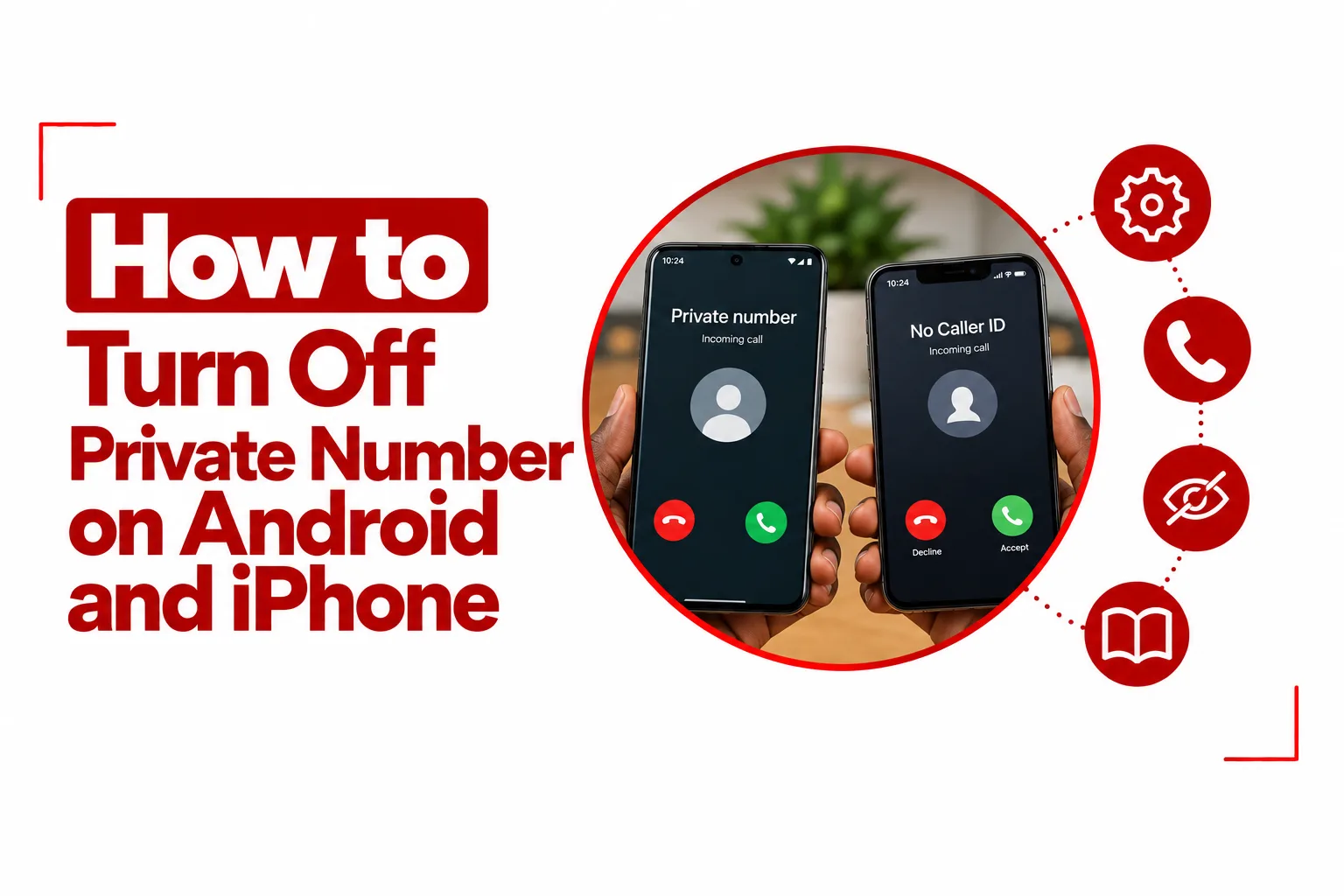

A hidden caller ID can make an ordinary phone call look unfamiliar on the recipient’s screen. Calls marked as “Private Number,” “Unknown,” or “No Caller ID” usually point to a caller ID setting on your phone or mobile network. Learning how to turn off private number settings usually takes only a few changes, although your carrier may also control how your number appears.
On an iPhone, the relevant option is Show My Caller ID. Android phones place the same control in different parts of the Phone app, with Samsung Galaxy and Google Pixel devices using different menus. A caller ID code, a hidden prefix saved with a contact, or a carrier level privacy setting can also keep your number from appearing.
The fix is often straightforward once you know where to look. This guide covers the steps for iPhone and Android, plus what to do when your caller ID setting is unavailable or changing it does not restore your number.
Quick Navigation
Why Does My Number Show as Private?
A private number usually means your caller ID information is being withheld when you make an outgoing call. Your phone, mobile carrier, or a calling service can control this setting.
Several things can cause the problem:
- Caller ID is turned off: Your phone may be set to hide your number on outgoing calls.
- Carrier privacy settings: Your mobile network may have caller ID blocking active on your account.
- Calling codes: A dialing code can hide your number for a single call or alter the caller ID setting on some networks.
- Saved number prefixes: A contact may have a caller ID blocking prefix saved before the phone number.
- Calling apps: VoIP services can use their own caller ID settings, separate from your regular Phone app.
- Dual SIM settings: On Android phones with two SIMs, caller ID preferences may be configured separately for each line.
The first place to check is your phone’s caller ID setting. If that looks correct, the next step is to check your mobile network.
Universal Fast Fix: Try a Caller ID Code
Some mobile networks support dialing codes that control outgoing caller ID. These codes are not universal, so the result depends on your country and carrier.
Try #31#
On many GSM networks, #31# is used to control caller ID blocking.
Enter #31#, then place a test call. Some networks use this code to change the caller ID setting, while others use different codes. If nothing changes, use your phone’s caller ID setting instead.
Try *82
Some North American networks use *82 to show your number for an individual call when caller ID blocking is active.
For example: *82 5551234567. This code is not supported by every network, so it may not work on your line.
Check your contacts for hidden caller ID prefixes
A caller ID prefix can be saved directly in a contact. If your number appears normally when you manually enter a number but shows as private when you call a saved contact, inspect that contact. Look for prefixes such as: #31#, *67. Remove the prefix from the saved number and try the call again.
How to Turn Off Private Number on iPhone
The iPhone has a built in caller ID setting that controls how your number appears during outgoing calls.
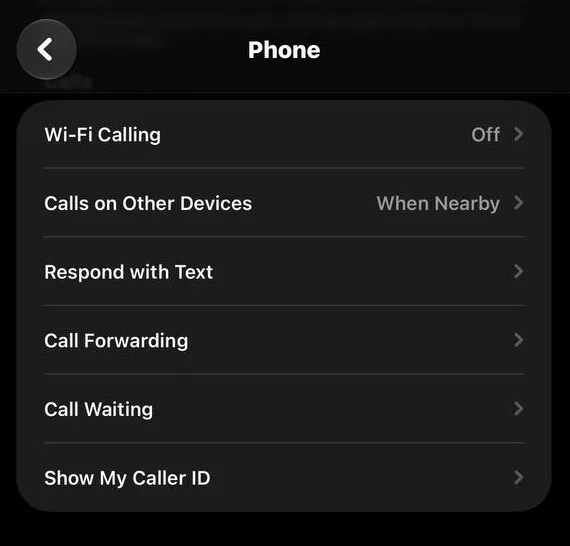
Turn on Show My Caller ID
- Open Settings.
- Tap Apps.
- Select Phone.
- Tap Show My Caller ID.
- Turn the switch on.
On some iOS versions, Phone appears directly in the main Settings menu. You can also use the Settings search field and search for Show My Caller ID. Once the setting is on, make a test call and ask the recipient to check the number displayed on their screen.
How to turn off No Caller ID on iPhone
The Show My Caller ID setting is the first place to check when your iPhone calls appear as “No Caller ID.” Make sure the switch is on. If the option is missing, unavailable, or greyed out, your mobile carrier may control caller ID for your line. Your iPhone cannot override an outgoing caller ID block imposed by the network. Contact your carrier and ask them to check the caller ID settings on your account.
How to Remove Private Number on Android
Android does not use one identical menu on every phone. Samsung Galaxy devices, Google Pixel phones, and other Android models can place caller ID controls in different sections.
Google Pixel and stock Android
On many phones using Google’s Phone app, follow these steps:
- Open the Phone app.
- Tap the three dot menu in the upper right corner.
- Select Settings.
- Tap Calling accounts.
- Select the SIM you use for outgoing calls.
- Tap Additional settings.
- Select Caller ID.
- Choose Show number or Network default.
The wording can change with your Android version and mobile network. If your phone has two SIM cards, check the caller ID setting for each line you use. Changing the setting for one SIM does not automatically change it for the other.
Samsung Galaxy
Samsung uses a separate caller ID menu on many Galaxy phones.
- Open the Phone app.
- Tap the three dot menu.
- Tap Settings.
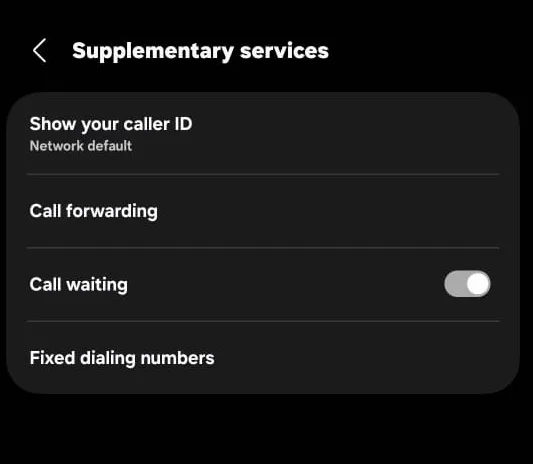
- Select Supplementary services.
- Tap Show your caller ID.
- Select Always or Show number.
Some Galaxy phones may show Network default as an option. In that case, your mobile network controls the caller ID display. A setting such as Never or Hide number keeps your number from appearing on outgoing calls.
Other Android phones
If you use another Android manufacturer, open the Phone app and look under Settings.
Common locations include:
Phone > Settings > Calling accounts
Phone > Settings > Supplementary services
Phone > Settings > Additional settings
Look for Caller ID, Show your number, Show your caller ID, or Hide number. Choose the option that displays your number on outgoing calls.
Carrier Level Settings and Account Restrictions
A phone setting does not always have the final say over caller ID. Your mobile carrier can apply caller ID blocking to your account. When that happens, selecting ‘Show number’ on Android or turning on ‘Show My Caller ID’ on iPhone may not change what the person receiving your call sees.
Contact your carrier and ask them to check for ‘outgoing caller ID blocking’ on your line. You can also check your carrier’s app or online account for a privacy setting related to outgoing calls. Some networks allow you to manage caller ID preferences yourself, while others handle the change through customer support.
Once the carrier removes the restriction, restart your phone and make another test call.
Check Third Party Calling Apps
Your normal mobile calls and calls made through internet based services do not always use the same caller ID system. Apps such as ‘TextNow’ can have their own caller ID settings. Caller identification and spam protection apps can also influence how calls are placed or displayed. To find out if an app is involved, make a test call using your phone’s standard Phone app.
If your number appears correctly during a regular mobile call but remains hidden when you call through a third party service, check the caller ID settings inside that service.
Test a Number by Dialing It Manually
A manual dialing test can help narrow down the problem. Open the Phone app and enter the recipient’s number yourself. Do not select the person from your contacts. Place the call and ask the recipient what appears on their screen.
If your number appears during the manually dialed call but shows as private when you use a saved contact, inspect the contact for a caller ID prefix such as #31# or *67. If every outgoing call remains private, check your phone’s caller ID setting and then contact your carrier.
Reset Network Settings
A network settings reset can help clear certain connection and configuration problems when the caller ID setting looks correct but calls still appear as private. This should be a later troubleshooting step because resetting network settings can remove saved Wi Fi networks, passwords, Bluetooth connections, and other network preferences.
Reset network settings on iPhone
Go to: Settings > General > Transfer or Reset iPhone > Reset > Reset Network Settings
Confirm the reset and allow your iPhone to restart.
Reset network settings on Android
The menu depends on your phone. On many Android devices, you can find the option under: Settings > System > Reset options > Reset Wi Fi, mobile and Bluetooth On Samsung Galaxy phones, it may appear under: Settings > General management > Reset > Reset network settings
After the reset, reconnect to your mobile network and make a test call. A network reset cannot remove a caller ID block applied to your carrier account. Contact your mobile network if your number remains hidden.
How to Show Caller ID on Android and iPhone
Here is a quick reference for the main settings.
| Phone | Caller ID setting |
|---|---|
| iPhone | Settings > Apps > Phone > Show My Caller ID > On |
| Google Pixel | Phone > Settings > Calling accounts > SIM > Additional settings > Caller ID > Show number |
| Samsung Galaxy | Phone > Settings > Supplementary services > Show your caller ID > Always or Show number |
| Other Android phones | Phone > Settings > Caller ID, Calling accounts, or Supplementary services |
Your menu can look different depending on your phone model, operating system, SIM configuration, and mobile network.
What to Do When Your Number Is Still Private
Work through these checks in order:
- Turn on ‘Show My Caller ID’ on your iPhone.
- Select Show number, Always, or Network default on Android.
- Check the caller ID setting for the correct SIM on a dual SIM phone.
- Inspect saved contacts for caller ID prefixes.
- Make a test call by entering the number manually.
- Check the caller ID settings in any VoIP or calling apps.
- Try a supported caller ID code such as #31# where your network supports it.
- Restart your phone.
- Reset network settings as a later troubleshooting step.
- Contact your carrier and ask them to check outgoing caller ID blocking.
A private number is usually the result of a caller ID setting on your phone or mobile network. Start with the caller ID controls on your iPhone or Android phone, then check saved contacts and third party calling apps. For iPhone, turn on Show My Caller ID. For Android, select Show number, Always, or Network default, depending on your device. When those settings are correct but your number still does not appear, your mobile carrier may have caller ID blocking active on the line.