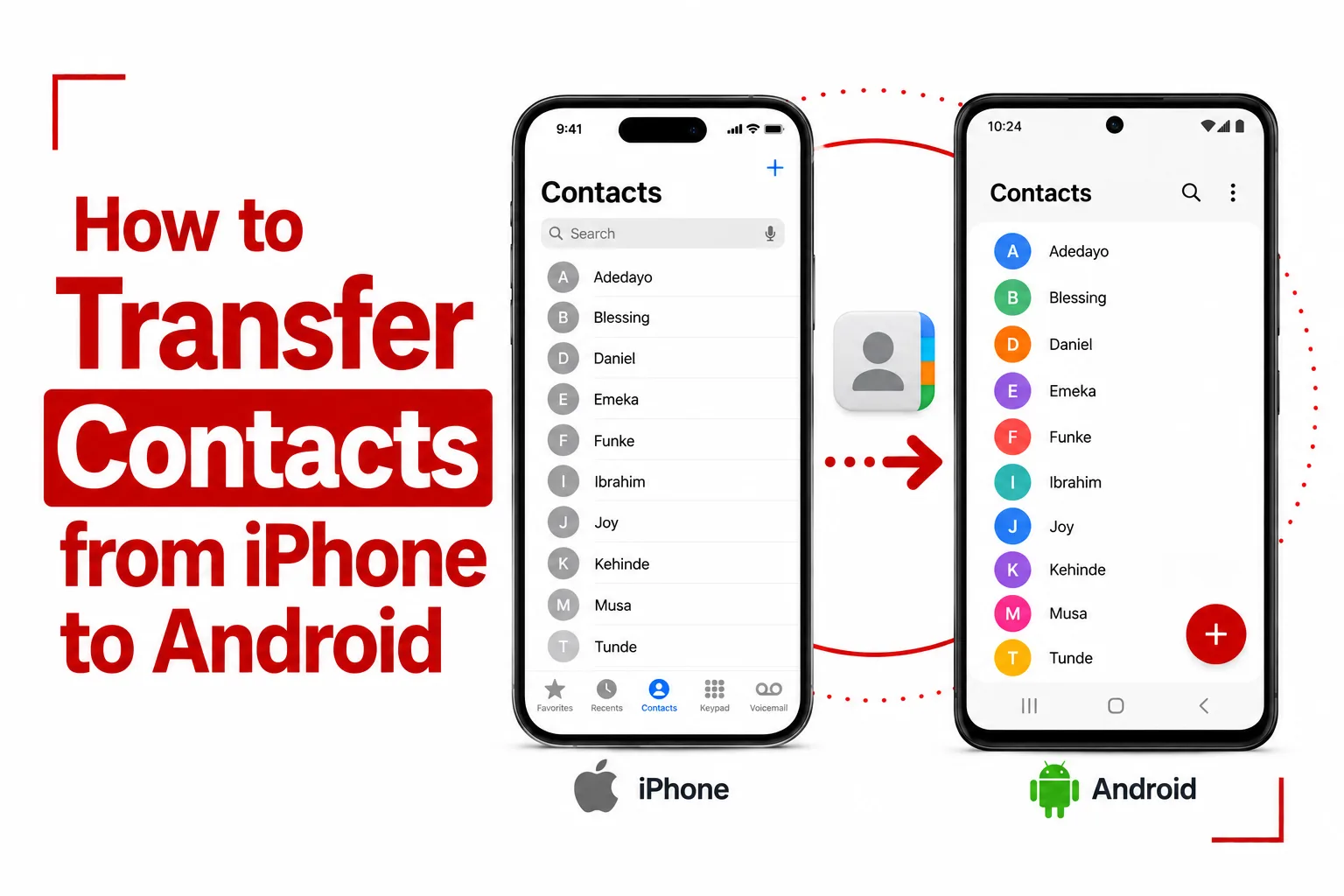

Moving to a new Android phone does not mean leaving your iPhone contacts behind. There are several straightforward ways to transfer contacts from iPhone to Android, so you can bring your address book across without manually recreating every entry.
The right option depends on where your contacts are saved and if you have already set up the Android phone. You can transfer them directly during the initial setup, sync them through a Google Account, export them from iCloud as a vCard, or import contacts stored on a physical SIM card.
A little preparation before you start can also prevent missing contacts and duplicate entries. Make sure you know where your contacts are stored, have access to your Apple Account and Google Account, and keep both phones connected to power while the transfer is in progress.
Quick Navigation
Before You Move Your Contacts
A quick check on your iPhone can save you from discovering later that some contacts did not transfer.
First, open Settings > [Your Name] > iCloud and check that Contacts is turned on if you use iCloud to store your address book.
If you use Google or another account for contacts, check the account settings on your iPhone and confirm that the contacts you want to move are associated with that account. You should also have your Google Account details ready for the Android phone. Keep both phones charged, and use a reliable Wi Fi connection if you plan to transfer contacts wirelessly.
Move Contacts During Android Setup
If the Android phone is brand new or has been factory reset, transferring your contacts during setup is one of the simplest options. Android’s setup process can copy contacts directly from an iPhone, along with other supported information. Depending on the phone, the transfer can take place through a cable or a wireless connection.
1. Start the Android Setup
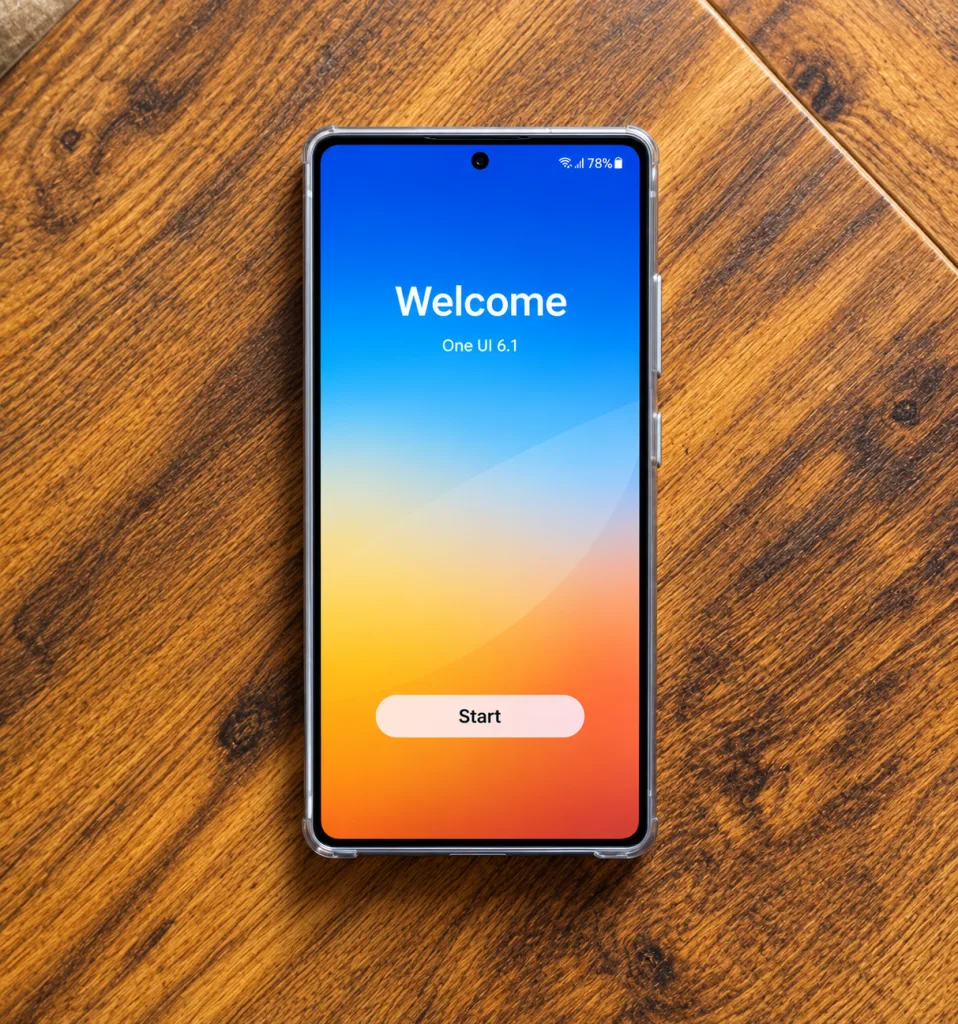
Turn on the new Android phone and tap Start. Follow the setup instructions until you reach the screen for copying apps and data from another device.
2. Choose the iPhone Transfer Option
Select the option for transferring data from an iPhone or iPad.
3. Connect Both Phones
If the Android phone asks you to use a cable, connect the iPhone and Android phone with a compatible Lightning to USB C or USB C cable. Some Android phones also offer a wireless transfer option. If it appears, follow the instructions shown on the Android phone to connect the devices.
4. Trust the Connection
A prompt may appear on the iPhone asking if you trust the connected Android device. Tap Trust, then enter your iPhone passcode.
5. Select Contacts
Choose Contacts from the data available for transfer. You can select other supported content at the same time if you are moving more than just your address book.
6. Finish the Transfer
Leave both phones connected and close together until the transfer finishes. Avoid using either phone or disconnecting the cable while the process is running.
Once complete, open the Contacts app on Android and check that your entries have appeared.
Sync Your Contacts Through Google
Google Account sync is a good option if your contacts already live in Google. It also works well if the Android phone has already been set up. The important part is making sure the same Google Account is used on both devices.
1. Check Your Google Contacts
On the iPhone, check the accounts connected to your contacts and confirm that the contacts you want to move are stored with Google. You can also sign in to Google Contacts on a computer to see if your address book is already there.
2. Add the Google Account to Android
On your Android phone, open Settings > Accounts and add the same Google Account if it is not already connected.
3. Turn On Contact Sync
Open the Google Account settings and make sure Contacts synchronization is enabled.
4. Open the Contacts App
Launch the Contacts app on your Android phone and give the phone some time to synchronize. Your Google contacts should then appear in the address book.
Export iPhone Contacts From iCloud
An iCloud vCard export gives you another way to move your address book if your contacts are stored in iCloud. This method uses a browser and does not require you to install a separate transfer app.
1. Make Sure iCloud Contacts Is Enabled
On your iPhone, go to Settings > [Your Name] > iCloud and turn on Contacts. Give the phone a moment to synchronize your address book with iCloud.
2. Open iCloud Contacts
On a computer or supported browser, sign in to iCloud.com with your Apple Account and open Contacts.
3. Select the Contacts
Select the contacts you want to move. To select the entire address book on a computer, press Ctrl + A on Windows or Command + A on Mac.
4. Export a vCard
Open the available actions menu and select Export vCard. The contacts will be saved as a .vcf file.
5. Import the File Into Google Contacts
Open Google Contacts and sign in with the Google Account you use on your Android phone. Select Import, choose the .vcf file, and wait for the upload to finish.
6. Let Android Sync
Make sure Contacts sync is active for that Google Account on the Android phone. The imported contacts should then appear in the Android Contacts app.
Import Contacts From a SIM Card
SIM card transfer is more limited than the other methods because it only works with contacts that are already stored on the physical SIM card. Your iPhone normally keeps contacts in an account such as iCloud or Google, so do not expect this method to transfer your entire address book.
1. Move the SIM Card
Take the physical SIM card from the iPhone and insert it into the Android phone, provided both phones use a compatible physical SIM.
2. Open Contacts
Launch the Contacts app on Android.
3. Find the Import Tool
Look for Fix & Manage, Settings, or Import. The wording varies between Android manufacturers.
4. Import From SIM
Choose SIM card as the source and select your Google Account or another available account as the destination. The contacts stored on the SIM card will then be added to your Android address book.
How to Check That Your Contacts Transferred
Do not assume the transfer worked simply because the process finished. A quick check can catch missing entries before you stop using the iPhone. Open the Contacts app on Android and search for several people from different parts of your address book. Check entries that include phone numbers, email addresses and other information you want to keep. If some contacts are missing, check the iPhone’s account settings to see where those contacts were stored. Contacts that remained in iCloud, another account or local storage may need to be transferred separately.
How to Avoid Duplicate Contacts
Duplicates can appear if you use more than one transfer method. For example, importing an iCloud vCard and then syncing the same contacts through Google can create two copies of the same person. If that happens, open the Google Contacts app and use Merge & fix to find and combine duplicate entries. It is best to complete one transfer method first and check your address book before trying another.
What Happens to Your Contacts After the Transfer?
Your contacts do not have to stay tied to the iPhone once they have been moved to Android. If you save them to your Google Account, they can sync across Android devices signed in to that account. Saving contacts to your Google Account also gives you an online backup, so you can restore them more easily if you change phones again. If you prefer Google’s services, making Google Contacts your main address book can also make future Android phone upgrades much easier.
Related Article: How to Transfer Contacts from Android to iPhone
Which Method Is Best?
The right approach depends mainly on your situation.
Setting up a new Android phone: Use the built in transfer process to copy contacts directly from your iPhone.
Already using Android: Google Account sync is convenient if your contacts are already stored with Google.
Contacts stored in iCloud: Export them from iCloud as a vCard and import the file into Google Contacts.
Contacts stored on a physical SIM: Use the SIM import option on Android.
For most transfers, the built in Android setup process is the easiest starting point. If your new phone is already configured, Google syncing or an iCloud vCard gives you a way to move the address book without resetting the device.