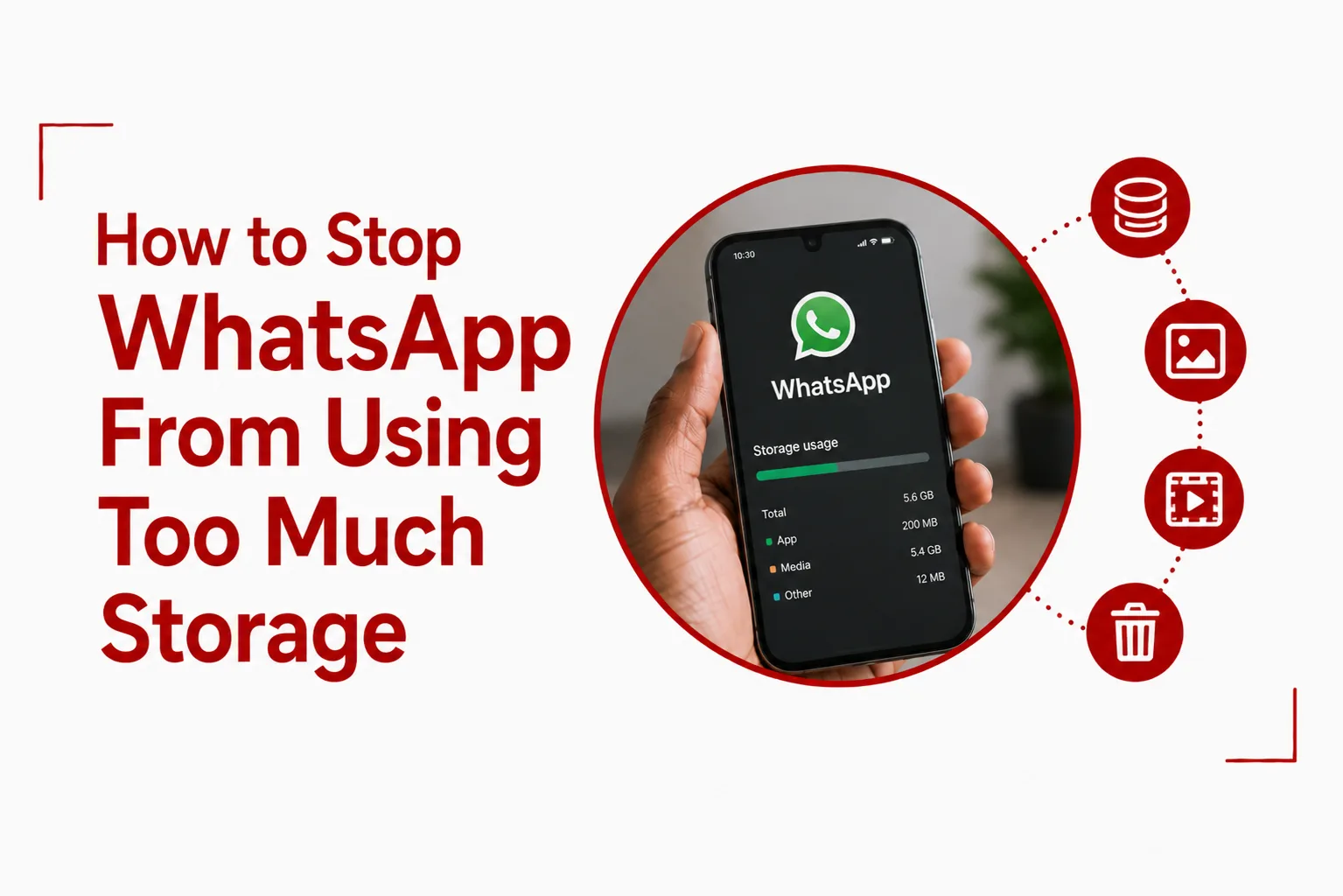

Stop WhatsApp From Using Too Much Storage by controlling automatic downloads, deleting large files, and clearing out media that has accumulated in your chats. WhatsApp can quietly consume several gigabytes of storage, especially when photos, videos, GIFs, voice notes, and documents are shared regularly.
The problem becomes more noticeable when you belong to several active group chats. A single video sent to a busy group can be saved to your phone, and the same thing can happen hundreds of times without you realizing how much space WhatsApp has taken up. Even when you rarely open those files, they can remain stored on your device.
Fortunately, WhatsApp includes several storage management tools that let you see exactly what is taking up space and remove unnecessary files without deleting your conversations. You can also change a few settings to prevent new media from filling your phone again.
Quick Navigation
How Much Storage Is WhatsApp Using?
WhatsApp can show you how much space its chats and media are consuming.
On Android and iPhone, open WhatsApp and go to:
Settings > Storage and data > Manage storage
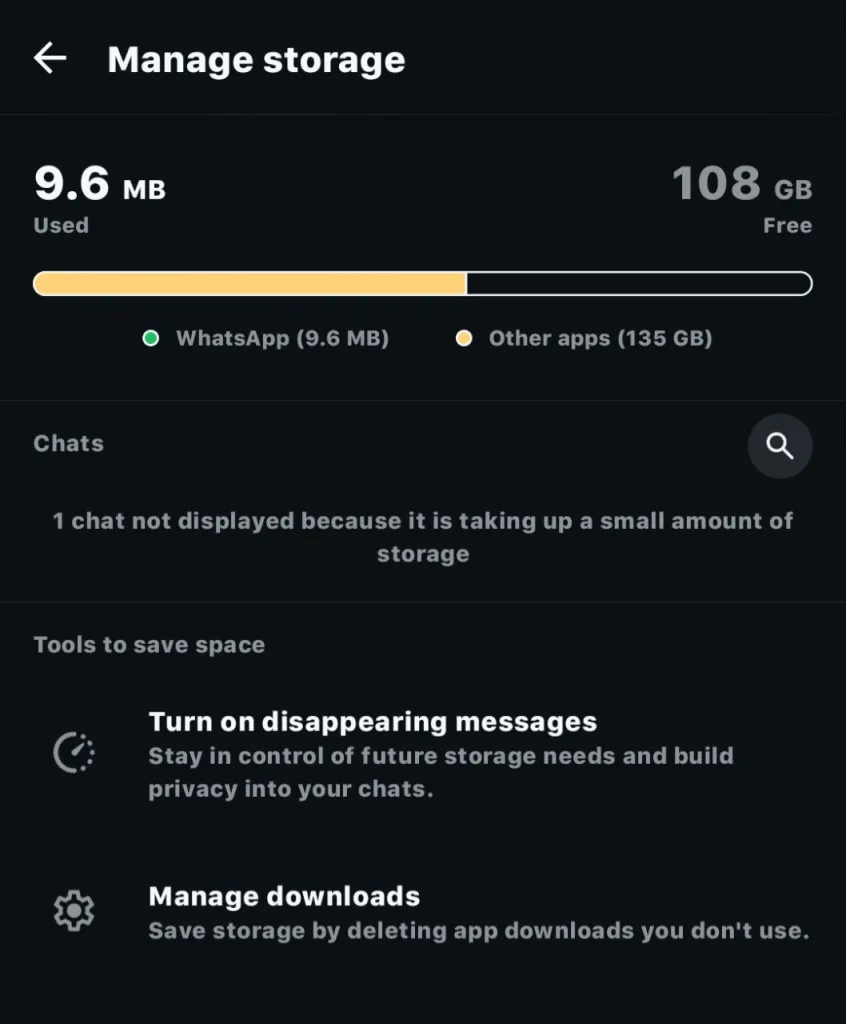
The screen shows how much storage WhatsApp is using and groups files into categories such as:
- Files larger than 5 MB
- Frequently forwarded files
- Media from individual chats and group chats
You can open a category to review the files before deleting anything. This is a useful first step because it shows you exactly where your storage is going instead of forcing you to delete files at random.
How to Delete Large WhatsApp Files
Large videos are often responsible for a significant portion of WhatsApp’s storage use.
To remove them:
- Open WhatsApp.
- Go to Settings.
- Tap Storage and data.
- Select Manage storage.
- Tap Larger than 5 MB.
- Select the files you no longer need.
- Tap the delete icon.
Review the files carefully before deleting them. Some may contain photos, videos, or documents you still want to keep. You can save important files somewhere else before removing them from WhatsApp.
How to Delete WhatsApp Media From a Specific Chat
You don’t have to clear your entire WhatsApp library. The storage manager lets you see which conversations are consuming the most space. This can be especially useful for large group chats.
Open Manage storage, select a chat, and review its media. You can then select unwanted photos, videos, documents, and other files and delete them. This gives you more control over what stays on your phone.
How to Stop WhatsApp From Automatically Downloading Photos and Videos
Automatic media downloads can cause WhatsApp to consume storage quickly. You can change what WhatsApp downloads automatically.
Go to:
WhatsApp > Settings > Storage and data
Under Media auto-download, you’ll find options for:
- When using mobile data
- When connected on WiFi
- When roaming
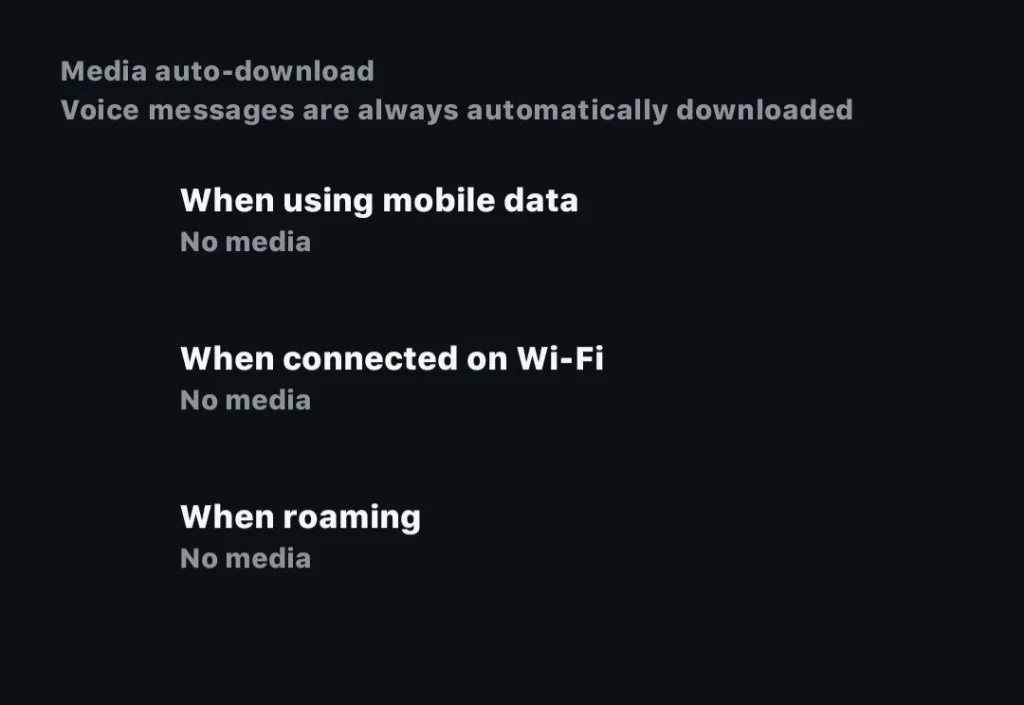
Tap each option and choose which types of media WhatsApp should download automatically. For example, you can stop videos from downloading automatically while still allowing photos to download. You can also disable automatic downloads completely and manually download files when you actually want them.
How to Stop WhatsApp Photos From Filling Your Gallery
WhatsApp can also save received photos and videos to your phone’s main photo gallery. If you don’t want this happening, change the media visibility setting on Android or the corresponding photo saving setting on iPhone.
On Android, go to:
WhatsApp > Settings > Chats > Media visibility
Turn Media visibility off.
On iPhone, go to:
WhatsApp > Settings > Chats
Turn off Save to Photos.
Your media can still remain inside WhatsApp, but new photos and videos will not automatically appear in your phone’s main gallery.
How to Stop WhatsApp From Saving Every Video
Videos can take up far more space than ordinary photos. A few minutes of high quality video can consume hundreds of megabytes. Busy group chats can therefore fill your storage surprisingly quickly.
Go to Settings > Storage and data > Media auto-download and adjust the video download settings.
A practical option is to prevent videos from downloading automatically on mobile data and WiFi. You can still tap a video whenever you want to watch it.
How to Clear WhatsApp Cache on Android
Android phones can store temporary WhatsApp data in the app cache. Clearing the cache can sometimes free up a small amount of space without deleting your conversations or WhatsApp media.
To clear it:
- Open your phone’s Settings.
- Go to Apps.
- Select WhatsApp.
- Tap Storage or Storage & cache.
- Select Clear cache.
Be careful not to tap ‘Clear storage’ or ‘Clear data’ unless you understand the consequences. Those options are different from clearing the temporary cache and can remove locally stored app data.
iPhone does not provide the same direct cache clearing option for individual apps. If WhatsApp is taking up a large amount of space on an iPhone, its built in storage management tools are the safer place to start.
How to Stop WhatsApp From Using Too Much Storage Again
Deleting old media solves the immediate problem, but WhatsApp can gradually fill your phone again. A few changes can help keep storage under control.
Review Large Files Regularly
Check Manage storage every few weeks, especially if you belong to several busy group chats. You can quickly identify large videos and other files that are no longer useful.
Turn Off Automatic Video Downloads
Videos tend to consume more storage than other common WhatsApp files. Keeping automatic video downloads off gives you more control over what gets stored on your phone.
Leave Unused Group Chats
Old group chats can continue accumulating photos, videos, documents, and voice notes. Leaving groups you no longer use can reduce the amount of new media reaching your device.
Delete Unwanted Media After Important Events
Events, birthdays, trips, work projects, and celebrations can generate hundreds of WhatsApp files in a short time. Once you have saved the photos or videos you want, delete the rest.
Does Deleting WhatsApp Photos From Your Gallery Free Storage?
Yes, but there is an important distinction. If a WhatsApp photo has been saved to your phone’s gallery, deleting the gallery copy can free storage on your phone. However, the same file may still exist inside WhatsApp or within the relevant chat.
The safest approach is to check WhatsApp > Settings > Storage and data > Manage storage when you want to see how much space WhatsApp media itself is consuming.
What Happens When You Delete WhatsApp Media?
Deleting media through WhatsApp’s storage manager removes the selected files from your device. Your chat messages can remain intact, depending on what you delete.
Before clearing a large batch of files, check the selection carefully. A photo or video that looks unimportant may be something you still want later. For important files, save them to your phone or another storage service before deleting them from WhatsApp.
Does WhatsApp Use More Storage on Android or iPhone?
WhatsApp can consume a lot of storage on both Android and iPhone. The amount depends largely on how many conversations you have, how active your group chats are, and how much media you receive and download.
The biggest difference is how each operating system handles app storage and cache data. Android gives users more direct control over an app’s cache, while iPhone provides less direct access to temporary app files.
Related Article: These Settings Might Be Why WhatsApp Is Not Working on Your Phone
Frequently Asked Questions
Why is WhatsApp taking so much storage?
WhatsApp stores photos, videos, documents, GIFs, voice messages, stickers, and other media from your conversations. Active group chats can cause this collection to grow quickly.
How do I free up WhatsApp storage without deleting chats?
Use Manage storage to remove unwanted photos, videos, documents, and other media while keeping your chat conversations.
Does clearing WhatsApp cache delete chats?
On Android, clearing the cache does not normally delete your WhatsApp chats or personal media. Do not confuse Clear cache with Clear storage or Clear data.
How do I stop WhatsApp from downloading everything?
Go to Settings > Storage and data > Media auto-download and change the download settings for mobile data, WiFi, and roaming.
Why does WhatsApp storage keep increasing?
New photos, videos, documents, voice notes, and other media continue to accumulate as you use WhatsApp. Automatic downloads can make the increase much faster.
Can I delete WhatsApp videos without deleting the chat?
Yes. WhatsApp’s storage manager lets you remove selected media while keeping the conversation itself.
Stop WhatsApp From Using Too Much Storage by taking control of the media WhatsApp downloads and keeps on your phone. Start with Manage storage to find large files and chats consuming the most space, then remove media you no longer need.
After that, review your automatic download settings. Turning off automatic video downloads and preventing WhatsApp media from being saved directly to your gallery can make a noticeable difference over time. A few minutes spent cleaning up WhatsApp now can save you from the familiar “storage almost full” warning later.