
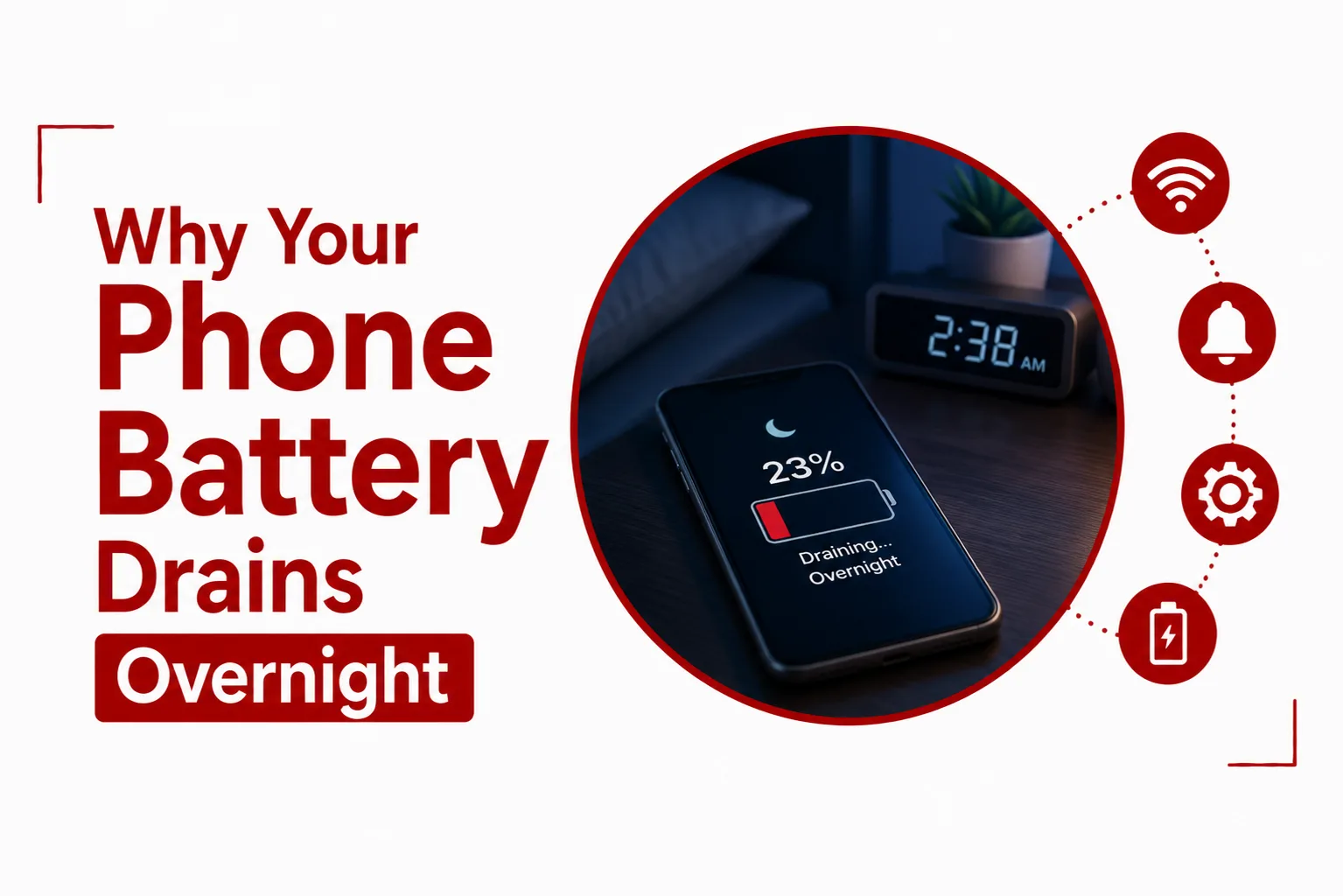

Phone battery drains overnight for reasons that go far beyond the small dip most people expect from a device sitting untouched on a nightstand. A drop of 1 to 3 percent over eight hours is completely normal, since your phone still has to maintain cellular standby and keep its internal clock running. Anything past 5 to 10 percent points to something specific happening in the background, and most of it traces back to settings you can actually control.
This piece breaks down the causes behind overnight battery drain and walks through the fixes that make the biggest difference.
What Counts As Normal Overnight Battery Loss?
A healthy phone running efficiently should lose only 1 to 3 percent overnight under good signal conditions. This baseline is there because the phone never fully shuts down, it keeps a minimal connection alive for calls, texts, and alarms. Anything noticeably higher than that usually points to one of the causes below and not a phone simply doing its job.
Weak Signal Drains Your Battery Faster
When cellular or Wi-Fi signal weakens, your phone’s modem ramps up power to its radio frequency amplifiers to stay connected to distant towers or routers. A phone sitting in a low reception spot, say one or two bars of 4G or 5G, can burn three to five times more power just searching for signal compared to a phone with full bars.
Charging your phone in a spot with better signal, even a few feet from where you normally leave it, can noticeably cut this kind of drain.
Background Apps Keep Your Phone Awake
Both Android’s Doze Mode and iOS’s Low Power State are designed to shut down unnecessary processing once the screen turns off. Buggy or poorly optimized apps trigger what’s known as a wakelock, a system request that forces the main processor to stay active, which blocks the phone from ever reaching true deep sleep.
Cloud Backups Run While You Sleep
Phones schedule heavy maintenance tasks, including cloud backups, photo indexing, and system log cleanup, usually between 1am and 5am. These tasks expect the phone to be plugged in. Left unplugged overnight, the system still attempts them anyway, pulling from battery instead of the charger.
Related Article: Swollen Phone Battery: Causes, Warning Signs, and What to Do Next
Does Always-On Display Really Use That Much Battery?
Yes, more than most people assume. Always-On Display keeps a portion of your OLED screen lit throughout the night to show the clock and notification icons, and testing shows it draws roughly 0.5 to 1.5 percent battery per hour. Stretched across an eight hour night, that alone can account for up to 12 percent of total drain, often the single biggest factor for phones losing more than expected.
How Location Tracking Contributes To Battery Loss
Apps with Always Allow location permissions, like weather, navigation, and social apps, continue polling GPS and Wi-Fi triangulation hardware even while you’re asleep. These background requests keep both the GPS receiver and cellular modem active in short bursts throughout the night, adding up to steady, avoidable drain.
Does An Old Battery Drain Faster Overnight
It does, and this one comes down to chemistry and not software. Lithium-ion batteries lose capacity and gain internal resistance once they pass roughly 500 to 1,000 charge cycles. An aged battery holds less total energy, so the same background power draw that once barely registered now shows up as a much larger percentage drop on the indicator.
How Do I Stop My Phone Battery From Draining Overnight
- Turn on Sleep or Bedtime mode. Scheduling Sleep Focus on iOS or Bedtime Mode on Android silences non-essential notifications, dims the screen, disables Always-On Display, and limits background wakeups automatically.
- Use Airplane Mode in low coverage areas. If your bedroom has weak reception, switching to Airplane Mode, and manually turning Wi-Fi back on if needed, stops the modem from constantly ramping up transmission power.
- Turn off Background App Refresh. On iPhone, go to Settings, then General, then Background App Refresh, and disable it entirely or for apps you rarely use. On Android, go to Settings, then Battery, then Background Usage Limits, and move non-essential apps into Deep Sleeping Apps.
- Restrict cloud backups to charging only. Set Google Photos, iCloud, and WhatsApp chat backups to upload only when the phone is plugged in and connected to Wi-Fi.
How Do I Find Out What’s Draining My Battery Overnight
- On iPhone: Go to Settings, then Battery, and tap the graph during the overnight hours, roughly midnight to 7am. Check the Activity Off Screen breakdown to see exactly which app used energy while your phone was locked.
- On Android: Go to Settings, then Battery, then Battery Usage, and review background usage per app since your last full charge to spot anything using more power than it should.
Most overnight battery drain comes down to a handful of settings working against you and not a phone that’s actually failing. Weak signal, unchecked background refresh, Always-On Display, and unplugged cloud backups account for the bulk of unexpected loss, and each one has a straightforward fix. Running the diagnostic steps above helps catch a rogue app early, before it turns a minor overnight dip into a battery that can’t make it to lunch.