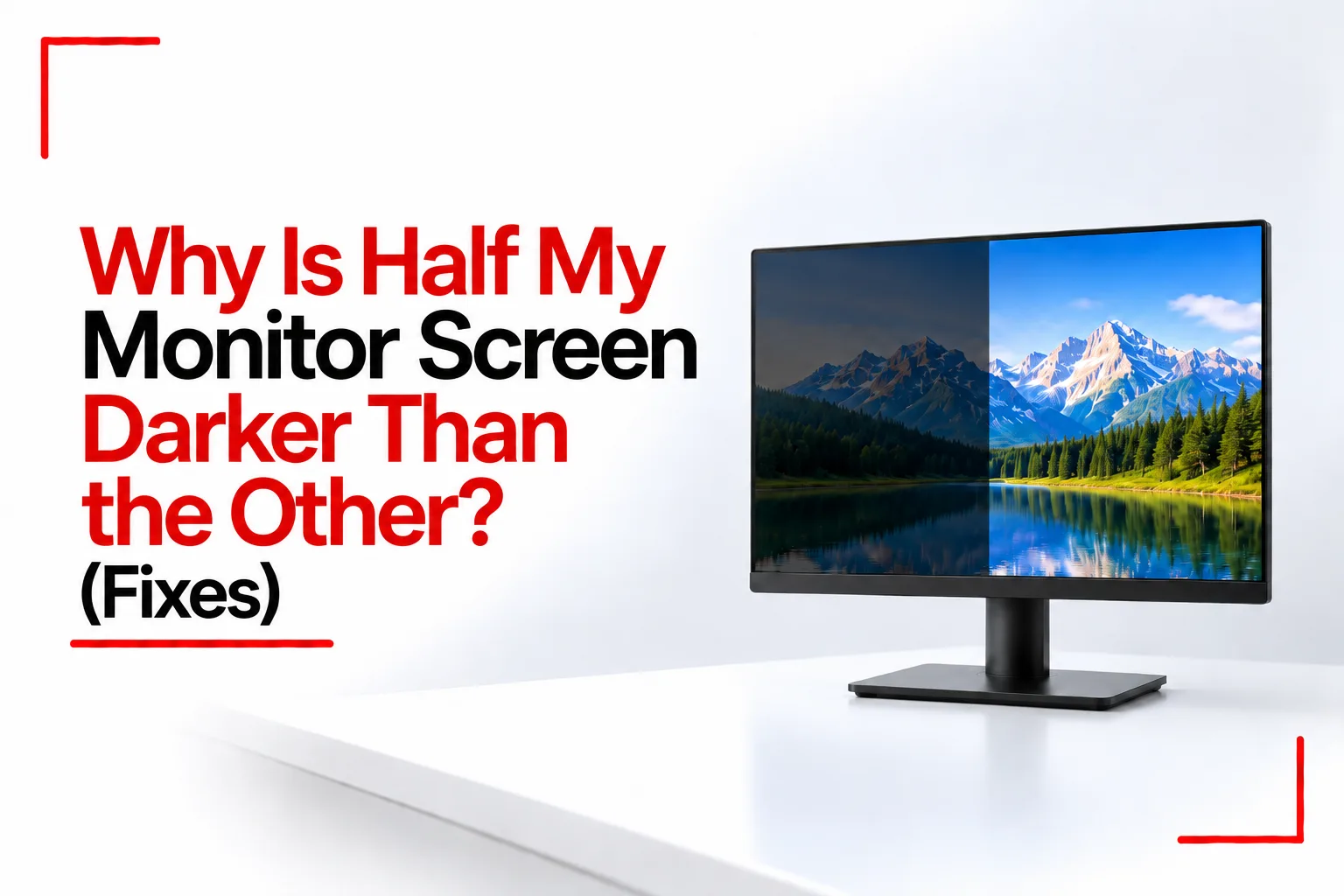

A monitor can look perfectly normal for months before one side suddenly becomes dim, develops a dark patch or turns almost completely black. The change can be confusing when the other half of the display still shows a clear picture, especially if the problem starts without warning.
A monitor screen darker on one side than the other can point to a picture setting, a power issue, a damaged cable or a fault inside the display. A failing backlight is one possibility, particularly when the same area stays dim across different devices.
A few simple tests can help narrow down the cause before you pay for repairs. Checking the monitor’s built in menu, restarting the display, testing another cable and connecting a second device can help identify where the problem is coming from.
Table of Contents
Why Is Half My Monitor Screen Darker Than the Other?
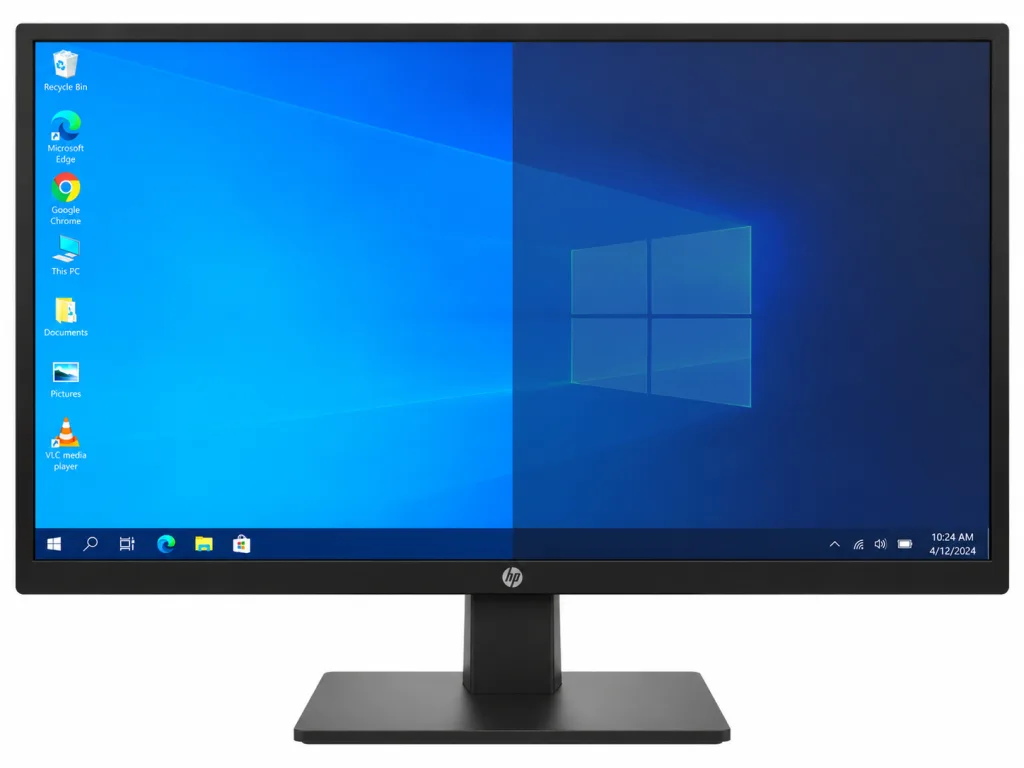
A monitor screen that is darker on one side can have a software related cause, but a clear vertical or horizontal division often points to a problem inside the display. The most likely cause depends on how the dark area looks and if it stays in the same place.
A failing LED backlight: Many LCD monitors use LEDs behind the panel to illuminate the image. If part of the backlight system fails, the affected area can look dim or black even when the rest of the screen continues to display an image.
A faulty backlight driver: The driver controls power to the LEDs. A fault in the driver or its power supply can affect part of the backlight, leaving uneven illumination across the panel.
A monitor firmware issue: Some monitors can develop uneven brightness because of a software or firmware fault. A power cycle may clear a temporary issue, and a firmware update may fix a model specific problem.
Incorrect picture settings: Local dimming, dynamic contrast, energy saving and automatic brightness features can affect screen brightness. These settings are worth checking before assuming a component has failed.
A video cable or graphics issue: A damaged cable or a problem with the graphics output can affect the displayed image. However, a cable fault is less likely to cause a clean, fixed division where one half is simply darker. If the monitor’s own settings menu is also dark on the affected side, an internal monitor fault becomes more likely.
The quickest way to narrow down the cause is to open the monitor’s on screen display menu. You can then check the power, picture settings and cable before testing the screen with another device.
How to Fix a Monitor Screen That Is Dark on One Side
Try the following checks in order. Start with the steps that do not involve opening the monitor, since internal repairs can be dangerous and may void the warranty.
1. Turn the Monitor Off and Disconnect the Power
A complete power cycle can clear temporary firmware or power management problems. Some monitor models have also had firmware issues that cause one area of the display to become dark.
- Turn off the monitor.
- Unplug its power cable from the wall outlet.
- Disconnect the video cable if you can do so easily.
- Leave the monitor unplugged for about 30 seconds.
- If the monitor has a physical power button, press and hold it for around 15 seconds while the monitor is unplugged, if the manufacturer’s instructions support this step.
- Reconnect the power cable and turn the monitor on. If you suspect a problem with a power strip or extension, try a wall outlet.
- Check the screen before reconnecting the computer, if the monitor can display its own startup screen or menu.
If the brightness returns to normal, the problem may have been temporary. If half the screen is still dark, continue with the next check.
2. Check the Monitor’s On Screen Display Menu
The on screen display, or OSD, is the menu you open using the monitor’s physical buttons or joystick. It lets you adjust brightness, contrast, colour settings and other display features without relying on Windows or macOS.
Press the monitor’s menu button and look carefully at the affected area. If the menu is also dim on the same side, the fault is more likely to be inside the monitor. A backlight problem, a panel fault or another internal component could be responsible.
If the menu looks evenly illuminated but the computer’s image is dark on one side, check the video cable, graphics settings and source device next. This test is a useful clue, not a definitive diagnosis. The menu can look normal or dark for several reasons, so use it alongside the other checks.
3. Disable Local Dimming and Energy Saving Features
Some monitors adjust their brightness automatically to reduce power consumption or improve contrast. Depending on the model, local dimming can control separate backlight zones, while dynamic contrast and energy saving features can change the overall brightness.
Open the monitor’s settings menu and look for options such as:
- Local Dimming
- Dynamic Contrast
- Eco Mode or Energy Saving
- Automatic Brightness
- HDR
Turn off the relevant features temporarily and check the screen again. You can also restore the monitor’s picture settings to their factory defaults if the menu includes a reset option. Not every monitor has these settings, and HDR does not automatically cause one half of a screen to become dark. If the brightness problem persists with these features disabled, move on to the cable and hardware checks.
Related Article: Quick Share: How to Send Files From Phone to PC Without a Cable
4. Disconnect and Reconnect the Display Cable
A loose or damaged HDMI, DisplayPort or USB C cable can cause display problems. It is not the leading explanation for a fixed dark half, but checking the connection is straightforward.
- Turn off the monitor and computer.
- Disconnect the video cable from both devices.
- Inspect the plugs for visible damage.
- Reconnect both ends firmly.
- Turn on the monitor and computer.
- If the problem continues, test a known working cable of the correct type.
If your monitor supports several video inputs, try another compatible port. For example, switch from one DisplayPort connection to another, or test HDMI if the monitor and computer support it. A loose connection or damaged cable may cause flickering, unusual colours, signal dropouts or a distorted image. If the same half of the screen stays dark with another cable, the cable is less likely to be responsible.
5. Connect the Monitor to Another Computer
Testing another source device is one of the best ways to separate a monitor fault from a computer problem. Connect the monitor to another laptop, desktop computer or compatible device using a known working cable. Use the same monitor settings and check if the dark area is still visible.
If half the screen is still dark, the problem is probably inside the monitor. The backlight, panel electronics, power circuitry or firmware may be responsible. If the image looks normal on the second device, check the original computer’s graphics settings, display driver and video output port.
You can use another compatible source, such as a game console, instead of a second computer. This test checks if the same dark area is visible when the monitor receives a signal from another device.
6. Reset the Graphics Driver and Check Display Settings
If the monitor’s own menu looks normal and the screen works correctly with another device, investigate the original computer. On Windows, press Win + Ctrl + Shift + B to reset the graphics driver. The display may flicker or briefly go black while Windows refreshes the driver. This shortcut can help with certain graphics related display problems, although it cannot repair a failed backlight.
Also check your graphics software. NVIDIA Control Panel, AMD Software and Intel Graphics Command Center include display or colour settings, depending on the hardware. Restore any recently changed settings to their defaults.
On Windows, check Settings > System > Display and turn off Night Light temporarily. On macOS, check System Settings > Displays and turn off Night Shift. These features mainly affect colour temperature across the display, so they are unlikely to cause a sharp line separating a bright half from a dark half. Checking them can still help rule out a colour setting issue.
If the problem began after a graphics driver update, check for a newer driver from your computer or graphics card manufacturer. Avoid changing several settings at once, since testing one change at a time makes it easier to identify the cause.
7. Check for a Monitor Firmware Update
A monitor can develop an uneven brightness problem because of a firmware fault. Dell has documented this issue on the U3224KB monitor, where a dark spot or backlighting that fades across half the screen can result from a firmware problem. Updating the firmware to version M2T107 or later resolves the documented issue on this model.
Check your monitor’s exact model number and visit the manufacturer’s support page to see if an update or known issue applies to it. Do not install firmware intended for another model. Follow the manufacturer’s instructions carefully, especially if the update needs a USB connection or a particular computer setup. If there is no known firmware issue for your monitor, do not assume an update will fix a physical backlight fault.
What Hardware Problems Can Make Half a Monitor Dark?
If the power cycle, settings checks and cable tests do not fix the display, the cause may be an internal hardware fault. The precise component depends on the monitor’s design and the type of display panel it uses.
Failed LED Backlight Strips
Many LCD monitors use an LED backlight to illuminate the image. If one part of this lighting system fails, the affected area can look dim or black even though the image is still being produced. A failing LED strip or a faulty connection to the backlight can leave one side darker than the other. On some monitors, the backlight is arranged in zones, so the location and size of the dark area can help a technician narrow down the fault.
OLED monitors do not use a separate LED backlight in the same way. If an OLED display has a dark half, its panel or display electronics may be responsible instead.
A Faulty Backlight Driver or Power Circuit
The backlight driver supplies and controls power to the LEDs in an LCD monitor. A fault in this circuit can prevent part of the lighting system from operating correctly.
Power supply problems can also cause unusual brightness or prevent the backlight from operating normally. Internal testing is usually needed to identify the failed part, as the visible dark area alone cannot confirm which component is at fault.
A Panel Control or Internal Cable Fault
Display panels use internal connections and control electronics to produce the image. A damaged ribbon connection, faulty panel control circuit or other internal defect can affect part of the screen. These faults may also cause lines, flickering, half a picture, unusual colours or image distortion. The exact appearance depends on the type of failure.
A technician needs to test the monitor before deciding which component needs attention. Replacing a board or cable without confirming the fault can waste money, and some panel defects are not economical to repair.
Can a Dark Half of a Monitor Be Fixed Without Replacing It?
Yes, in some cases. A power cycle, corrected picture setting, cable replacement or firmware update can fix the problem if it comes from a temporary fault or external connection.
Hardware faults are less predictable. A failed backlight strip, driver board or power circuit may be repairable by a qualified technician. The repair method depends on the monitor’s design and the failed component. Some parts can be replaced as separate modules, while others may need more specialised work. A damaged LCD or OLED panel can be much more expensive to replace, sometimes costing close to the price of another monitor.
The age of the monitor, its original price and the cost of the required part all affect the decision. A repair quote is especially useful for a high end monitor with a high refresh rate, a large screen or features that would be expensive to replace. For an inexpensive older monitor, buying another unit may cost less than a panel repair.
Check the warranty before paying for a repair. Opening the monitor yourself can void the warranty, and internal power components can retain dangerous electrical charge even after the power cable has been removed.
When Should You Get a Dark Monitor Screen Repaired?
Professional inspection is a good idea when half the monitor stays dark after you have tried another cable, another source device and a power cycle. A fault that also affects the monitor’s own menu points more clearly to a problem inside the display itself.
Stop using the monitor if you notice a burning smell, smoke, unusual electrical sounds or signs of physical damage to its power connection. Disconnect it safely and arrange an inspection. A technician can test the backlight, power circuitry, panel connections and internal control electronics to identify the failed part. Ask for a repair estimate before approving the work, especially if the fault involves the display panel.
A monitor screen that is darker on one side does not always mean the entire unit has failed. Temporary power or firmware issues and incorrect settings can sometimes be corrected without replacing parts. If the dark area stays in the same place across different computers and cables, however, an internal monitor fault becomes much more likely. The on screen menu, power cycle and source device tests are useful ways to narrow down the cause before deciding if the monitor needs repair or replacement.