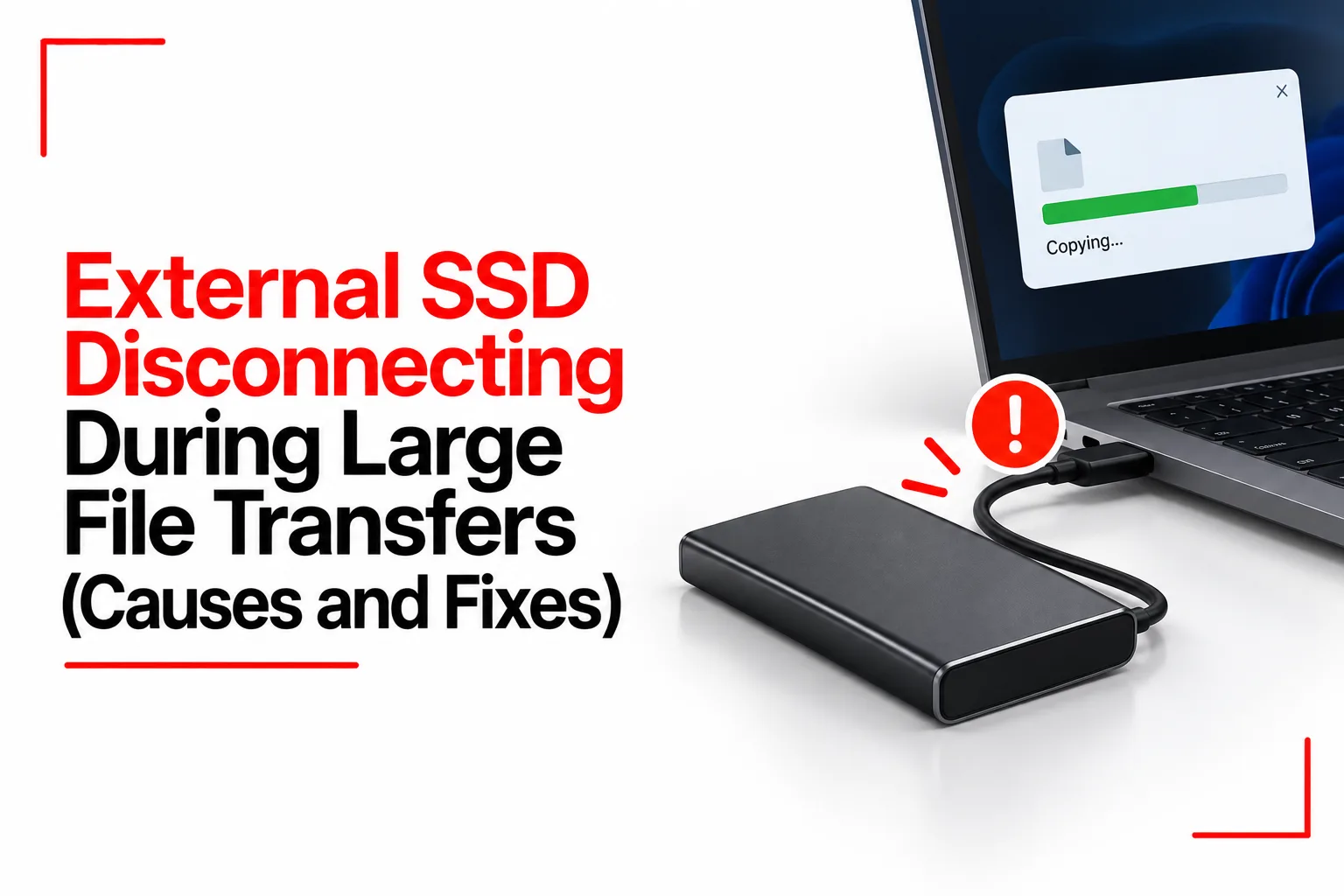

External SSDs are a popular way to store files and free up space on a computer. People use them to back up important documents, keep large photo and video libraries, transfer work files and store projects that take up too much room on their main drive. An external SSD disconnecting during a large file transfer can be frustrating, especially when you’re moving important photos, videos, or work files. The transfer may stop without warning, leaving you unsure if your files were saved properly or if you need to start all over again. Reconnecting the drive might solve the problem temporarily, but repeated interruptions can make even a simple file transfer a hassle.
If you’re experiencing external SSD disconnecting issues during large file transfers, several things could be causing the problem. A faulty USB cable, an unstable connection, overheating, insufficient power or your computer’s power settings could all interrupt the transfer. Identifying the cause helps you fix the issue and reduce the risk of losing files.
Table of Contents
Physical Hardware and Connection Issues
A faulty cable, loose connector or damaged USB port can interrupt a transfer, especially when the drive stays connected for an extended period. The SSD may work normally with small files but disconnect when you copy a large folder or move video files.
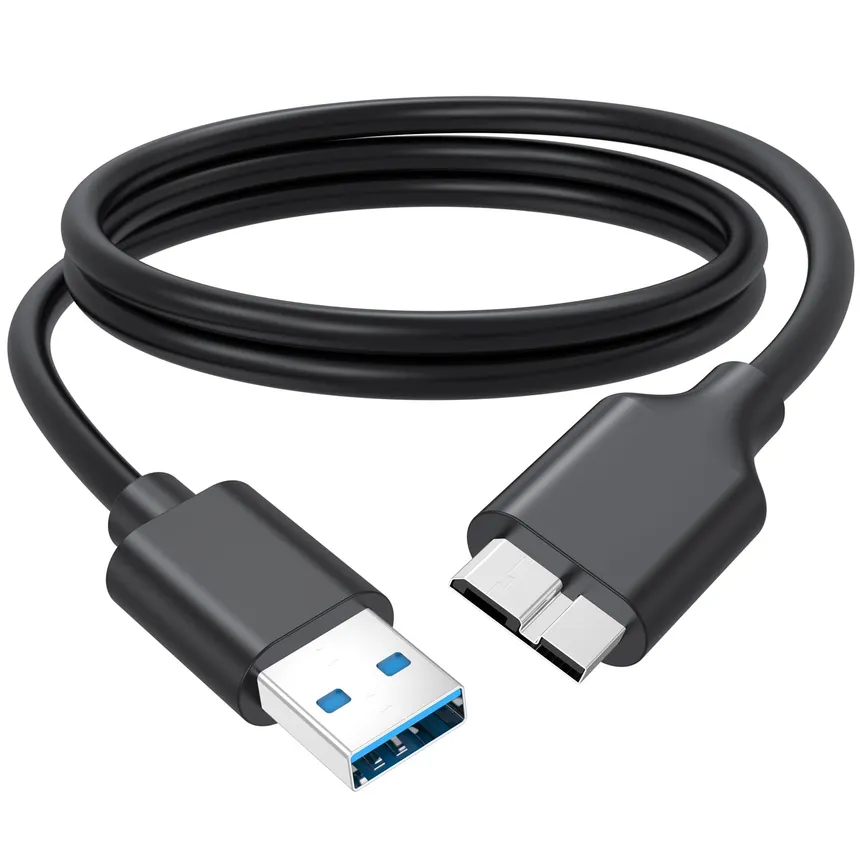
Faulty or Low Quality USB Cables
A worn cable or one that does not support the drive’s data speed can cause connection drops. Some USB C cables support charging but have limited data capabilities, and a damaged cable may lose its connection when moved slightly.
Fix: Try a known working data cable that supports your SSD’s connection speed. Connect both ends securely and avoid cables with visible damage. You do not need a Thunderbolt cable unless your drive and setup benefit from that connection type.
Loose USB Ports and Adapters
A loose port, unreliable adapter or faulty USB hub can interrupt communication between your computer and the SSD. Using several adapters also adds more connection points that could cause trouble.
Fix: Connect the SSD directly to a USB port on your computer. If you use a desktop, try another rear motherboard port. If the drive works without the hub or adapter, test that accessory separately before using it again.
Dust and Debris in the Ports
Dust or debris inside a USB port can prevent the cable from making proper contact. This is more likely to be an issue when the plug feels loose or the connection drops after slight movement.
Fix: Disconnect the drive and inspect the port under good lighting. Use a suitable air duster to remove loose debris. Avoid metal tools, liquids and excessive force when cleaning the connector.
Power Supply Problems and Overheating
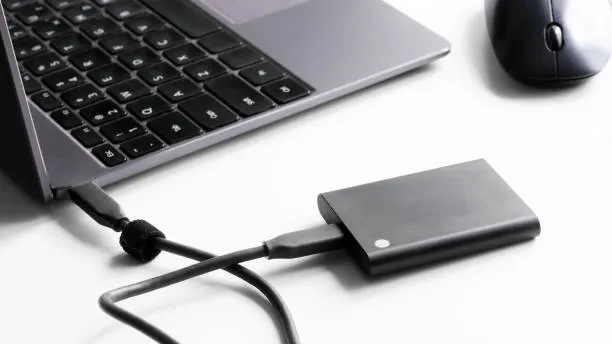
External SSDs draw power through their USB connection or a separate power supply, depending on the model. During sustained transfers, an unstable power connection or excessive heat can affect the drive’s operation.
Insufficient USB Port Power
Some USB hubs and ports may not deliver enough stable power for a particular external SSD. This can become more noticeable when several devices share one hub.
Fix: Connect the drive directly to your computer and disconnect unnecessary devices from the same hub. If a hub is necessary, try a reputable powered model that meets the drive’s power needs.
SSD Overheating
Large transfers can generate heat inside an SSD and its enclosure. Some drives reduce their speed when temperatures rise. In more serious cases, overheating or a faulty enclosure may cause the drive to disconnect.
Fix: Place the SSD on a hard surface with room for airflow. Keep it away from direct sunlight and hot laptop exhaust vents. If you use an NVMe SSD inside a separate enclosure, check that its thermal pads are installed correctly and that the enclosure is designed for the drive.
If the SSD becomes unusually hot before each disconnection, stop the transfer and let it cool. Repeated overheating may point to a problem with the enclosure or drive.
Operating System Power Management Settings
Windows and macOS have power management features that can affect connected storage devices. If your computer enters sleep mode or a USB controller loses power, an active transfer may stop.
USB Selective Suspend in Windows
USB selective suspend allows Windows to put certain USB devices into a low power state when they are not needed. Power management issues can sometimes contribute to connection problems.
Fix: First, adjust your computer’s sleep settings and test the drive through a direct USB connection. If disconnections continue, you can temporarily disable USB selective suspend in the active power plan to check if it is involved.
Open Control Panel, go to Power Options, select Change plan settings, then Change advanced power settings. Expand USB settings and look for USB selective suspend setting. The option may not be available on every computer.
USB Hub Power Management in Windows
Windows may allow the system to turn off certain USB hubs to save power. A driver or power management issue can interfere with a connected SSD.
Fix: Open Device Manager and expand Universal Serial Bus controllers. Check the properties of the relevant USB hub for a Power Management tab. If the option to allow the computer to turn off the device is available, you can temporarily clear it for testing.
Restore the original setting if it makes no difference. Avoid changing unrelated USB controller settings.
Sleep Settings on macOS
A Mac that enters sleep mode during a transfer may interrupt the connection or prevent the copy from finishing. Some external drives also have their own sleep or standby settings.
Fix: Keep your Mac awake during a large transfer and check its battery and power settings. On a laptop, connect the charger if possible. Avoid closing the lid during a transfer unless your Mac is configured to stay awake with the lid closed.
File System Errors and Outdated Drivers
A disconnect is not always caused by the cable or power supply. File system errors, USB controller drivers and SSD firmware can also contribute to storage problems.
Outdated USB Controller or Chipset Drivers
Older or faulty drivers can affect how your computer communicates with external storage. This is more likely if the SSD disconnects on one computer but works normally on another.
Fix: On Windows, check Windows Update for available driver updates. You can also visit your computer or motherboard manufacturer’s support page for chipset and USB controller drivers. Install firmware updates for the SSD or its enclosure only when the manufacturer confirms that they apply to your model.
File System Errors
An interrupted write can leave incomplete files or cause file system errors. If the SSD disconnects repeatedly, these errors may become more likely. However, a damaged file system is not always the original cause of the disconnection.
Fix: Back up any readable files before attempting repairs. On Windows, you can use the Error Checking feature in File Explorer or run chkdsk on the correct drive. On macOS, open Disk Utility and use First Aid after backing up important data.
Do not run repeated repair attempts while the drive keeps disconnecting. Stabilise the connection first, and avoid repair tools if the SSD shows signs of hardware failure.
Incompatible File System Formatting
An external SSD formatted for one operating system may have limitations on another. For example, Windows can read APFS drives only with additional software, while macOS does not natively support full NTFS write access.
Fix: Check the file system before considering a format change. NTFS is suitable for Windows use, APFS is designed for Apple systems, and exFAT is useful when sharing files between Windows and macOS. No file system guarantees that an unstable connection will stop disconnecting.
Important: Formatting erases the drive’s existing data. Back up your files and confirm the correct drive before starting. Reformatting should not be the first response to repeated disconnections.
Related Article: How to Automate File Backups to Google Drive
Insufficient Free Space and Write Cache Limits
Some external SSDs maintain a high speed write cache to handle incoming data. During a sustained transfer, that cache can fill up, causing a noticeable slowdown. A slowdown alone does not mean the drive has disconnected, but it can help identify a performance issue. An SSD that is nearly full may also have less room for internal storage management, which can affect write speeds.
Fix: Check the available storage and leave some free space on the drive. If transfer speeds drop after a large amount of data has been copied, pause the transfer and leave the SSD connected and powered on while it is idle. Some models need time to clear their write cache before high speed transfers resume.
If the drive actually disappears from your computer, investigate the cable, port, power supply, temperature and drive health as well. A full cache usually explains a slowdown, not a physical USB disconnection.
How to Tell If the External SSD Is Failing
If you have tested another cable and port but the SSD continues to disconnect, the drive or its enclosure may be faulty. Repeated input and output errors, files that cannot be read, and disconnections across multiple computers can point to a hardware problem.
Fix: Copy important files to another storage device while the SSD is still readable. Check the manufacturer’s diagnostic software for available drive health information, and look for firmware updates specific to your model. If the drive contains irreplaceable files and keeps disconnecting, stop repeated transfer attempts and consider professional data recovery. Repeated stress tests may make recovery harder if the hardware is deteriorating.
Test the SSD on Another Computer
Testing the SSD on another computer helps narrow down the source of the problem. If it disconnects on multiple systems, the cable, enclosure or drive itself becomes more suspect. If it works reliably elsewhere, your original computer’s USB port, drivers or power settings may be responsible.
Fix: Use a known working cable and connect the SSD directly to the second computer. Copy a non essential file or a file that already has a verified backup. Watch for the same disconnection pattern, and stop if the drive drops out again. Avoid formatting the drive just to test it. The goal is to identify the faulty component without putting your files at further risk.
Keep Your External SSD Connected During Transfers
An external SSD that disconnects during large file transfers can interrupt important backups or leave large video projects incomplete. A faulty cable, unstable USB port, insufficient power, overheating, operating system settings or a failing drive can all cause similar problems.
Start with the simplest checks: try a known working cable, connect the drive directly to your computer, check for excessive heat and review power settings. If the SSD continues to disconnect across multiple computers, back up your data and investigate the drive or enclosure itself. Avoid repeated transfer attempts until the connection is stable, and never format a drive containing files you have not backed up.