
Moving files between your Android phone and your Windows computer used to be a whole production. You hunted for a USB cable, waited for drivers to install, emailed files to yourself, or uploaded everything to a cloud folder just to download it again on the other side. None of that was fast. And most of it felt like a problem that should have been solved years ago.
Google’s official Quick Share utility, formerly known as Nearby Share, solves it. It is a wireless file transfer tool that works directly between Android devices and Windows PCs, no cable, no cloud upload, no data consumed from your cellular plan. If you have not set it up yet, this guide walks you through everything from how it actually works to the step-by-step transfer process and what to do when something goes wrong.
How Quick Share Works
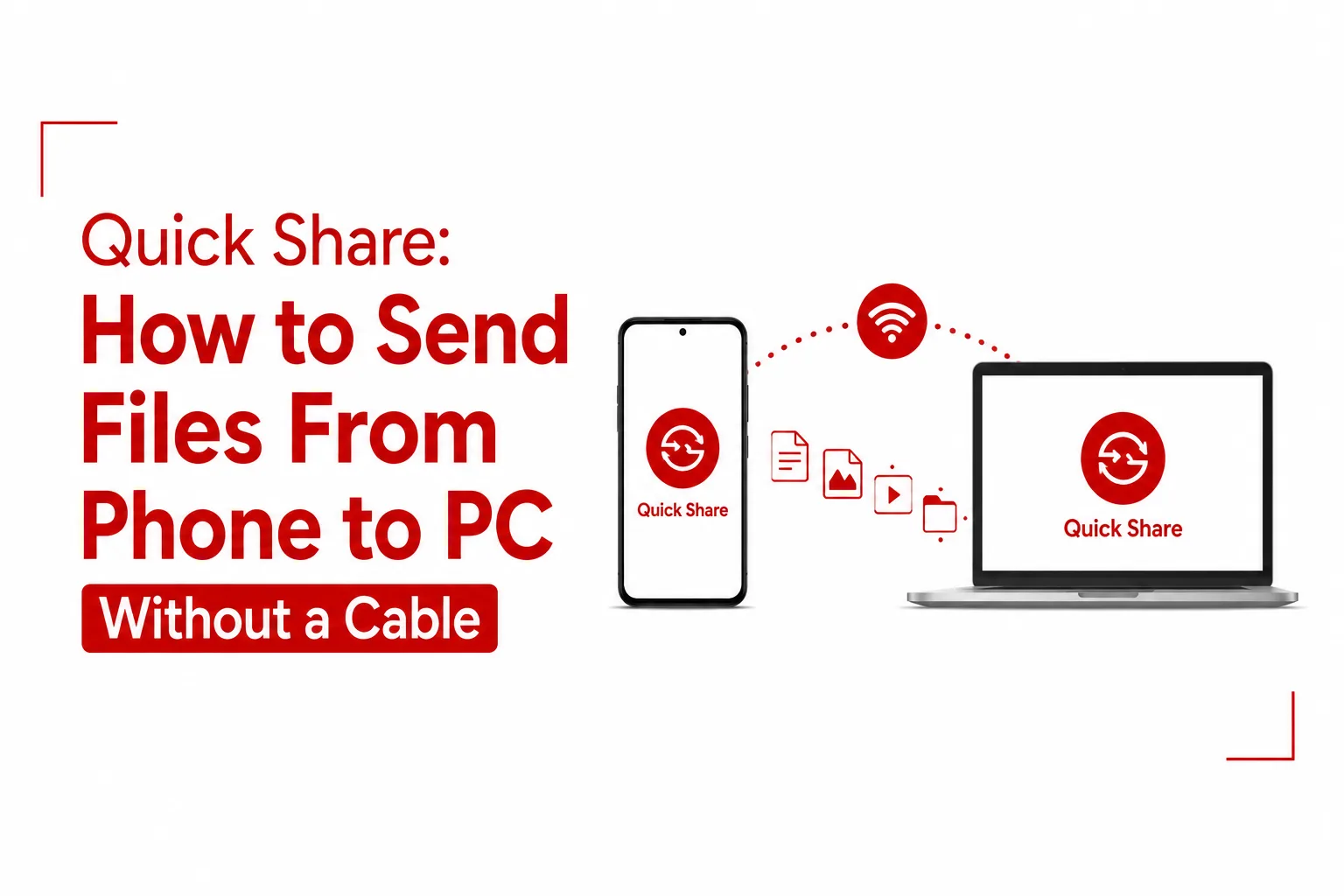
Quick Share is not a cloud-based transfer tool. It does not upload your files to a server and pull them back down on the other end. Instead, it builds a private, direct wireless connection between your two devices using a combination of Bluetooth and Wi-Fi Direct.
Here is how that process runs in practice. Bluetooth handles the initial discovery stage, the digital handshake where your phone and PC find and recognize each other. Once that connection is established, the system switches over to a point-to-point Wi-Fi connection to move the actual data. That handoff is what makes Quick Share fast.
Because it transfers over Wi-Fi Direct instead of routing through your internet connection, it moves large videos, full photo albums, and heavy documents at maximum hardware speeds. Nothing gets compressed. Nothing chews through your mobile data allowance. The files travel device-to-device at the fastest speed your hardware supports.
What Your Devices Need Before You Start
Quick Share has a few baseline hardware and software conditions. Checking these before setup saves time.
On the Android side: Your phone or tablet needs to run Android 6.0 or higher. Bluetooth and Location services both need to be toggled on for Quick Share to find nearby devices.
On the Windows side: Your computer needs to run a 64-bit version of Windows 10 or Windows 11. The machine also needs built-in Bluetooth and Wi-Fi hardware.
Proximity: Both devices need to be within 30 feet, or 10 meters, of each other with Bluetooth active. Moving too far apart during a transfer will interrupt the connection.
If your setup checks all of those boxes, you are ready to install and configure.
Setting Up Quick Share on Your Windows PC
The Windows application needs to be installed and configured before your phone can send anything to it. The process is short.
Step 1: Download the official client. Head to android.com and download the Quick Share for Windows application directly from the official Android website. Do not download it from third-party sources.
Step 2: Install and sign in. Run the installer once the download is complete. When prompted, signing into a Google Account is optional. Skipping it still works fine for one-off transfers. Signing in, however, allows your devices to transfer files in the background without needing manual approval every single time, which is worth doing if you plan to use this regularly.
Step 3: Configure your visibility settings. This step decides who can see your PC when they open Quick Share on a nearby device. You have three options:
- Everyone: Your PC is visible to any Quick Share user nearby for a temporary window of time.
- Contacts: Only people saved in your Google account’s directory can see your device.
- Your Devices: Visibility is locked entirely to your own signed-in hardware. This is the most private setting and a smart default for personal machines.
Pick the option that fits your environment and move on.

How to Send Files From Your Phone to Your PC
Once Quick Share is installed and configured on the Windows side, the actual transfer process is fast.
- On your Android device, open your files, photos, or videos and select everything you want to send.
- Tap the native Share icon, the same one you would use to send something over WhatsApp or email.
- From the list of sharing options that appears, select Quick Share.
- Your phone will scan for nearby devices. When your Windows PC name appears in the list, tap it.
- If you and your PC are not signed into matching Google accounts, a notification will pop up on your Windows desktop asking you to accept the incoming transfer. Click Accept and the download begins.
That is the complete process. For devices signed into the same Google account, the approval step is skipped entirely.
How to Send Files From Your PC to Your Phone
Sending in the other direction is just as straightforward.
- Open the Quick Share application window on your Windows desktop.
- Drag and drop the files or folders you want to send directly into the application window. If you prefer not to drag, use the Select files or Select folders buttons inside the app.
- Your PC will display a list of nearby devices. Click the name of your Android phone or tablet to push the transfer across.
The file arrives on your phone without any additional steps on the Android side, provided both devices are signed into the same Google account. Otherwise, your phone will prompt you to accept.
Troubleshooting When Quick Share Will Not Connect
Most Quick Share problems trace back to one of three network-level conflicts. Knowing what to check first cuts the frustration significantly.
The same network rule. While Wi-Fi Direct creates its own bridge between devices, transfers run most reliably when your phone and PC are both connected to the same home or office Wi-Fi router profile. If one device is on a different network, discovery can fail.
Public Wi-Fi blockers. Coffee shops, hotels, universities, and most public networks activate something called access isolation, a setting that prevents devices connected to the same network from seeing each other. If you are on public Wi-Fi and Quick Share cannot find your device, switch your phone to a personal mobile hotspot and connect your PC to it instead. That resolves the block immediately.
Bluetooth discovery failures. If the PC simply will not find the phone during the initial scan, toggle Bluetooth off and back on across both devices. This forces a fresh discovery scan and clears any stalled pairing state that might be blocking detection.
The cable-free transfer that Quick Share delivers is not a novelty feature. For anyone who regularly moves photos, videos, documents, or work files between an Android phone and a Windows PC, it removes a friction point from the daily workflow. No cloud storage subscription is needed. The files go from one device to the other at hardware speed, privately, and without touching the internet.