
Smartphones have plenty of useful tools beyond calls, messages, photos and social media. Some are tucked away in settings menus, while others sit inside apps you use every day without much attention. These hidden smartphone features can help you manage storage, protect your privacy, navigate without internet access and complete everyday tasks with fewer steps.
Many of these tools are already available on Android phones and iPhones, although their names and settings may change across devices and software versions. Learning where to find them can help you get more out of your phone without installing extra apps.
Table of Contents
Data Management and Security Features
Your smartphone stores photos, videos, documents, app data and personal information. A few settings can help you manage that data, control app access and keep private information away from other people.
Smart Storage Management
Running out of storage can prevent you from taking photos, downloading apps or saving files. Android phones and iPhones have built in storage tools that help you identify large files, unused apps and content taking up space.
On Android, open Settings and look for Storage to see how much space your apps, downloads and media use. On an iPhone, go to Settings, General, iPhone Storage. You can review large apps, delete unwanted downloads and offload unused apps on supported versions of iOS.
Cloud storage can also help you keep photos and documents without storing every copy locally. Check that your files have uploaded successfully before deleting local copies.
Screen Pinning
Screen pinning on Android lets you keep one app open while preventing someone from navigating to other parts of your phone. It is handy when lending your phone to a friend who needs to make a call, watch a video or play a game.
To use it, search for App pinning or Screen pinning in your Android settings and turn it on. Open the app you want to pin, access the recent apps screen and select the pin option. You can set the phone to ask for your PIN, password or pattern before someone exits the pinned app.
The feature is not available under the same name on every phone. On an iPhone, Guided Access provides a similar option, allowing you to restrict the device to one app and limit access to selected screen areas.
App Privacy Permissions
Some apps ask to access your camera, microphone, location, contacts or photos. You can review these permissions and remove access when an app does not need it.
On Android, open Settings, then Privacy or Security and privacy, and look for Permission Manager. On an iPhone, open Settings, then Privacy & Security. You can review individual permissions and decide which apps may access personal information.
Location access deserves particular attention. A weather app may need your location to show local conditions, while a simple calculator has little reason to use it. You can also restrict location access to the time an app is open, where your phone supports that option.
Navigation and Offline Features
Some phone features help you get around more easily, even when you have no mobile data or want to use less screen space.
Download Maps for Offline Use
Google Maps lets you download maps for selected areas before travelling. This is useful when visiting a new city, travelling through areas with poor mobile coverage or trying to save data.
Open Google Maps, search for the area you need, tap the place name and look for the download option. You can then access the saved map without an internet connection.
Offline maps have limitations. Walking, cycling and public transport directions may not be available offline, and live traffic information requires a connection. Download the area before leaving home and make sure there is enough free storage on your phone.
Gesture Based Navigation
Many smartphones let you replace the traditional navigation buttons with swipes and gestures. This can free up screen space and make moving between apps feel more natural.
On Android, look under Settings and search for Navigation mode or System navigation. Choose gesture navigation if your device supports it. You can usually swipe up to return to the home screen, swipe up and hold to view recent apps, and swipe inward from either side to go back.
iPhones use gestures as their main navigation method. Swiping up returns you to the Home Screen, while swiping up and pausing opens the app switcher on supported models.
One Handed Mode
Large phone screens can make it difficult to reach the top corners with your thumb. One handed mode moves the interface closer to the bottom of the display, making controls easier to reach while holding the phone in one hand.
On supported Android phones, search Settings for One handed mode and turn it on. The activation gesture depends on the manufacturer and navigation settings.
On an iPhone with Face ID, swipe down on the bottom edge of the screen to activate Reachability. The upper part of the display moves down, allowing you to reach controls without shifting your grip as much.
Display and Shortcut Customisation
Your phone has several settings that let you adjust the screen and reach frequently used tools with fewer taps.
Reading Mode and Blue Light Filters
Reading modes change the display’s colours, brightness or background to make text easier to read. Night Light on Android and Night Shift on iPhone shift the display towards warmer colours, which some people prefer in the evening.
On Android, search Settings for Night Light, Eye Comfort or Reading Mode. On an iPhone, go to Settings, Display & Brightness, then Night Shift.
You can schedule these settings to activate automatically at a chosen time. The effect depends on the device and display settings, and warmer colours do not guarantee better sleep. Adjust brightness to a comfortable level when reading in a dark room.
Customise Quick Settings and Control Centre
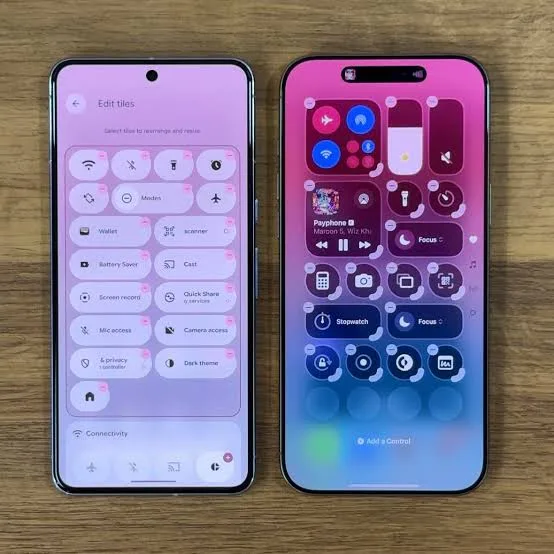
Quick Settings on Android and Control Centre on iPhone give you fast access to frequently used controls without opening the main Settings app.
On Android, swipe down from the top of the screen and look for the edit option to rearrange tiles or add supported shortcuts. You can place controls such as the flashlight, screen recording, battery saver and screen casting near the front.
On an iPhone, open Control Centre and use its customisation options to add or rearrange available controls. Depending on your device and iOS version, you may be able to add shortcuts for alarms, notes, accessibility features and other tools.
Quick Camera and Flashlight Shortcuts
You do not always need to unlock your phone and find an app to use a basic feature. Many Android phones let you open the camera with a double press of the power button. Some models also support gestures for turning on the flashlight.
On an iPhone, you can open the camera using the Lock Screen shortcut, Action button on supported models, or other available controls.
Check your phone’s gesture and button settings to see which shortcuts are available. These can be particularly useful when you need to capture a moment quickly or use the flashlight in a dark room.
Useful Input and Audio Tools
Smartphones also have tools that make communication easier, especially when you need to read spoken content, send messages at a chosen time or connect to a wireless network without typing a password.
Live Captions
Live Captions converts spoken audio into text on supported phones. It can help you follow videos in a noisy place, understand speech when the volume is low or read along with audio content.
On supported iPhones, go to Settings, Accessibility, then Live Captions. On Android, look for Live Caption in the volume controls or Accessibility settings, depending on your device.
Availability depends on the phone model, software version and language. Some devices process captions on the phone itself, while supported features and call transcription options differ across models. Check the settings on your device before relying on captions for an important conversation.
Schedule Text Messages
You do not have to send every message the moment you write it. Supported messaging apps let you prepare a message and set a future delivery time.
In Google Messages, type your message, press and hold the send button, then choose a suggested time or select a custom schedule if the feature is available. The app can then send the message at the chosen time, subject to its requirements.
On iPhones running iOS 18 or later, Messages supports Send Later for scheduled iMessages. Open a conversation, tap the plus button, choose Send Later and set the delivery time.
Check the message type and app requirements before scheduling. Support for SMS, iMessage and other messaging services is not identical.
Share Wi-Fi Access With a QR Code
Typing a long Wi-Fi password on another person’s phone can be tedious. Some Android phones let you create a QR code that another device can scan to join the same network.
On many Android devices, open Wi-Fi settings, select the connected network and tap Share. You may need to verify your identity before the QR code appears.
iPhones can also share saved Wi-Fi passwords with nearby Apple devices that meet Apple’s requirements. The exact options depend on the devices and software involved.
Only share network access with people you trust. A Wi-Fi QR code may contain the credentials needed to join that network, so avoid posting it publicly.
Get More Out of Your Smartphone
Many useful smartphone tools are already built into Android and iOS. Storage controls can help you free up space, privacy settings give you more control over app access, and navigation gestures and shortcuts can make everyday tasks easier. Offline maps, Live Captions, scheduled messages and Wi-Fi sharing are also handy once you know where to find them.
Feature availability depends on your phone model, operating system and region. Take a few minutes to explore your Settings menu and check which tools your device supports. You may find that a feature you need is already available without downloading another app.