
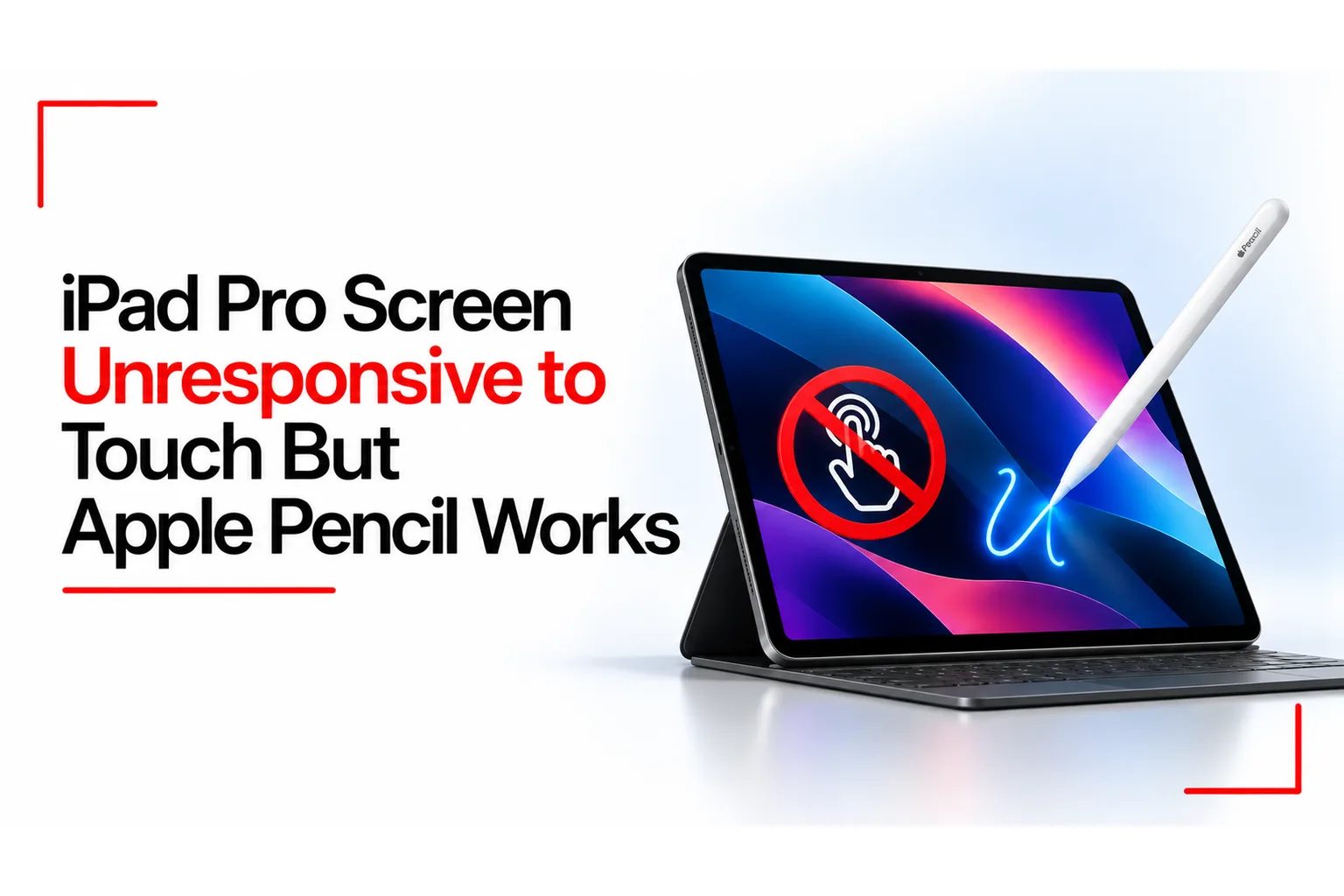

An iPad Pro that responds to the Apple Pencil but ignores finger taps can be confusing, especially when you need to open apps, type messages or navigate the screen. The Pencil may continue writing and drawing as usual, while swiping, tapping icons and using other touch gestures stop working. This can happen because of a software glitch, screen protector interference, charging accessories or a fault with the display hardware.
If your iPad Pro Screen Unresponsive issue leaves you unable to use finger gestures while the Apple Pencil still works, the cause may lie in the touchscreen, iPadOS or an external accessory. A few simple checks can help you narrow down the problem and find a suitable fix before considering a repair.
Table of Contents
Why Does the Apple Pencil Work When Finger Touch Does Not?
The iPad Pro recognises finger input and Apple Pencil input through related but distinct sensing methods. Finger touches rely on the capacitive touchscreen, while the Apple Pencil uses additional sensing technology to detect its position and movement.
This is why the Pencil may continue working even when finger taps and swipes stop registering. A fault affecting touch recognition, a software problem or an issue with the display assembly could interrupt finger input without stopping the Pencil from writing.
However, the Pencil working does not automatically mean the screen needs a specific repair. Check the simpler causes first.
Check the Screen Protector, Case and Surface
A screen protector, dirt or moisture can interfere with touch recognition. A tight case can also put pressure on the edges of the display, particularly if the iPad has been dropped or the case does not fit properly.
Try these checks:
- Clean the screen with a soft, lint free cloth and make sure it is dry.
- Remove the case and test finger input again.
- Remove the screen protector temporarily if the problem continues.
- Check for cracks, bubbles or visible damage around the screen edges.
If finger touch starts working after removing an accessory, replace it with one that fits properly and is compatible with your iPad Pro.
Disconnect the Charger and Other Accessories
A faulty charger, cable or electrical outlet can cause touchscreen problems while an iPad is charging. If the screen stops responding when connected to power, disconnect the charger and test it again. If touch works normally after unplugging the device, try a reliable charger, a compatible cable and another wall outlet. Disconnect other USB accessories during testing as well.
Avoid continuing to use a damaged charger or cable. If the screen remains unresponsive even when the iPad is unplugged, investigate the other possible causes.
Force Restart Your iPad Pro
A temporary iPadOS glitch can interrupt touch input. A force restart may restore normal operation without deleting your personal data.
For an iPad Pro without a Home button:
- Press and quickly release the volume button closest to the top button.
- Press and quickly release the other volume button.
- Press and hold the top button until the Apple logo appears.
Once the iPad restarts, test the screen using your finger before opening other apps. If the problem returns, continue with the remaining checks.
Related Article: MacBook Air vs MacBook Pro: Which Should You Buy?
Check Accessibility Settings
Some accessibility settings change how the iPad responds to taps and gestures. Touch Accommodations, for example, can delay touch recognition or ignore certain touches based on its configuration.
Open Settings > Accessibility > Touch > Touch Accommodations and check if the feature is turned on. If you do not need it, turn it off and test the screen again.
Also check Guided Access if the problem only affects a particular app or certain areas of the display. Guided Access can restrict touch input in selected parts of the screen or disable touch during a session.
Update iPadOS
An outdated system or a software bug may contribute to touch problems. If the Apple Pencil or a connected keyboard still lets you navigate the iPad, check for an available update under Settings > General > Software Update. Back up your important files before installing an update. If you cannot navigate the iPad normally, you may be able to use a compatible keyboard or mouse, or connect the device to a computer for further troubleshooting.
If the issue began immediately after an update, restart the iPad first and check for another available software update. Avoid erasing the device as an early troubleshooting step, especially if you have not backed up your data.
Check for Display or Touchscreen Hardware Damage
If none of the earlier fixes work, the problem may involve the display assembly or internal components responsible for touch input.
Possible causes include:
- Damaged display assembly: A drop, impact or pressure on the screen may damage the touch sensing components even if the glass looks intact.
- Touch controller fault: A problem with the circuitry responsible for processing touch input can prevent finger gestures from registering.
- Loose or damaged internal connections: Impact or previous repairs may affect the connections between the display and the iPad’s internal hardware.
- Liquid damage: Moisture entering the device can damage internal components and interfere with touchscreen operation.
The Apple Pencil working does not rule out these faults. If finger input remains unavailable across the entire screen, a technician can inspect the device and determine the cause.
Back Up Your Data and Arrange a Repair
Before sending your iPad Pro for repair, back up your files if possible. You can use iCloud or connect the iPad to a computer. If the Pencil still works, use it to navigate where possible. A compatible keyboard or mouse may also help. If the screen remains unresponsive, contact Apple Support or an Apple Authorised Service Provider for an assessment. The repair may involve the display assembly or another internal component, depending on the diagnosis.
Avoid opening the iPad or attempting to repair its internal connections yourself. The device contains delicate components, and an unsuccessful repair attempt can cause further damage. If your iPad Pro still accepts Apple Pencil input but ignores finger touches after a restart, accessory checks and software troubleshooting, a hardware assessment is the next sensible step. A technician can check the iPad and determine if the screen or another component needs repair.