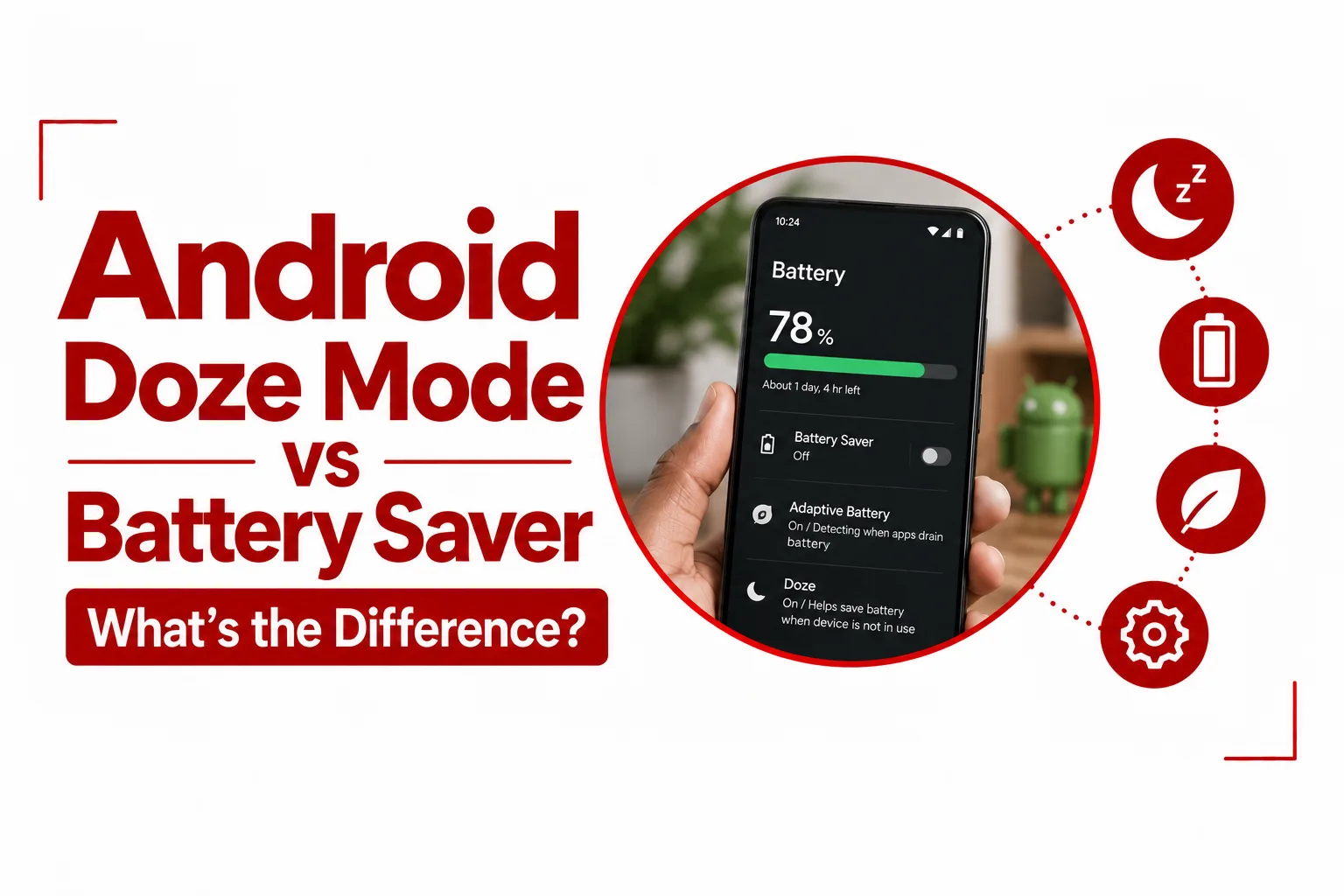

‘Android Doze Mode vs Battery Saver’ can sound like a comparison between two versions of the same battery saving feature, but they work in very different ways. One focuses on reducing background activity when your phone sits unused, while the other changes how the phone operates when you need to stretch the remaining battery life.
If your phone is sitting on a table with the screen off, Doze Mode can reduce the amount of background work happening without changing how the phone performs when you pick it up. Battery Saver works differently. You can turn it on yourself or set it to activate at a specific battery level, and it can reduce performance, background activity, display refresh rates and other power intensive functions.
Understanding the difference can help you troubleshoot delayed notifications, choose the right battery setting, and understand why your phone behaves differently when it is idle compared with when the battery is running low.
Quick Navigation
What Is Android Doze Mode?
Doze Mode is an automatic Android power management system introduced with Android 6.0 Marshmallow. Its purpose is to reduce battery drain when your phone is not being actively used.
Deep Doze begins after the phone has been unplugged, the screen has been turned off, and the device has remained stationary for a period of time. Android then places tighter limits on background activity so apps cannot continue performing unnecessary work while the phone is sitting unused. Doze does not slow down the phone while you are actively using it. Once you wake the device and start interacting with it, normal system activity resumes.
How Doze Mode Works
When the phone enters Deep Doze, Android restricts several types of background activity. Network access is suspended for many background operations, standard alarms can be deferred, and background jobs and synchronization tasks are postponed. Android periodically opens short maintenance windows during Doze. During these periods, pending background tasks can run together before the phone returns to its idle state.
As the phone remains unused, these maintenance windows can become less frequent. This reduces repeated background activity and helps limit battery drain during long periods of inactivity.
Light Doze vs Deep Doze
Android 7.0 Nougat introduced Light Doze to provide some power saving when the phone is not completely stationary. Light Doze can apply restrictions when the screen is off and the device is unplugged, even if the phone is moving. This makes it useful when the phone is in a pocket or bag.
Deep Doze applies tighter restrictions after the phone has remained stationary for a longer period. A phone sitting untouched on a desk is a common example.
Related Article: Doze Mode in Android: How It Works, What It Does, and How to Use It
What Is Android Battery Saver?
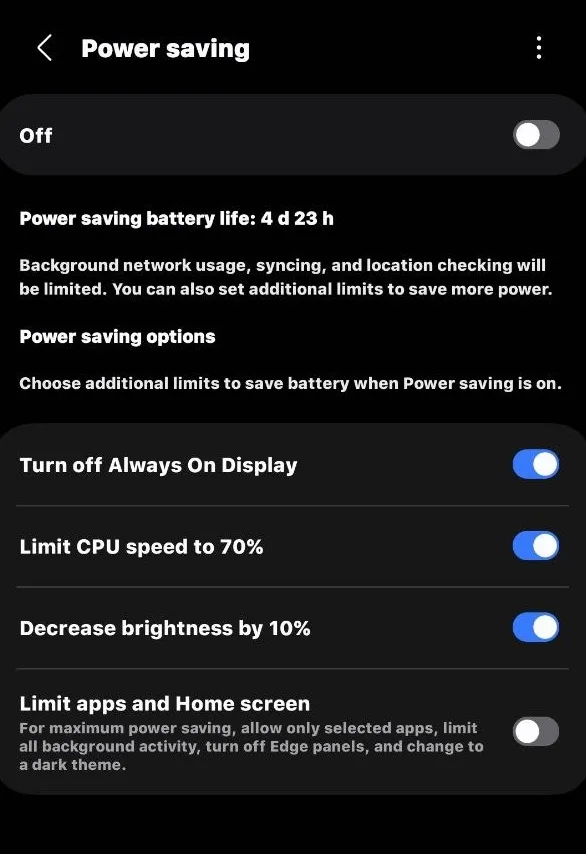
Battery Saver is a user controlled Android power saving feature designed to reduce power consumption while you are still using the phone. You can turn Battery Saver on manually from Quick Settings or configure it to activate automatically when the battery reaches a chosen percentage. Many phones offer a setting around 15 or 20 percent, although the available options can vary by manufacturer and Android version. Unlike Doze Mode, Battery Saver can affect the phone while the screen is on and you are actively using it.
How Battery Saver Works
Battery Saver can reduce background activity and limit some system functions that consume additional power. Depending on the phone, it can also reduce processor performance, restrict visual effects, lower the display refresh rate, limit background data, and change other system behaviors. Some Android devices also restrict location activity while the screen is off when Battery Saver is active.
The exact changes depend on the Android version and the phone manufacturer. A Samsung phone, Google Pixel, Xiaomi phone, or another Android device may apply Battery Saver restrictions differently.
How to Turn On Battery Saver
You can usually activate Battery Saver from the Quick Settings panel. If the option is not visible, open the Quick Settings editor and add it if your phone provides that option. You can also find Battery Saver through the phone’s battery settings. Many Android phones also let you create an automatic rule that turns Battery Saver on when the battery reaches a selected percentage.
Related Article: Why Your Phone Battery Drains Overnight
Android Doze Mode vs Battery Saver
The biggest difference comes down to when each feature operates and what it is designed to control.
| Feature | Doze Mode | Battery Saver |
|---|---|---|
| Activation | Automatic during extended idle periods | Manual or automatic at a battery percentage |
| Main purpose | Reduce background drain while the phone is unused | Extend battery life during active use |
| Screen state | Screen off | Can work with the screen on |
| Movement | Deep Doze requires the phone to remain stationary | Movement does not determine activation |
| Performance | Does not reduce active performance | Can reduce performance on supported devices |
| Background activity | Heavily restricted during idle periods | Reduced while Battery Saver is active |
| Network activity | Deferred for many background operations | Background network activity can be restricted |
| User control | Mostly automatic | Manual controls and scheduling |
| Maintenance windows | Yes | No equivalent system state |
Trigger Mechanism
Doze Mode depends on the physical state of the phone. Deep Doze starts after the device is unplugged, the screen is off, and the phone remains stationary for a period of time. Battery Saver does not depend on the phone sitting still. You can turn it on while using the phone, or configure it to activate automatically when the battery reaches a selected level.
Primary Purpose
Doze Mode is designed to stop passive battery drain when you are away from the phone. Battery Saver is designed to reduce power consumption while the phone remains available for active use. This distinction explains why your phone can enter Doze Mode overnight without you doing anything, while Battery Saver usually appears as an explicit battery saving state that you can control.
Effect on Performance
Doze Mode does not slow down the phone while you are actively using it. Its restrictions focus on background activity during idle periods. Battery Saver can affect active performance. Depending on the device, the phone may reduce processor performance, limit animations, lower the display refresh rate, or restrict background processes. If your phone feels different after Battery Saver turns on, that behavior can be part of the power saving design.
Handling Notifications
Doze Mode can delay normal background network activity and notifications while the phone is idle. High priority firebase cloud messaging notifications can still reach the device under specific conditions, allowing important communications to arrive without waiting for a maintenance window.
Battery Saver can also restrict background activity, but the exact notification behavior depends on the Android version and device software. If an important messaging app stops delivering notifications promptly, check its battery optimization settings before assuming the app itself is broken.
Do Doze Mode and Battery Saver Work Together?
Yes. Doze Mode and Battery Saver can operate at the same time because they address different types of battery consumption. For example, if your phone has a low battery and Battery Saver is active, you can put it on a desk and leave it untouched. Battery Saver can continue applying its power saving restrictions, while Doze can later restrict additional background activity after the device enters its idle state.
The two features can therefore provide layered battery management. Battery Saver handles power reduction during active use, while Doze focuses on periods when the phone is sitting unused.
Android Battery Optimization
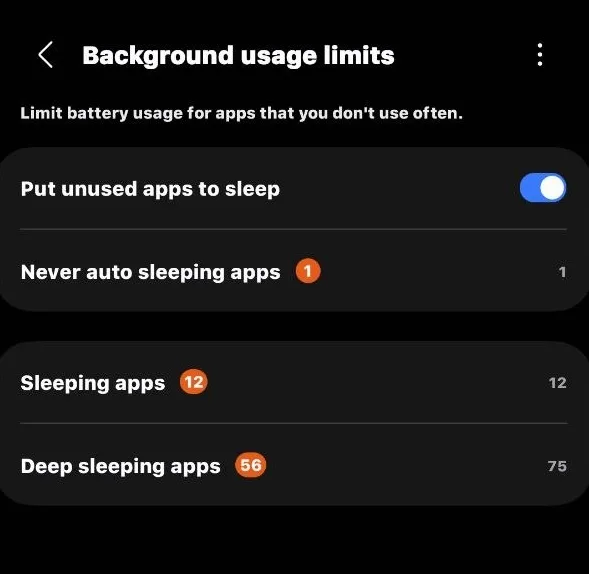
Android battery optimization settings let you control how individual apps are treated during idle periods.
The exact menu can vary by phone, but a common path is: Settings > Apps > Special App Access > Battery Optimization. Choose an app from the list and select the available option for allowing or restricting battery optimization.
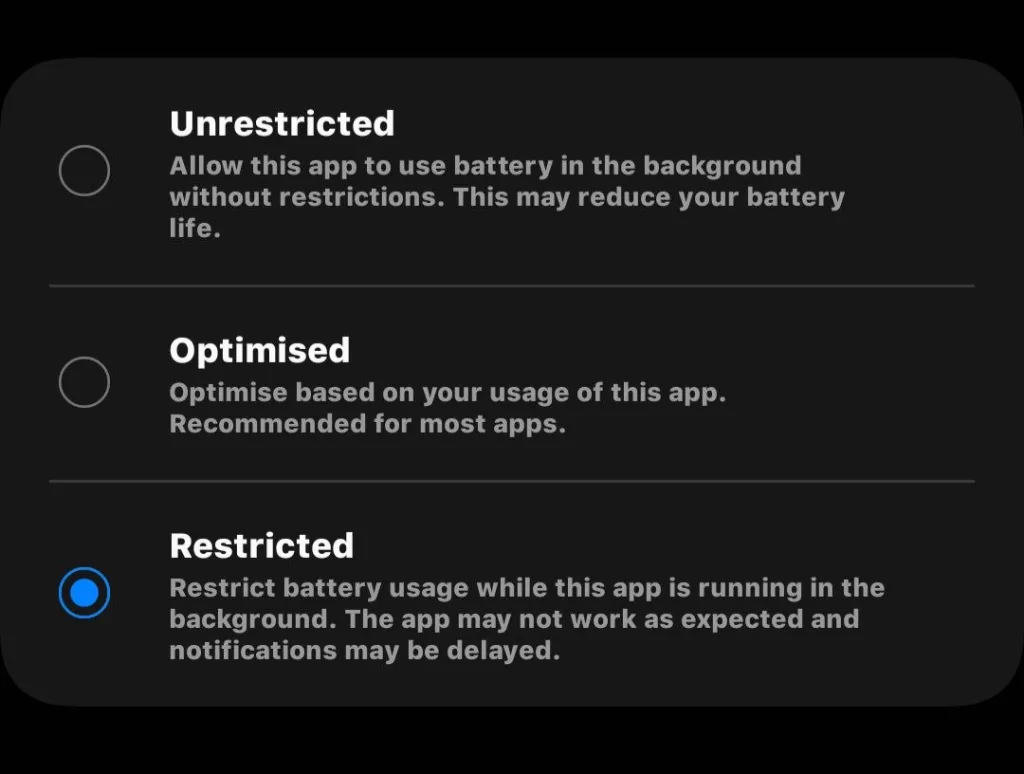
Some phones place these controls under: Settings > Apps > [App Name] > Battery. You may see options such as Unrestricted, Optimized, or Restricted.
If an app needs to perform background work consistently, changing its battery setting can help. Keep in mind that removing battery restrictions can increase background battery consumption.
How to Turn Off Doze Mode on Android
There is no universal switch in Android settings that completely disables Doze Mode for the entire phone. You can adjust battery optimization for individual apps instead. This is useful when a particular app needs more consistent background activity.
Open the app’s battery settings and look for the available battery usage or optimization controls. Select the option that gives the app less restrictive background access if your phone provides it. Android still controls the broader Doze system at the device level. App specific settings do not turn off every part of Doze for the entire operating system.
Do Doze Mode and Battery Saver Affect Gaming?
Doze Mode has little effect on active gaming because it is designed for periods when the phone is idle. Battery Saver is different. If it is active while you are playing a game, the phone may limit processor performance, background activity, refresh rate, animations or other functions depending on the device. For demanding games, this can reduce performance or make the display feel less responsive. If you need the highest gaming performance, check if Battery Saver is active before starting a demanding game.
Doze Mode vs Battery Saver for Low Battery
Battery Saver is more useful when the battery is running low and you still need to use the phone. Turning it on can reduce power consumption while you browse, message, stream content, navigate or perform other tasks. The exact restrictions depend on the device. Doze becomes more useful once the phone is left alone with the screen off and the conditions for idle operation are met.
Doze Mode handles long periods when the phone is idle, helping prevent background apps from draining the battery while the device sits unused. Battery Saver gives you more direct control when you are actively using the phone and need to extend the remaining charge. For overnight idle time, Doze Mode handles the background power saving automatically. For a low battery during the day, Battery Saver can reduce power consumption while you continue using the phone. Together, they form two separate parts of Android’s battery management system, with each one designed for a different situation.