
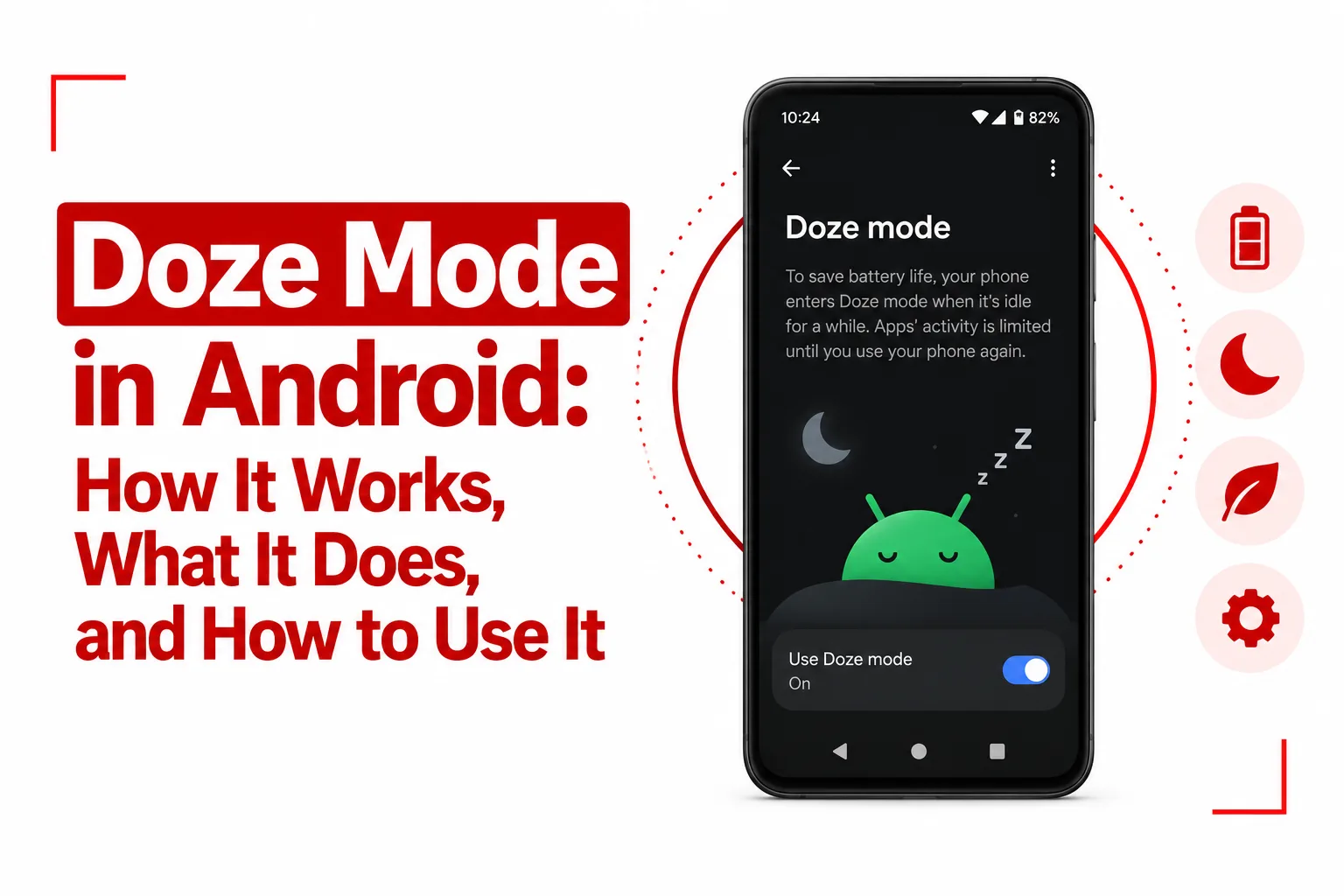

Doze mode in Android helps your phone conserve battery when it has been sitting idle for an extended period. Instead of allowing apps to keep performing background work, checking networks, or waking the processor while you are not using the device, Android gradually limits those activities to reduce unnecessary power consumption.
The feature works automatically, so you do not need to switch it on every time you put your phone down. Android detects when the device has entered an idle state and applies restrictions based on factors such as the screen being off, the phone being disconnected from power, and the device remaining stationary.
Doze does not simply shut down every background process. Android periodically opens short maintenance windows during which pending tasks, synchronization, network activity and certain alarms can run. Understanding how these restrictions and exceptions work can help you troubleshoot delayed notifications, manage battery settings and test background behavior on Android devices.
Table of Contents
What Is Doze Mode?
Doze Mode is a system level battery saving feature introduced with Android 6.0, also known as API 23. It reduces battery consumption when a device remains idle for an extended period by deferring background CPU activity and network access for non essential apps.
The feature is designed for periods when you are not actively using your phone. Instead of letting apps repeatedly wake the processor or communicate with their servers throughout an idle period, Android groups some of that work into controlled periods. Doze operates at the operating system level, so individual apps do not have to implement a separate battery saving mode for it to work.
How Doze Mode Works
Doze uses two levels of idle restrictions. The conditions for entering each level depend on the Android version and the state of the device.
Deep Doze
Deep Doze was introduced with Android 6.0. It starts when these conditions are met:
- The screen is turned off.
- The device is unplugged from power.
- The phone remains completely stationary for a set period.
This state is intended for situations such as leaving your phone on a desk, table or bedside surface while you are not using it. Once the device enters this deeper idle state, Android places tighter limits on background activity and network access.
Light Doze
Light Doze was introduced with Android 7.0. It can apply when the screen is off and the device is unplugged, even when the phone is still moving. For example, your phone can be inside your pocket while you are walking. Since the device does not have to remain stationary for Light Doze, Android can start applying lighter restrictions without waiting for the phone to remain still.
The restrictions are less aggressive than those used during deeper idle states, but they still reduce background activity and network access.
How to Enable Doze Mode in Android
Doze Mode does not have a dedicated on/off switch in standard Android settings. The system manages it automatically when the phone meets the conditions for entering an idle state.
Automatic System Activation
Android automatically places the device into Doze when these conditions are met:
- The screen is turned off.
- The phone is disconnected from a power source.
- The device remains stationary for a set period.
Android uses the phone’s motion sensors, including its accelerometer, to determine if the device has remained still. You do not need to change any settings for this automatic process to work.
Force Doze With ADB
Developers can force a connected Android device into Doze without waiting for the normal idle period. This requires an active Android Debug Bridge (ADB) connection.
First, simulate the device being disconnected from power:
adb shell dumpsys battery unplugThen force the device into the idle state:
adb shell dumpsys deviceidle force-idleThese commands are intended for testing. They let developers examine how an app behaves when Android applies Doze restrictions.
How to Turn Off Doze Mode in Android
Standard Android settings do not provide a global switch for turning off Doze Mode across the entire device. You can, however, remove individual apps from battery optimization or use ADB to disable Doze during development and testing.
Exempt an App From Battery Optimization
If a particular app needs more consistent background activity, you can exclude it from Android’s battery optimization system. The menu names can vary between Android versions and phone manufacturers, but the process generally follows these steps:
- Open Settings.
- Go to Apps.
- Open Special App Access and select Battery Optimization, or look for App Battery Usage.
- Change the app filter to All Apps if necessary.
- Select the app you want to change.
- Choose Unrestricted or Don’t Optimize, depending on the options shown on your phone.
This change applies to the selected app. It does not remove Doze Mode from the entire Android system.
Disable Doze With ADB
Developers can temporarily disable the device idle system through ADB:
adb shell dumpsys deviceidle disableTo restore the normal Doze behavior, use:
adb shell dumpsys deviceidle enableIf you previously changed the simulated battery state while testing, restore it with:
adb shell dumpsys battery resetThe ADB disable command is mainly useful for development and testing. It is not a standard user setting for permanently removing Doze Mode from an Android phone.
The Doze Maintenance Window Cycle
Doze does not keep the phone in a completely restricted state indefinitely. Android periodically opens maintenance windows. During these brief periods, some network connectivity and background processing become available so that pending synchronization, scheduled jobs and other eligible tasks can run.
As the device remains idle for longer, the intervals between maintenance windows become progressively wider. This reduces the amount of time the processor and network radios need to remain active while the phone is sitting unused. Once you interact with the device again, the normal restrictions associated with Doze are lifted.
What Doze Mode Does
When Doze is active, Android applies several restrictions to background applications.
Network Access Is Suspended
Apps generally cannot maintain normal background Wi Fi or mobile data activity while Doze restrictions are active. Pending network operations can run during maintenance windows, allowing Android to group background communication into shorter periods.
Wake Locks Are Ignored
Background apps can use partial wake locks to request that the CPU remain awake for certain operations. During Doze, Android ignores these background wake lock requests for the purposes of keeping the device awake. This prevents apps from continuously keeping the processor active while the phone is idle.
Background Work Is Deferred
Tasks scheduled through mechanisms such as JobScheduler, WorkManager and Sync Adapters can be postponed while Doze is active. These tasks can run when Android opens a maintenance window, allowing several pending operations to take place together.
Standard Alarms Are Deferred
Regular AlarmManager alarms, including alarms created with setExact(), can be delayed while the device is in Doze. They are allowed to run during a maintenance window instead of necessarily waking the device at their original scheduled time.
Background Wi Fi Scans Are Disabled
Android also stops background Wi Fi network scanning while Doze restrictions are active. This reduces another source of background radio activity and helps limit battery drain during long idle periods.
Exceptions to Doze Restrictions
Doze is not designed to block every time sensitive operation. Android provides specific mechanisms for situations where an app needs to deliver an urgent notification or trigger an important alarm.
High Priority FCM Notifications
High priority Firebase Cloud Messaging notifications can bypass some Doze restrictions to deliver time sensitive notifications. This can be useful for situations such as incoming calls, messaging alerts and other events where waiting for a regular maintenance window could make the notification too late.
High Priority Alarms
Android provides specific alarm APIs for events that need to happen at a designated time.
setExactAndAllowWhileIdle() can schedule an exact alarm that is allowed to fire while the device is idle.
setAlarmClock() can also trigger an alarm at its designated time and temporarily wake the system shortly before execution.
These APIs are intended for situations where delaying the event until a maintenance window would not be appropriate.
Related Article: How to Fix an Android Phone Stuck in Safe Mode
How to Test Doze Mode With ADB
Developers can use Android Debug Bridge, or ADB, to force a test device into an idle state without waiting for the phone to naturally enter Doze.
First, unplug the device and turn off its screen. Then use the following commands from a computer with ADB configured:
Disconnect the Device From Its Simulated Power State
adb shell dumpsys battery unplugThis simulates the device being disconnected from external power.
Force the Device Into Deep Doze
adb shell dumpsys deviceidle force-idleThis forces the device into an idle state for testing.
Move Through Doze States
adb shell dumpsys deviceidle stepYou can use this command to advance through the device idle state machine during testing.
Restore the Battery State
After testing, reset the simulated battery condition with:
adb shell dumpsys battery resetThis returns the battery reporting state to normal after the test.
Why Doze Mode Is Useful
Doze is especially useful when your phone spends long periods sitting unused. Without an idle management system, background apps could continue performing network requests, scheduling work and waking the processor even when you are not interacting with the device. Grouping some of that activity into maintenance windows reduces unnecessary background work while still giving eligible tasks opportunities to run.
The approach also explains why some notifications or background updates can arrive later after a phone has been idle for a long time. Doze is designed to prioritize battery conservation during extended idle periods, while specific high priority mechanisms remain available for time sensitive events.
Doze Mode gives Android a way to reduce battery drain during long periods when your phone is not being used. It limits background network activity, postpones scheduled work, restricts wake locks and delays standard alarms, while maintenance windows give pending tasks opportunities to run.
The feature works automatically, so most users never need to configure it. If an important app behaves differently after the phone has been idle, checking its battery optimization settings can help. For developers, ADB commands provide a way to reproduce Doze states and test how apps respond to Android’s background restrictions.