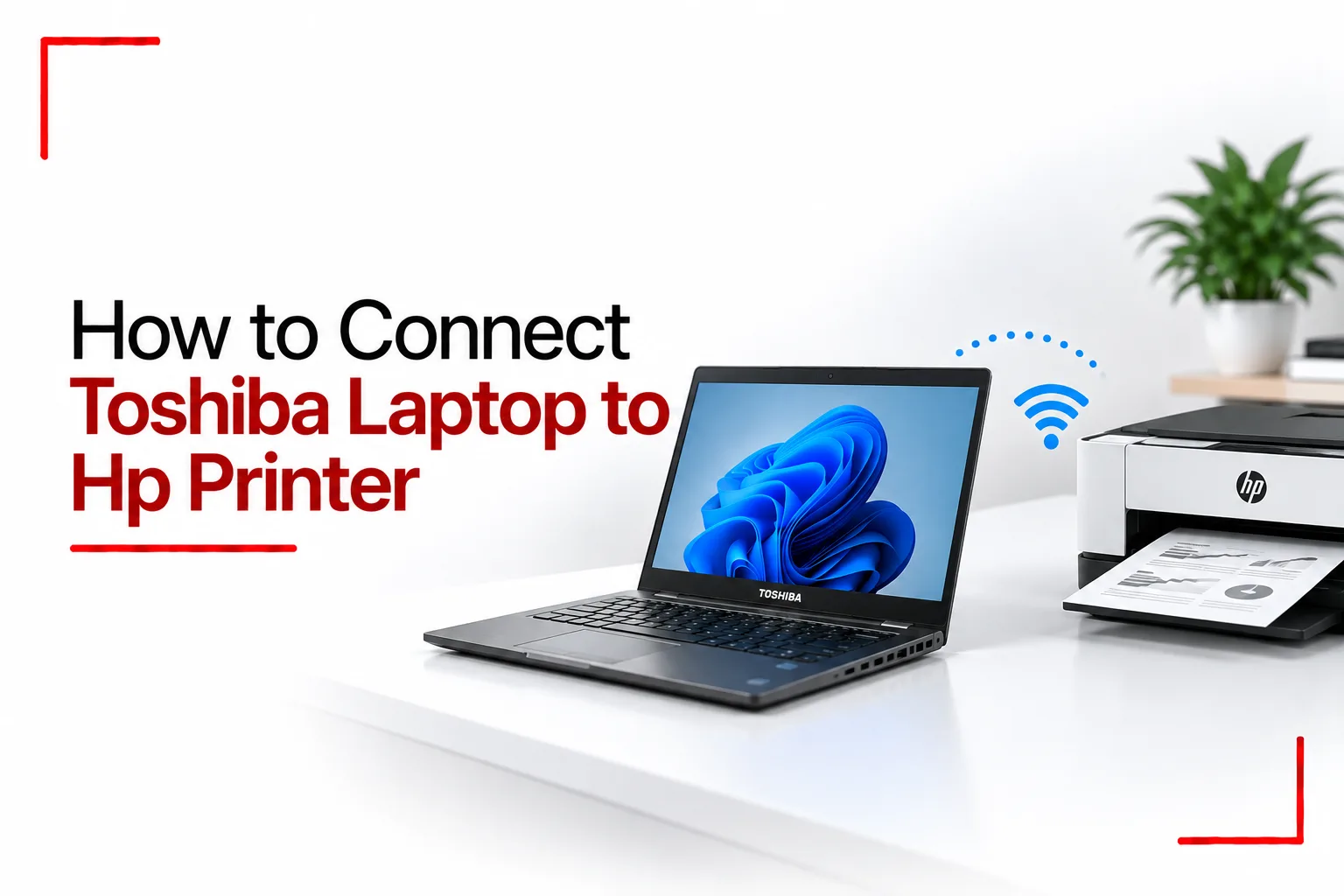

Printing from a laptop is usually straightforward once the printer and computer can communicate with each other. The connection can be made with a USB cable or over Wi Fi, depending on the printer model. Wireless printing gives you more freedom to place the printer elsewhere, while a USB connection can be useful when you want a direct connection without setting up a network.
If you want to connect Toshiba Laptop to HP Printer, you first need to identify how the printer connects and make sure the Toshiba laptop has the necessary connection options. Most newer HP printers support Wi Fi, USB or both, while some older models may depend mainly on a USB connection.
How to Connect Toshiba Laptop to HP Printer With USB
A USB connection is one of the simplest ways to connect the two devices. You will need a USB printer cable that matches the ports on your HP printer and Toshiba laptop.
- Turn on the HP printer.
- Connect the USB cable to the printer and Toshiba laptop.
- Wait for Windows to detect the printer.
- Open Settings on your Toshiba laptop.
- Go to Bluetooth & devices and select Printers & scanners.
- Select Add device.
- Wait for Windows to find the HP printer.
- Select the printer and follow the instructions on screen.
Windows may install a suitable printer driver automatically. If it does not, you may need to install the correct driver for your specific HP printer model.
How to Connect Toshiba Laptop to HP Printer Wirelessly
A wireless connection lets your Toshiba laptop print without a USB cable. The laptop and printer generally need to be connected to the same Wi Fi network.
- Turn on the HP printer.
- Connect the printer to your Wi Fi network using its control panel or setup instructions.
- Connect your Toshiba laptop to the same Wi Fi network.
- Open Settings in Windows.
- Select Bluetooth & devices.
- Choose Printers & scanners.
- Select Add device.
- Choose your HP printer when it appears.
- Follow the instructions to finish the setup.
Once the printer has been added, open a document or photo and select the HP printer from the print options.
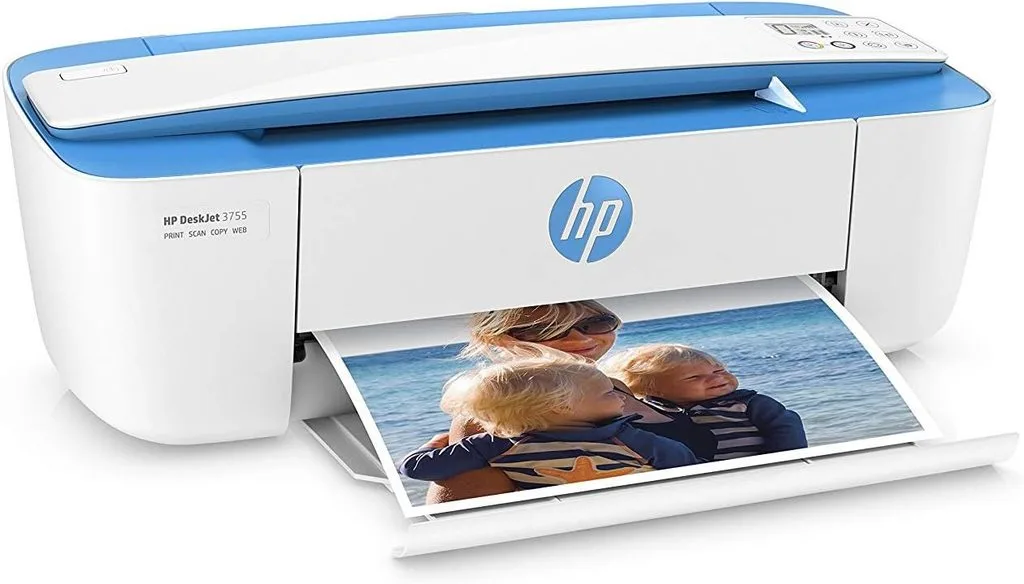
How to Add an HP Printer to a Toshiba Laptop
If Windows does not automatically add the printer, you can add it manually through the printer settings.
Open Settings > Bluetooth & devices > Printers & scanners, then select Add device. Give Windows a moment to search for available printers.
If the HP printer does not appear, select the option to add it manually. Windows may give you several connection options, including using an IP address or selecting a shared printer. The options you see will depend on your version of Windows and the type of HP printer you have.
How to Install an HP Printer Driver on a Toshiba Laptop
A printer driver allows Windows to communicate correctly with the printer. If your Toshiba laptop cannot detect the printer or some printing features do not work, the correct driver may be needed.
First, find the exact model number of your HP printer. Printer names can be very similar, so using the correct model helps you install the appropriate software. Download the driver from HP’s official support site, install it on the Toshiba laptop and follow the setup instructions. Restarting Windows after installation can also help if the printer was not detected correctly.
Related Article: Why is my Toshiba Laptop Beeping?
How to Connect Toshiba Laptop to HP Printer Without Wi Fi
If your HP printer does not support Wi Fi, you can usually connect it directly to the Toshiba laptop with a USB cable.
If the printer supports a network connection but you do not have access to a wireless network, some models can also connect through Ethernet. In that case, the printer connects to the network with a cable, while the Toshiba laptop connects to the same network through Wi Fi or Ethernet. The available connection methods depend on the specific HP printer.
Why Is My Toshiba Laptop Not Detecting My HP Printer?
Several things can prevent Windows from finding the printer. Check that the printer is switched on and connected properly. For a wireless setup, make sure the printer and Toshiba laptop are connected to the same Wi Fi network.
If you are using USB, try another USB port or replace the cable if you suspect it is faulty. You can also restart both devices and try adding the printer again. An outdated or incorrect printer driver can also prevent proper communication between Windows and the HP printer.
Why Is My HP Printer Connected but Not Printing?
A printer can show as connected while still having a problem that prevents printing. Check the printer for paper, ink or toner warnings and make sure there are no error messages on its display. On the Toshiba laptop, open the printer settings and check the print queue for documents that may be stuck.
You can also remove the printer from Windows and add it again if the connection appears correct but nothing prints.
Can I Connect a Toshiba Laptop to an HP Printer Using Bluetooth?
Some HP printers support Bluetooth, but not every model does. If your printer has Bluetooth support, turn it on and make the printer discoverable.
On the Toshiba laptop, open Settings > Bluetooth & devices, turn on Bluetooth and select the HP printer when it appears. Bluetooth printing options depend on the printer model and the features supported by its software.
How to Test the Connection
After adding the printer, print a test page or a simple document. This confirms that Windows can communicate with the printer and that the correct printer has been selected. If the test page prints correctly, the connection is ready for normal use. If nothing happens, check the printer status, connection type, driver and print queue.
What If the HP Printer Still Will Not Connect?
Start by restarting both the Toshiba laptop and HP printer. Check the USB cable or Wi Fi connection, then try adding the printer again through Windows settings.
If the printer is still not detected, check the exact HP model and install its current Windows software or driver. You can also check the printer’s network settings if you are using Wi Fi. Older Toshiba laptops may also use an older version of Windows, which can affect printer compatibility. In that situation, the printer’s supported operating systems should be checked before installing software.
Can a Toshiba Laptop Connect to Any HP Printer?
Connecting the two devices is usually simple when the printer supports the connection method you want to use. USB provides a direct connection, while Wi Fi allows the Toshiba laptop to print without being physically connected to the printer.
If the printer is not detected, checking the network, USB connection, printer settings and correct HP driver can usually narrow down the problem. The steps depend on your HP printer model and Windows version, but the basic setup is similar.