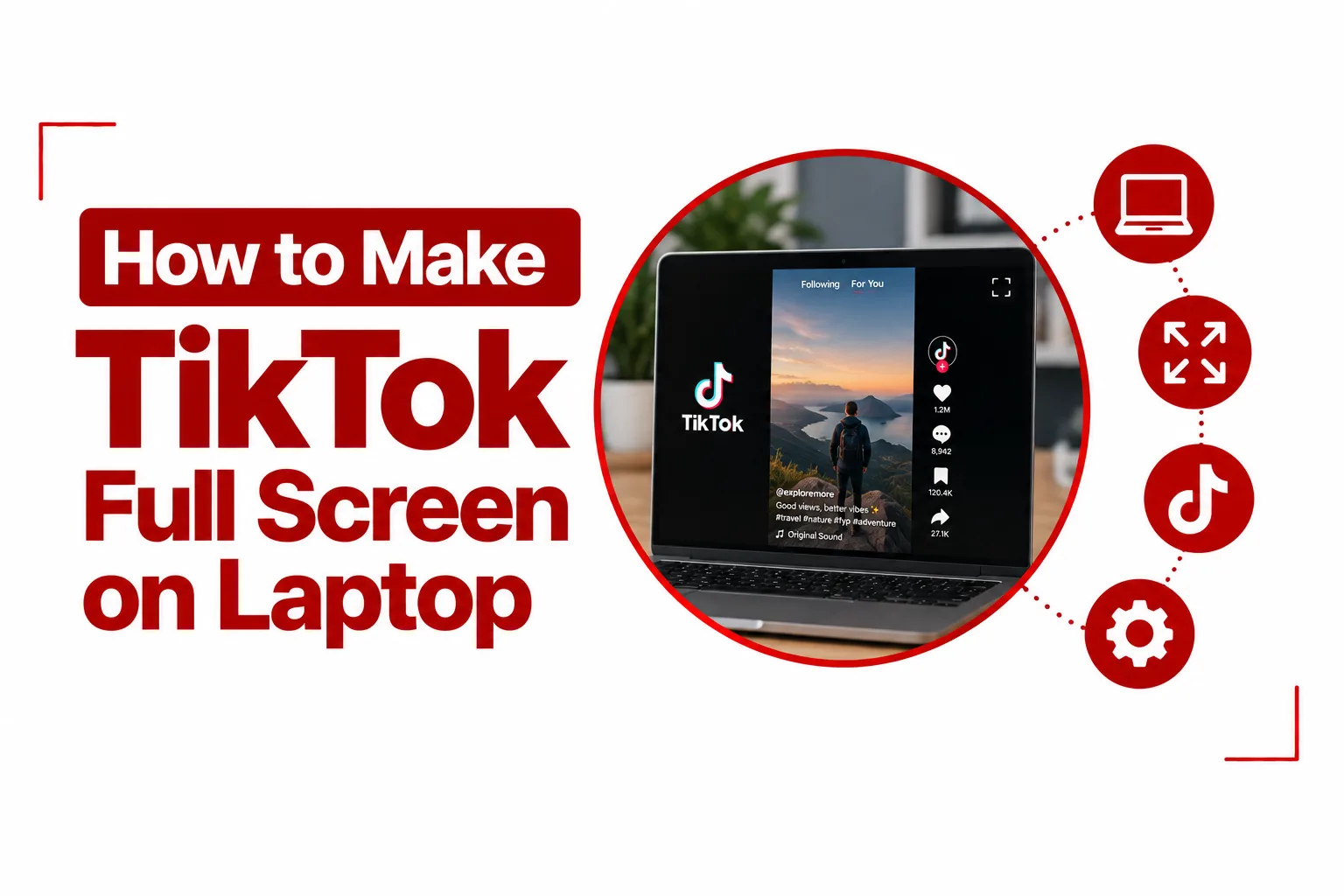

Watching TikTok on a laptop can feel different from using the mobile app. The videos are still easy to browse, but the vertical player sits inside a much wider desktop interface, leaving comments, captions, usernames and other controls around the video. That can make the viewing area feel smaller than it needs to be, especially when you want to focus on a single video.
Learning how to make TikTok full screen on laptop gives you several ways to improve that experience. You can use TikTok’s own fullscreen controls, switch the entire browser into fullscreen mode, or use Clear Display and Picture in Picture when you want to reduce the interface around a video. The right option depends on if you want the video to fill more of the screen or simply remove the controls surrounding it.
Table of Contents
How to Make TikTok Full Screen on Laptop
The simplest approach is to use the controls built into the TikTok web player. Open TikTok in your browser, play the video you want to watch and move your cursor over the video.
Double Click the Video
On supported TikTok web players, double clicking the video frame can switch the player into fullscreen mode.
- Open TikTok in your browser.
- Select the video you want to watch.
- Move your pointer over the video.
- Double click directly on the video frame.
- Double click again to leave fullscreen when you are finished.
This is one of the quickest options because you do not need to search through the surrounding interface for a button.
Use the Fullscreen Button
TikTok can also display a fullscreen or expand icon within the video player controls. Look along the bottom right area of the player, close to the volume controls. Select the fullscreen icon when it appears. The video player should expand across the available display area. Pressing the exit fullscreen control returns you to the normal TikTok layout.
The button may not appear on every type of TikTok content. Some advertisements, embedded videos and certain live content can use different player controls.
Press F on the Keyboard
TikTok’s web player also supports a keyboard shortcut for fullscreen viewing. Click the video first so the player has focus, then press F on your keyboard. Press F again to leave fullscreen. You can also press M to mute or unmute the video when the player has focus.
How to Make TikTok Full Screen on Chrome
Chrome has two different fullscreen options that can be useful when watching TikTok. The first affects the TikTok video itself. The second hides Chrome’s tabs, address bar and other browser elements. To make the TikTok video fullscreen, open the video player and use the fullscreen button or press F after clicking the video.
To make the entire Chrome window fullscreen on Windows, press: F11
On some laptops, you may need: Fn + F11
Press the same shortcut again to return to the normal browser view. This is useful when you want more screen space for TikTok, but it does not change the shape of the video itself.
How to Make TikTok Full Screen on a Mac
Mac users can also expand the entire browser window.
Press: Control + Command + F
Press the same combination again to leave macOS fullscreen mode. You can also use the green window control in the top left corner of the browser window. For the TikTok player itself, use the fullscreen control when available or press F after selecting the video.
Why TikTok Still Has Black Bars in Full Screen
Putting TikTok into fullscreen does not mean the video will fill every part of your laptop display. Most TikTok videos are recorded vertically using a 9:16 aspect ratio. Laptop displays are usually much wider, with common ratios such as 16:9 or 16:10.
That difference leaves empty space on either side of a vertical TikTok video when it is displayed on a horizontal screen.
So, you may see something like this:
Laptop display: 16:9
TikTok video: 9:16
What you see: Large vertical video with space on the left and right
This is normal and does not mean fullscreen mode has failed. Trying to zoom the browser to force the video to fill the entire width can instead crop parts of the video or make the interface behave unexpectedly.
How to Watch Landscape TikTok Videos in Full Screen
Not every TikTok video is vertical. Some creators upload videos recorded horizontally in a 16:9 format. These landscape videos can use the available laptop screen much more effectively. When TikTok detects suitable horizontal content, a fullscreen prompt or control may appear within the player. Select it to expand the video.
A landscape TikTok can fill much more of a laptop display than a standard vertical video, although the exact presentation still depends on the video’s original dimensions and your screen.

How to Remove TikTok Overlays on Laptop
Fullscreen and removing TikTok’s interface are not exactly the same thing. You may still see captions, usernames, comments, interaction buttons or other information around the video even when the player has been expanded. When your goal is simply to watch the video without those distractions, look for TikTok’s Clear Display option when it is available.
Use Clear Display
On supported versions of TikTok’s web player, right click the video to look for additional display controls. The Clear Display option can reduce interface elements around the video, giving you a cleaner viewing area without changing the original video dimensions. This can be useful when you want to keep the video at its normal size but remove some of the information surrounding it.
The exact controls can change between browsers and TikTok’s web player versions, so you may not see the same menu on every device.
Use Picture in Picture for a Floating TikTok Video
Picture in Picture, commonly called PiP, gives you another way to watch TikTok while using other parts of your laptop. Instead of keeping the video inside the TikTok page, PiP places the video in a small floating window that you can move around the desktop. On some browsers, right clicking the video once may open TikTok’s own menu. Right clicking again can reveal the browser’s Picture in Picture option.
When PiP is available:
- Start playing the TikTok video.
- Right click the video.
- Right click again if the browser menu does not appear.
- Select Picture in Picture.
- Move or resize the floating video window as needed.
Some browsers may handle PiP differently, and browser extensions can also add Picture in Picture controls. PiP is not the same as fullscreen. It is more useful when you want TikTok playing while you work in another window.
Can You Make TikTok Fill the Entire Laptop Screen?
A vertical TikTok video cannot naturally fill a wide laptop screen without changing how the original video is displayed. You can enlarge the player, but the 9:16 video will still have a tall and narrow shape. Filling the entire 16:9 screen would require cropping the top and bottom or stretching the image, which can make the video look incorrect.
Landscape TikToks are different because their wider format is closer to the shape of a laptop display. For normal vertical videos, fullscreen mode gives you a larger, cleaner player rather than turning the video into a widescreen image.
How to Fix TikTok Fullscreen Problems
Fullscreen controls can sometimes disappear or stop responding. A few simple checks can solve many desktop viewing problems.
Fullscreen Button Is Missing
Not every TikTok player includes the same controls. Advertisements, embedded videos, live content and certain player layouts may not show the standard fullscreen icon. Try clicking the video and pressing F. You can also use your browser’s fullscreen shortcut if you want the entire browser window to fill the display.
The Video Looks Cropped
Browser zoom can change how TikTok’s player and surrounding interface fit on the screen.
On Windows, press: Ctrl + 0
On Mac, press: Command + 0
This resets the browser zoom to its default level. After resetting the zoom, try fullscreen mode again.
The Video Looks Stretched
A stretched video usually points to a display or browser scaling issue, not a problem with TikTok’s original video. Reset the browser zoom, exit fullscreen and enter it again. Avoid repeatedly increasing the page zoom to make a vertical video fill a horizontal display.
TikTok Controls Are Not Working
Browser extensions can interfere with TikTok’s web player. Ad blockers, script blocking tools and privacy extensions can sometimes affect player controls or page elements. Try opening TikTok in a private browsing window. If fullscreen works there, an extension may be interfering with the player. You can then disable extensions one at a time to find the cause.
Which Fullscreen Option Should You Use?
The best method depends on what you want the screen to look like.
| What you want | Method to try |
|---|---|
| Make the TikTok player larger | TikTok fullscreen button |
| Quickly toggle video fullscreen | Press F |
| Hide browser tabs and address bar | F11 on Windows |
| Use fullscreen on Mac | Control + Command + F |
| Remove some TikTok interface elements | Clear Display |
| Keep TikTok floating over other apps | Picture in Picture |
| Watch a landscape TikTok across more of the screen | Use the video’s fullscreen control |
For most people, the TikTok fullscreen button or F shortcut is the easiest place to start. Browser fullscreen is useful when you want the entire browser interface out of sight, while Clear Display is better suited to situations where the video is fine but the surrounding TikTok controls are distracting.
TikTok’s desktop experience is built around a vertical video format, so fullscreen viewing on a laptop will not always look like fullscreen video on a television or widescreen streaming service. The shape of the original TikTok video plays a major role in how much of your display it can use.