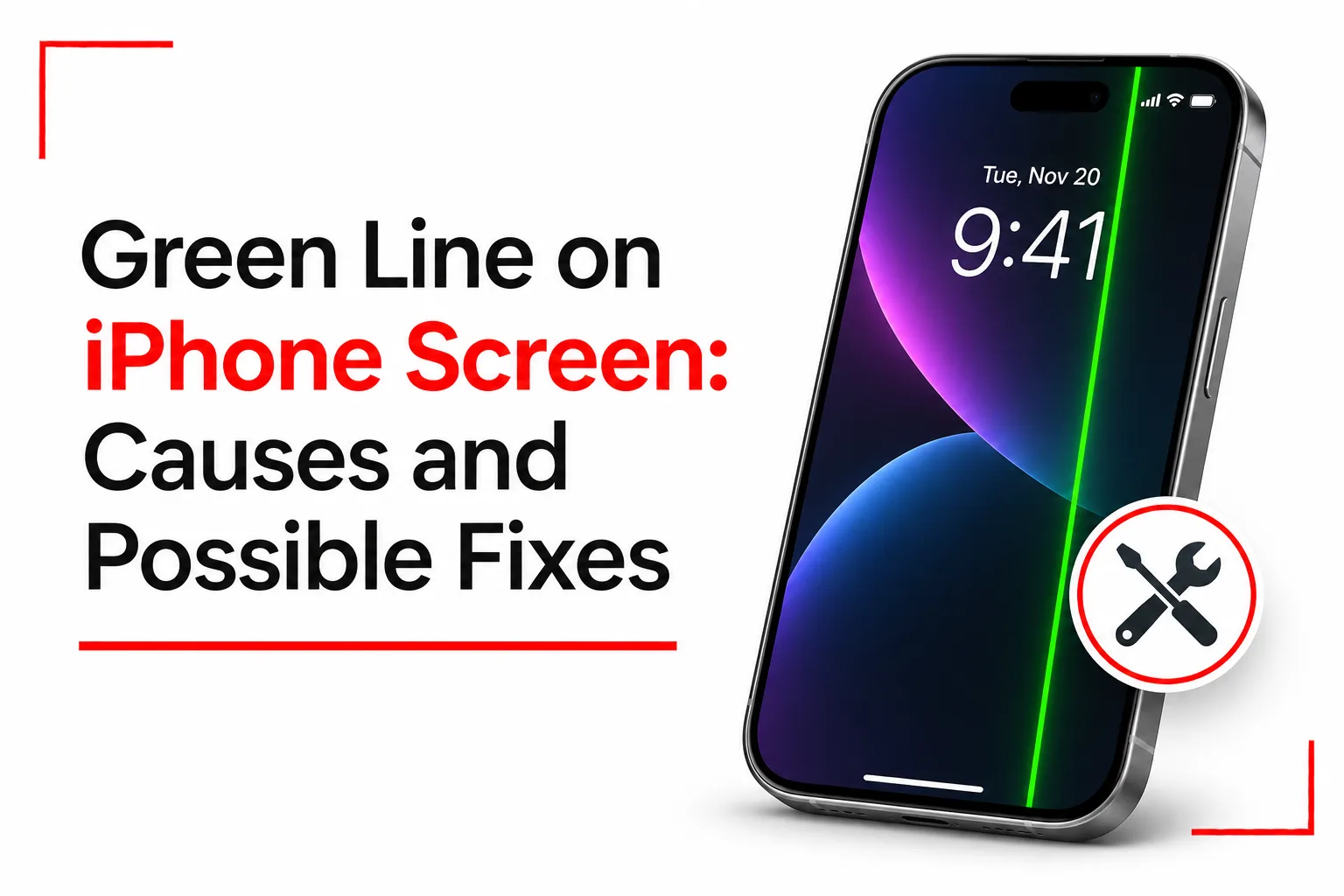

A green line running down an iPhone display can be difficult to ignore, especially when it stays visible while using apps, watching videos or checking messages. It may appear suddenly, even when the phone has not been dropped or exposed to water. In some cases, the line comes with screen flickering, colour changes or touch problems.
The green line on iPhone screen issue is often linked to a fault in the display or its internal connections. A software glitch is also possible, but a line that stays in the same position across different screens is more likely to point to a hardware problem. Some checks can help narrow down the cause before paying for a repair. This guide explains why the green line appears and what you can try to fix it.
Table of Contents
What Causes a Green Line on an iPhone Screen?
A green line can develop for several reasons. The most common causes are related to the display, but software problems and previous repairs can also play a part.
Damaged OLED Display
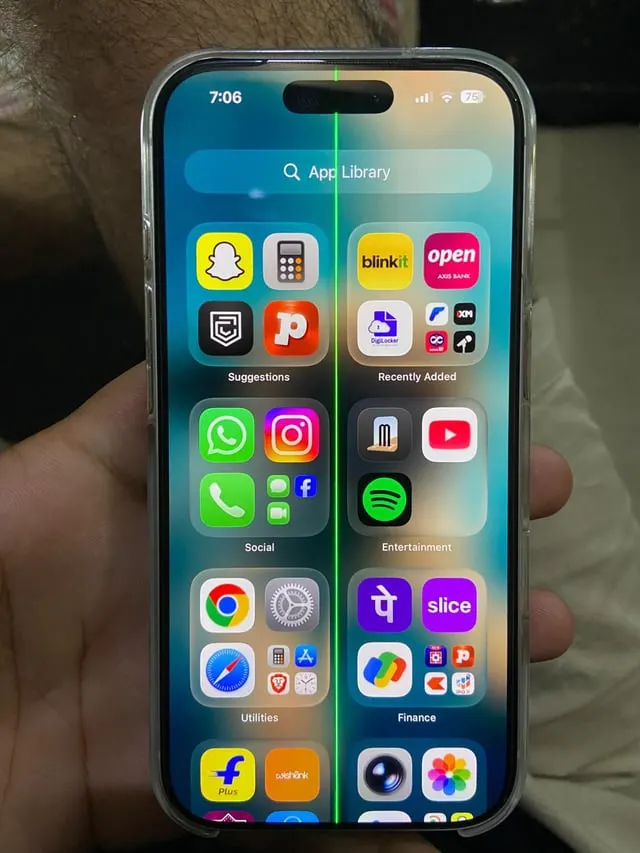
Many iPhone models use OLED screens, which produce images through individual pixels. Damage to the display panel or its electrical connections can cause a row or column of pixels to show the wrong colour. This can create a thin green line running vertically or horizontally across the screen. The line may stay in one position even when you switch between apps or restart the phone.
Physical Impact or Pressure
A drop, bend or heavy pressure can damage the display internally, even when the glass does not crack. Sitting on your phone, keeping it in a tight pocket or placing heavy objects on it can also put pressure on the screen. The damage may affect the display panel or its internal connections, causing green lines, flickering or dark patches.
Loose or Damaged Display Connection
The display connects to the iPhone’s internal hardware through delicate cables and connectors. A loose connection or damaged cable can interfere with the signals sent to the screen. This can happen after a drop or an earlier screen repair. A technician may need to inspect the connection to determine if it is responsible for the line.
Software Glitch
An iOS or app related problem can sometimes cause unusual display behaviour. A temporary glitch may produce visual errors that disappear after closing an app or restarting the phone. Software is less likely to be responsible when a fixed green line stays visible across the Home Screen, Lock Screen and different apps.
Liquid Damage
Water or other liquids can affect the display connections and internal components. Even when the phone looks dry on the outside, moisture may have reached parts inside the device. Liquid exposure can cause green lines, flickering, touch problems and other display faults.
Faulty or Non Genuine Replacement Screen
A replacement display may develop problems if it is defective, poorly fitted or not compatible with the iPhone. Using a non-genuine replacement screen can also affect how your iPhone responds to touch, displays colours and adjusts brightness. If the green line started after a screen replacement, have the repair checked by a qualified technician.
Related Article: iPhone 13 Pro Max White Screen of Death: Common Causes and Fixes
How to Check the Green Line on Your iPhone
Before trying any fixes, check if the line comes from an app or the display itself.
Check different screens: Open the Home Screen, Settings, Photos and other apps. If the line stays in the same position across all of them, the problem is less likely to be limited to one app.
Take a screenshot: Capture the screen and view the screenshot on another phone or computer. If the green line is visible in the screenshot, a software or image rendering problem may be involved. If the screenshot looks normal but the line remains on the iPhone display, a screen hardware fault is more likely. This test is a clue, not a final diagnosis.
Restart the iPhone: Restart the device and check if the line disappears. If it returns immediately or stays visible during startup, the display may have a hardware problem.
Check touch response: Try typing, opening apps and using different areas of the screen. If parts of the display do not respond, the issue may affect more than the screen’s appearance.
How to Fix a Green Line on an iPhone Screen
The right fix depends on the cause. Try these checks before arranging a screen repair.
Restart Your iPhone
A restart can clear a temporary software glitch affecting the display.
For iPhones with Face ID:
- Press and hold the side button and either volume button.
- Drag the power off slider when it appears.
- Wait about 30 seconds.
- Press and hold the side button until the Apple logo appears.
For iPhones with a Home button, press and hold the side or top button until the power off slider appears. Turn off the phone, wait, then switch it back on. If the green line stays in the same position after restarting, try the next step.
Force Restart Your iPhone
A force restart can help when the iPhone is unresponsive or experiencing a temporary system problem. It does not erase your data.
For iPhone 8 and later, including iPhone SE (2nd generation and later):
- Quickly press and release the volume up button.
- Quickly press and release the volume down button.
- Press and hold the side button until the Apple logo appears.
For iPhone 7 and 7 Plus, press and hold the volume down and side buttons together until the Apple logo appears.
For iPhone 6s and earlier, including iPhone SE (1st generation), press and hold the Home and side or top buttons together until the Apple logo appears. Check the screen after the phone restarts. A persistent green line may need a hardware inspection.
Update iOS
An outdated iOS version or software bug may cause display problems. Check for an available update:
- Open Settings.
- Tap General.
- Select Software Update.
- Install an available update if one is listed.
Back up your iPhone before installing a major update. If the line is caused by physical screen damage, an iOS update will not repair it.
Remove the Case and Screen Protector
A tight case or poorly fitted screen protector may put pressure on the display or affect how the screen looks. Remove the case and screen protector carefully, then inspect the screen again. Wipe it with a clean, soft, lint free cloth. If the green line remains, the screen itself may be affected.
Back Up Your iPhone
A green line can be an early sign of a display problem that may get worse. Back up your data before the screen becomes difficult to use.
To back up through iCloud:
- Connect your iPhone to Wi-Fi.
- Open Settings and tap your name.
- Select iCloud.
- Tap iCloud Backup.
- Select Back Up Now.
You can also back up your iPhone using a Mac or a compatible Windows computer.
Have the Screen Inspected and Repaired
If the green line remains after restarting and updating iOS, the display may be damaged. A technician can inspect the screen, its cables and internal connections to identify the faulty component. In many cases, replacing the display assembly is the repair needed. If the issue comes from a connector or logic board problem, further repair may be necessary.
Use Apple or a qualified repair provider with suitable parts and equipment. Apple provides screen service through its repair channels, with the final cost depending on the iPhone model and warranty coverage.
When Should You Replace Your iPhone Screen?
A screen replacement may be necessary when the green line stays visible across the phone, appears during startup or comes with flickering, black patches or touch problems. A technician should inspect the device before recommending a replacement. The line alone does not identify the exact faulty component.
If the iPhone has suffered liquid damage, avoid charging it until it has been checked. Also, avoid pressing or bending the screen in an attempt to remove the line, as this can cause further damage.
A green line on an iPhone screen is often linked to display damage or an internal connection problem. Restarting the phone and updating iOS can help rule out temporary software issues, but a persistent line may need professional repair. Back up your data and have the screen inspected if the problem continues.