

A few minutes of recording videos, downloading apps or saving pictures from WhatsApp can eat into your iPhone storage faster than expected. Before long, you may find yourself deleting pictures just to make room for a new app or an iOS update. The problem is not always the number of apps installed on your phone. Old conversations, duplicate pictures, offline videos and files saved by apps also take up space. Some of these files are easy to overlook because they sit in folders you rarely open.
If your iPhone is running low on space, there are several ways to clean it up without losing everything stored on the device. Here are the best ways to free up storage on iPhone and get rid of files you no longer need.
Table of Contents
1. Check Your iPhone Storage First
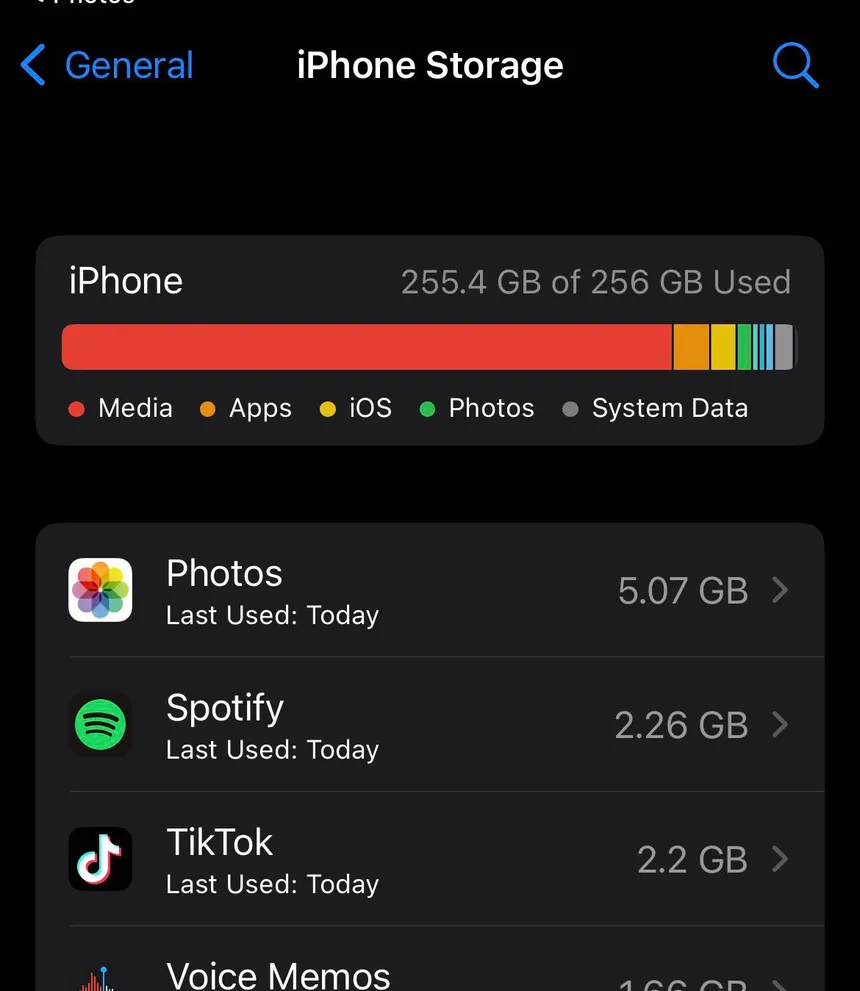
Before deleting pictures or uninstalling apps, take a look at your iPhone storage. You might find that one app is using far more space than you expected. Open Settings, go to General and tap iPhone Storage. Your phone will show how much space you have used, how much is available and the amount of storage taken up by each app.
Scroll down to see the apps arranged by storage usage. Tap any app to check its size and the space occupied by its documents and data. Pay attention to apps with large storage figures. WhatsApp, TikTok, Instagram and streaming services are common examples, particularly if you download videos or save media regularly.
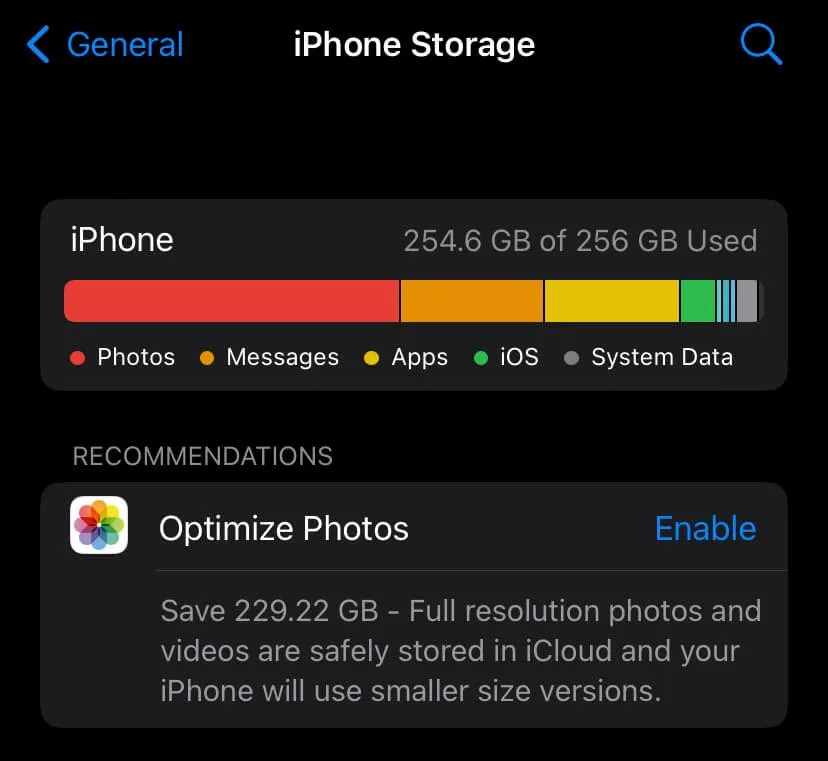
Your iPhone may also display storage recommendations at the top of the page. Review these suggestions before making changes. Some may help you recover space without manually searching through your files.
2. Delete Old Photos and Videos
Your photo library is one of the first places to check if you take a lot of pictures or record videos regularly. Open the Photos app and look through your library. Old screenshots, blurry pictures, screen recordings and videos you no longer need are good places to start.
Pay particular attention to videos. A long recording can occupy hundreds of megabytes, especially if it was captured in high resolution. Once you have selected the files you no longer need, tap the trash icon to delete them.
There is one more thing to do. Deleted pictures and videos go into the Recently Deleted album, where they can stay for up to 30 days before permanent removal.
To clear this folder:
- Open the Photos app.
- Go to Collections and scroll down to Utilities.
- Tap Recently Deleted.
- Unlock the folder if prompted.
- Select the files you want to remove permanently.
- Tap Delete.
Check the folder carefully before confirming. Permanently deleted pictures cannot be recovered through the Photos app.
3. Remove Duplicate Photos
You may have several copies of the same picture without realising it. This often happens when you save images from messaging apps, take multiple shots or download pictures more than once. Apple has a Duplicates feature in the Photos app that helps find matching pictures and videos.
To use it:
- Open Photos.
- Go to Collections.
- Scroll down to Utilities.
- Tap Duplicates.
- Review the matching files.
- Tap Merge beside the duplicates you want to combine.
Your iPhone keeps the highest quality version and combines useful information from the duplicate copies. If you cannot find Duplicates, your phone may not have detected any matching files. It may also need time to scan your photo library.
You do not have to go through every picture manually. Start with the duplicates Apple has already identified and check the results before merging them.
4. Offload Apps You Rarely Use
There are probably apps on your iPhone that you downloaded for a particular reason and have barely opened since. Some of them may still be taking up hundreds of megabytes or more. You do not have to delete an app completely to recover some of that space. Apple has an option called Offload App.
Offloading removes the application but keeps its documents and data. The app icon stays on your Home Screen, and you can download the app again by tapping it.
To offload an app:
- Open Settings.
- Tap General.
- Select iPhone Storage.
- Choose an app you rarely use.
- Tap Offload App.
- Confirm your choice.
There is also an automatic option. Go to Settings > Apps > App Store and turn on Offload Unused Apps. Your iPhone will remove unused applications when storage is low, keeping their saved data for future use.
If you no longer need an app or its stored information, choose Delete App. Unlike offloading, deleting an app removes its associated data too.
5. Clear WhatsApp Storage
WhatsApp can quietly take up a large portion of your iPhone storage. Group chats are often responsible, particularly those where people regularly share videos, pictures, voice notes and documents.
You do not have to delete entire conversations to recover space. WhatsApp has a storage management section where you can review large files and remove the ones you no longer need.
Open WhatsApp and follow these steps:
- Tap Settings.
- Select Storage and Data.
- Tap Manage Storage.
- Review the files taking up the most space.
- Open a conversation or media category.
- Select unwanted files and delete them.
Videos are a good place to start, especially large recordings that have been forwarded several times. You should also check your automatic download settings. Under Settings > Storage and Data, review the Media Auto Download options for photos, videos, audio and documents.
If WhatsApp downloads every video sent to you, your phone can fill up quickly. Set downloads to Wi-Fi or disable automatic downloads for media you prefer to save manually. Before deleting important conversations or attachments, check that you have a recent WhatsApp backup.
Related Article: How to Stop WhatsApp From Using Too Much Storage
6. Clear Safari Browsing Data
Safari saves website data, cookies and cached files as you browse. These files help websites load faster, but stored browsing data can build up over time.
To clear Safari history and website data:
- Open Settings.
- Tap Apps.
- Select Safari.
- Tap Clear History and Website Data.
- Choose the timeframe you want to clear.
- Confirm your selection.
If you want to keep your browsing history but remove stored website data, go to Settings > Apps > Safari > Advanced > Website Data and select Remove All Website Data. Keep in mind that clearing website data may sign you out of websites and remove saved preferences. You may also notice that some pages take longer to load the first time you visit them again.
This only clears Safari data. If you use Chrome or another browser, check its settings for similar storage options.
7. Delete Old Messages and Attachments
Text messages do not take up much space on their own. The pictures, videos, voice notes and documents attached to them are another matter. If you have kept conversations for several years, some of those attachments may no longer be useful.
Open the Messages app and select a conversation. Tap the contact or group name at the top to access shared photos and other attachments. Review the files and remove the ones you no longer need.
You can also delete entire conversations by swiping left on them in the Messages conversation screen.
For automatic cleanup, open Settings > Apps > Messages > Keep Messages. You can choose to keep conversations for 30 Days, 1 Year or Forever.
Selecting a shorter period will remove older conversations automatically. Be careful with this setting if you use Messages to keep important personal or work records. If Messages in iCloud is active, deleting a conversation also removes it from your other devices synced with the same Apple Account.
8. Remove Downloaded Music, Movies and Podcasts
Streaming apps make it easy to download entertainment for offline use. The trouble starts when you forget to remove the files after watching a film or listening to an album.
Check your downloads in apps such as Apple Music, Netflix, Spotify and Podcasts.
For Apple Music:
- Open the Music app.
- Go to Downloaded.
- Find the songs or albums you no longer need offline.
- Touch and hold an item.
- Select Remove, then Remove Download.
For Netflix, open My Netflix and select Downloads. Choose a film or episode you have finished watching and delete its download.
In the Podcasts app, review your downloaded episodes and remove those you have already listened to.
You do not have to delete your account or cancel a subscription. Removing an offline download only clears the copy saved on your iPhone. You can download it again later.
9. Clean Up the Files App
PDFs, documents, images and other downloads can sit in the Files app long after you have finished using them. Open Files and tap Browse. Check the On My iPhone folder and iCloud Drive for old documents, large videos and downloads you no longer need.
Select an unwanted file, tap Delete and repeat for other files you want to remove. Also check the Recently Deleted folder in Files. Deleted documents stay there for up to 30 days unless you remove them permanently. Be careful with files stored in iCloud Drive. Deleting a synced document can also remove it from your other devices.
10. Deal With iPhone System Data
System Data can be confusing because it does not show the same type of files as your photos, apps or downloaded videos. It contains temporary files, logs, caches and other resources used by iOS. Its storage usage can change as your phone handles everyday tasks.
Unlike photos and apps, there is no button that clears all System Data at once. Your iPhone manages many temporary files automatically.
If the figure seems unusually high, try these steps:
Restart your iPhone: Switch off your device and turn it back on. This refreshes system processes, although it does not guarantee a large reduction in System Data.
Update iOS: Open Settings, tap General and select Software Update. Install an available update if your device has enough free space.
Check apps with large stored data: Return to iPhone Storage and review apps using unusually large amounts of space. Some apps have their own options for removing downloads and stored files.
Avoid cleaning apps that promise to remove every system file. Third party apps do not have unrestricted access to iOS system storage.
11. Use iCloud Photos to Save Space
If pictures and videos take up most of your iPhone storage, iCloud Photos is another option.
Apple’s Optimize iPhone Storage setting keeps full resolution copies of your photos and videos in iCloud. Your iPhone stores smaller versions locally when more space is needed, and downloads the originals when you open or edit them.
To turn it on:
- Open Settings.
- Tap your name.
- Select iCloud.
- Tap Photos.
- Turn on Sync this iPhone.
- Select Optimize iPhone Storage.
Your photo library will sync with iCloud, and your iPhone will manage the local copies to save space.
There is one thing to keep in mind: iCloud Photos is a syncing service, not a separate backup folder. If you delete a picture from your iPhone while syncing is active, it will also be deleted from iCloud and your other connected devices.
Apple provides 5GB of free iCloud storage. If your photo library is larger, you may need an iCloud+ subscription. Also, iCloud storage and iPhone storage are two separate things. Paying for more iCloud space does not increase the physical storage capacity of your phone.
12. Clear Storage Used by Social Media Apps
Social media apps can quietly consume a lot of iPhone storage, especially if you spend time watching videos, viewing stories or scrolling through your feed. Apps such as Snapchat, Instagram, Facebook and X store temporary data to make content load faster.
Over time, cached images, videos and other app data can build up. Clearing this data can recover some storage without deleting your social media accounts.
Here is how to clean up some of the space used by popular social media apps.
Snapchat
Snapchat has a built in cache clearing option.
- Open Snapchat.
- Tap your profile picture.
- Tap the Settings icon.
- Scroll to Account Actions.
- Select Clear Cache.
- Confirm your selection.
Clearing the cache does not delete your Memories, Snaps or Chats.
Instagram does not provide a dedicated clear cache button on iPhone.
To clear its stored app data, you may need to delete Instagram and reinstall it.
- Open Settings.
- Tap General.
- Select iPhone Storage.
- Find Instagram.
- Tap Delete App.
- Reinstall Instagram from the App Store.
Make sure you know your login details before deleting the app. Save any drafts you want to keep, as deleting Instagram may remove locally stored drafts.
Facebook stores temporary data as you browse posts, watch videos and view pictures. Its iPhone app does not provide the same dedicated cache clearing option available on Snapchat. You can remove the app and reinstall it to clear locally stored app data.
Go to Settings > General > iPhone Storage > Facebook, tap Delete App and reinstall it from the App Store.
X (formerly Twitter)
X has a storage management option for removing cached media and web data.
- Open X.
- Tap your profile picture.
- Select Settings and privacy.
- Tap Accessibility, display, and languages.
- Select Data usage.
- Open Media storage and clear it.
- Return to the previous screen and clear Web storage if needed.
The menu names may change with app updates. Clearing cached media and web data does not delete your X account or posts.
After cleaning up these apps, check Settings > General > iPhone Storage again to see how much space you have recovered.
Frequently Asked Questions
Why does my iPhone storage keep getting full?
Photos, videos, messaging apps, downloaded files and app data can gradually fill your device. Check Settings > General > iPhone Storage to find out which categories are using the most space.
How do I free up storage on my iPhone without deleting photos?
Start with unused apps, WhatsApp media, old message attachments, browser data and offline downloads. Offloading apps is also useful if you want to keep their documents and data.
Can I increase my iPhone storage?
You cannot upgrade the internal storage after purchasing an iPhone. Cloud services such as iCloud and Google Drive can store files online, reducing the amount you keep on your device.
Does deleting apps free up storage on an iPhone?
Yes. Deleting an app removes the application and its associated data. Offloading an app removes the application but keeps its documents and data.
Why is System Data taking up so much space?
System Data contains caches, logs, temporary files and other iOS resources. Its size changes as your phone stores and clears temporary information. There is no single setting for manually deleting all of it.
Does clearing Safari cache free up storage?
Yes. Removing Safari history and website data can recover some storage, depending on how much browsing data is saved on your device.
A quick look through your iPhone storage every now and then can save you from deleting pictures in a hurry just to make room for something new. Start with the files and apps you no longer use, and keep the ones you still need.