
A laptop that refuses to start can leave you unable to access your files, complete assignments or continue your daily tasks. You might press the power button several times without seeing anything on the screen, or notice a charging light with no other signs of activity. Sometimes the laptop is receiving power but cannot complete its startup process.
If your Lenovo laptop not turning on is causing problems, the first step is to identify what is preventing it from starting. A faulty charger, depleted battery, temporary system glitch or internal hardware fault could be responsible. A black screen can also make it seem like the laptop has no power, even when the fans and keyboard lights are running. This guide covers the common causes and fixes you can try before visiting a repair shop.
Table of Contents
Why Is Your Lenovo Laptop Not Turning On?
Several issues can prevent a Lenovo laptop from starting. Some are easy to fix at home, while others may need a technician to inspect the internal components.
1. Battery or Charging Problems
A completely drained battery may prevent the laptop from starting immediately after you connect the charger. A faulty battery, damaged charging port or defective AC adapter can also interrupt power delivery. If the charging indicator does not light up, inspect the charger, cable and laptop power connection. A damaged adapter may fail to supply enough electricity to charge the battery or start the computer.
2. Temporary Power or System Glitches
Residual electrical charge can sometimes leave a laptop unresponsive after shutdown or sleep mode. The power button may appear to do nothing, even when the charger is connected. A power reset can clear certain temporary electrical states and help the laptop start again. This is one of the first fixes to try before opening the computer.
3. Display Problems
Your Lenovo laptop may actually be running, but the screen could stay black because of a faulty display panel, damaged screen cable or graphics issue. Check for fan noise, keyboard illumination and status lights after pressing the power button. If these are active, the laptop may have a display problem instead of a complete power failure.
4. BIOS or Firmware Problems
An interrupted BIOS update or corrupted firmware settings can prevent the laptop from completing its startup process. You may see a blank screen, an error message or a device that repeatedly restarts. BIOS problems need careful attention because installing the wrong firmware or interrupting an update can cause further damage.
5. Internal Hardware Problems
Loose RAM modules, a faulty SSD, damaged motherboard components or a short circuit can prevent a Lenovo laptop from starting correctly. These problems are more likely if the laptop was recently dropped, opened for repairs or exposed to liquid. Internal hardware checks may be necessary if the basic power and reset steps fail.
Related Article: Laptop Buying Checklist: What to Look for and What to Avoid
How to Fix a Lenovo Laptop That Will Not Turn On
Try the following steps in order. Test the laptop after each one to see if it starts normally.
Check the Charger and Power Outlet
Start with the power supply, since a faulty charger or outlet can leave your laptop without enough electricity to start.
Follow these steps:
- Disconnect the charger from the laptop and wall outlet.
- Inspect the cable, adapter and connector for cuts, bent pins or visible damage.
- Connect another electrical device to the same wall outlet to confirm it works.
- Plug the Lenovo charger directly into the wall outlet, avoiding extension sockets and docking stations.
- Connect the charger to your laptop and allow it to charge for at least 10 minutes.
- Press the power button and check for any response.
If possible, test the laptop with a compatible Lenovo approved charger. Make sure its voltage, connector and wattage match your laptop’s specifications. If the charging light stays off with a working adapter, the charging port or internal power circuit may need inspection.
Disconnect External Devices
Connected accessories can sometimes interfere with startup, especially if a USB device or docking station has developed a fault.
Remove all external equipment before trying again.
- Disconnect USB drives and external hard drives.
- Remove memory cards and other removable accessories.
- Unplug external monitors and docking stations.
- Disconnect printers, USB hubs and other connected equipment.
- Leave the charger connected and press the power button.
If the laptop starts, reconnect your accessories one at a time. This can help identify the device causing the startup problem.
Perform a Power Reset
A power reset can help when the laptop has become unresponsive because of a temporary electrical glitch.
For Lenovo laptops without an emergency reset hole, follow these steps:
- Disconnect the AC charger.
- Remove all connected accessories.
- If your laptop has a removable battery, take it out.
- Press and hold the power button for about 30 seconds.
- Release the button and reconnect the charger.
- Reinstall the removable battery, if applicable.
- Press the power button to start the laptop.
Use the Lenovo Emergency Reset Hole
Some Lenovo laptops have a small emergency reset hole on the bottom panel. It temporarily interrupts the internal power supply and can help recover a laptop that does not respond to the power button.
To use it:
- Disconnect the AC charger and all external devices.
- Check the laptop’s manual to confirm the location of the emergency reset hole.
- Insert a straightened paperclip gently into the designated opening.
- Press the internal reset button as instructed in the manual.
- Remove the paperclip and reconnect the charger.
- Press the power button to start the laptop.
Not every Lenovo model has this feature. Avoid pressing into ventilation openings, microphone holes or other unidentified spaces.
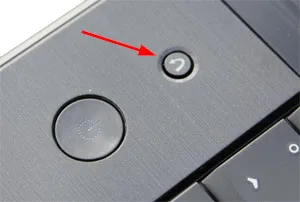
Try the Lenovo Novo Button
Some Lenovo IdeaPad models have a recessed Novo button that opens a special startup menu. You can use it to access BIOS setup, the boot menu and system recovery options, even when the laptop does not start normally.
If your laptop has this button, follow these steps:
- Disconnect the charger and any attached USB devices.
- Locate the Novo button using your laptop’s manual.
- Press the button gently.
- Wait for the Novo menu to appear.
- Select BIOS Setup or the appropriate recovery option.
If BIOS Setup opens, your laptop can receive power and start its firmware. The problem may be related to Windows startup or the boot drive.
Check if the Screen Is the Problem
If your Lenovo laptop makes fan noise, lights up or responds to keyboard input but displays nothing, check the screen before attempting internal repairs.
Try these checks:
- Press the brightness increase key several times.
- Listen for fan noise after pressing the power button.
- Check if the Caps Lock indicator responds when pressed.
- Connect the laptop to an external monitor using HDMI or a supported USB C display connection.
- Turn on the laptop and check if the external display shows an image.
If the external monitor works, the laptop’s internal display, screen cable or backlight may have a fault. If neither screen displays anything, the problem could be related to the graphics hardware, RAM, firmware or motherboard.
Check the RAM Modules
Loose or faulty RAM can prevent a Lenovo laptop from completing its startup checks. This may result in a black screen, repeated restarts or a device that powers on without displaying anything. If your model has removable RAM and you have experience with laptop repairs, consult its service manual before opening the base panel.
The basic inspection includes:
- Shut down the laptop and disconnect the charger.
- Follow the manufacturer’s instructions for disconnecting the internal battery.
- Remove the RAM module carefully.
- Inspect the module and memory slot for visible damage or debris.
- Reinstall the module firmly in its slot.
- Reconnect the battery and test the laptop.
Some Lenovo laptops have soldered memory that cannot be removed or reseated. Opening the laptop may also affect its warranty, so a repair technician should handle this check if you are unsure.
Check the SSD and BIOS Settings
A faulty or disconnected SSD can prevent Windows from loading. In some cases, the Lenovo logo appears, but the laptop gets stuck during startup or displays a boot device error. If you can access BIOS Setup, check if the internal SSD is detected. You can also inspect the boot order and confirm that the correct storage device is selected. Avoid changing unfamiliar BIOS settings.
If the SSD is missing from the BIOS menu, it may have a connection fault or hardware damage. A technician can inspect the drive and test it without risking unnecessary changes to your personal files.
When Should You Take Your Lenovo Laptop for Repair?
If the laptop still refuses to start after checking the charger, disconnecting accessories and performing the correct power reset, an internal hardware fault may be responsible.
Arrange a professional inspection if you notice any of the following:
- The laptop has no charging light with a compatible working adapter.
- The charging port feels loose or becomes unusually hot.
- The laptop repeatedly shuts down during startup.
- You hear unusual clicking, buzzing or electrical noises.
- The device has suffered liquid damage or a serious fall.
- The screen stays black even after testing an external monitor.
- The laptop cannot detect its SSD or complete its startup checks.
Avoid repeatedly pressing the power button if you notice a burning smell, excessive heat or signs of liquid damage. Disconnect the charger and leave the laptop switched off until it has been inspected. A technician can test the battery, charging circuit, RAM, storage drive and motherboard to identify the faulty component. If your files are important, mention this before any repair or Windows reinstallation.
A Lenovo laptop that will not turn on may have a simple charging issue, a temporary power glitch or an internal hardware fault. Start with the charger and wall outlet, disconnect external devices and perform a power reset. If the laptop shows signs of activity but the screen stays black, test an external monitor to check for a display problem. If these steps do not restore power, have the battery, charging port and internal components inspected. A proper diagnosis helps pinpoint the faulty component and prevents you from paying for repairs your laptop may not need.