
A monitor turning off and on when launching games can be frustrating, especially when the screen goes black just as you are about to start playing. Sometimes the display returns after a few seconds and the game continues normally. In other cases, the monitor repeatedly loses its signal, the game freezes or the display settings change unexpectedly.
This issue can be caused by differences in refresh rate and resolution, faulty display cables, HDR settings or graphics driver problems. Several adjustments may fix the problem without having to replace your monitor or graphics card. This guide covers the common causes and steps you can take to stop your monitor screen turning off and on when launching games.
Table of Contents
Primary Causes of Game Launch Screen Flickering
Several display settings and hardware issues can cause your monitor to lose its signal when a game starts. Identifying the cause can make troubleshooting much easier.
1. Refresh Rate and Resolution Switching
Your desktop and games may use different display settings. For example, your Windows desktop might run at 60Hz, while a game switches the monitor to 144Hz or 165Hz when it launches. The graphics card needs to communicate these changes to the monitor. During this process, the screen may briefly go black while the monitor adjusts to the new resolution or refresh rate.
This is usually temporary, but repeated black screens can indicate a problem with the display settings or the connection between your computer and monitor.
2. Display Connection and Cable Limitations
Your HDMI or DisplayPort cable carries video signals between your graphics card and monitor. However, not every cable supports the same resolution and refresh rate. An older or damaged cable may struggle to transmit a high resolution image at a high refresh rate. This can cause flickering, temporary signal loss or a black screen when a game switches to more demanding display settings.
Loose connections, low quality adapters and extension cables can also contribute to the problem.
3. Adaptive Sync Conflicts
Technologies such as NVIDIA G Sync and AMD FreeSync help reduce screen tearing by synchronising the monitor’s refresh rate with the graphics card’s output.
Although these technologies can improve gameplay, they can cause display issues when a game switches between windowed and fullscreen modes. A faulty configuration or compatibility issue can cause the monitor to flicker or briefly lose its signal.
4. Corrupted or Outdated Graphics Drivers
Your graphics driver controls how the operating system and games communicate with your graphics card. An outdated or corrupted driver can cause display problems, particularly when a game changes resolution, refresh rate or graphics settings during startup. You may also experience black screens, crashes, stuttering or unexpected changes in display behaviour.
5. HDR Handshake Problems
High Dynamic Range, commonly called HDR, improves the brightness, contrast and colour of supported displays. Some games automatically activate HDR when they start. This can trigger a new connection handshake between your graphics card and monitor, causing the screen to go black briefly.
Display interruptions can also happen when the monitor, cable or graphics card struggles to handle the change. Windows Auto HDR may also cause similar issues on some systems.
Step by Step Troubleshooting Guide
The following fixes can help resolve monitor flickering when launching games. Start with the simpler adjustments before moving on to driver removal or advanced display settings.
Step 1: Change Your Display Mode Settings
Fullscreen mode can cause your computer to switch display settings when a game starts. Switching to borderless windowed mode can reduce these interruptions because the game runs inside a window that covers the desktop.
Here is how to change the setting:
- Open the game that causes the screen to flicker.
- Go to its video or display settings.
- Find the display mode option.
- Change Fullscreen to Borderless Windowed.
- Save the changes and restart the game.
You should also check that your desktop and game use the same resolution and refresh rate.
To check your Windows display settings:
- Open Settings.
- Select System, then Display.
- Open Advanced Display.
- Check the current resolution and refresh rate.
- Set the refresh rate to a value supported by your monitor.
You can also adjust the game’s resolution and refresh rate to match these settings.
Step 2: Adjust Adaptive Sync Settings
G Sync and FreeSync can sometimes cause display interruptions when a game launches. Temporarily disabling these features can help you identify if adaptive sync is responsible.
For NVIDIA graphics cards:
- Open the NVIDIA Control Panel.
- Select Set up G Sync.
- Untick Enable G Sync, G Sync Compatible.
- Apply the changes.
- Launch the game again and check if the screen still flickers.
For AMD graphics cards:
- Open AMD Software: Adrenalin Edition.
- Go to the Gaming section.
- Open the display settings, if available.
- Turn off AMD FreeSync.
- Restart the game and test the display.
You can also check if your monitor has a separate FreeSync or adaptive sync setting in its on screen menu. If disabling adaptive sync fixes the problem, you can try enabling it for fullscreen applications only, where that option is available. This may help prevent conflicts when switching between desktop applications and games.
Related Article: Why Is Half My Monitor Screen Darker Than the Other? (Fixes)
Step 3: Disable Windows HDR Features
HDR can cause a brief black screen when a game starts and activates the setting. Turning it off temporarily can help you determine if it is responsible.
To disable HDR in Windows:
- Open Settings.
- Select System, then Display.
- Choose your HDR compatible monitor.
- Open the HDR settings.
- Turn off Use HDR and Auto HDR, where available.
You should also check the game’s display settings and turn off its HDR option.
Launch the game again to see if the screen remains stable. If the problem disappears, you can test HDR again after checking your monitor and cable compatibility.
Step 4: Inspect Your Physical Connections and Cables
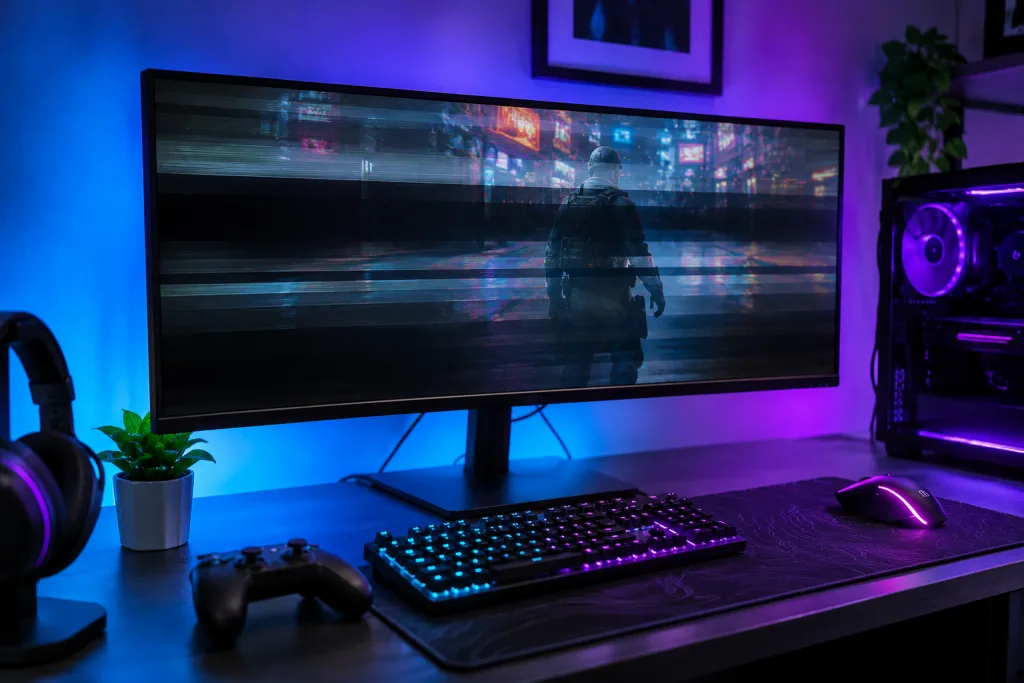
A loose or unsuitable cable can cause your monitor to lose its signal when a game switches to a higher resolution or refresh rate.
Start with these checks:
- Turn off your computer and monitor.
- Disconnect the HDMI or DisplayPort cable from both devices.
- Check the connectors for visible damage.
- Reconnect the cable securely.
- Try another compatible cable if the problem continues.
For high refresh rate gaming, use a cable that supports the resolution and refresh rate of your monitor. Certified HDMI or DisplayPort cables can help reduce connection problems. You should also avoid unnecessary adapters and extension cables while testing.
Step 5: Perform a Clean GPU Driver Install
A corrupted graphics driver can cause display problems when games launch. Reinstalling the driver can help remove damaged files and resolve software conflicts. Display Driver Uninstaller, also called DDU, is a third party utility that removes existing graphics drivers. You can use it in Safe Mode before installing a fresh driver package.
Follow these steps:
- Download the latest graphics driver for your NVIDIA, AMD or Intel graphics card.
- Download Display Driver Uninstaller from its official distribution source.
- Restart Windows in Safe Mode.
- Run DDU and select your graphics card manufacturer.
- Choose the option to clean and restart.
- Once Windows starts normally, install the graphics driver you downloaded.
- Restart your computer and test the game again.
Save your important work before starting, and follow the utility’s instructions carefully. You should also avoid installing drivers from unfamiliar websites.
Step 6: Turn Off In Game Overlays and Third Party Apps
Some applications display extra information over your games, such as notifications, performance statistics and chat messages. These overlays can sometimes conflict with games or graphics drivers.
Common examples include:
- Discord Overlay
- NVIDIA App overlay
- Steam Overlay
- MSI Afterburner with RivaTuner Statistics Server
Try disabling these overlays one at a time. You can usually find the settings inside each application.
Once they are disabled, restart the game and check if the monitor still turns off and on. If the problem stops, re enable the overlays individually to identify the application causing the conflict.
Advanced Solutions
The basic troubleshooting steps can resolve many display problems. However, persistent flickering may call for a closer look at your monitor settings, custom display profiles and graphics card configuration.
1. Disable Custom Resolution Utility Profiles
Custom Resolution Utility, commonly known as CRU, allows you to create custom display resolutions and refresh rates. These settings can be useful for advanced monitor adjustments, but an incompatible profile may cause signal loss when launching games.
If you have used CRU before, try resetting its custom settings. You can use the reset utility included with CRU to restore the original display configuration. Restart Windows afterwards and check if the monitor works normally. Be careful when changing custom resolution settings. Incorrect values can cause the display to stop working until you restore the original configuration.
2. Update Your Monitor Firmware
Some gaming monitors receive firmware updates that fix display compatibility problems, improve performance or resolve connection issues.
Visit your monitor manufacturer’s support page and check if an update is available for your exact model. Read the installation instructions carefully before proceeding. Do not install firmware intended for a different monitor model. An incorrect update can cause additional problems.
3. Adjust GPU Power Management Settings
Graphics card power settings can sometimes affect performance when a game starts. Testing a higher performance setting can help identify if power management is contributing to the issue.
For NVIDIA graphics cards:
- Open NVIDIA Control Panel.
- Select Manage 3D Settings.
- Find Power Management Mode.
- Select Prefer Maximum Performance.
- Apply the changes.
For AMD graphics cards, check the available performance and power settings in AMD Software: Adrenalin Edition.
Test the game again after making the adjustment. Keep in mind that maximum performance settings can increase power consumption, heat and fan noise. You can restore the previous setting if there is no improvement.
Frequently Asked Questions
Why Does My Monitor Lose Signal for Two to Three Seconds When Launching Games?
Your monitor may briefly lose its signal because the graphics card is switching from desktop display settings to the resolution or refresh rate used by the game. This process is called a display handshake. The graphics card communicates the new settings to the monitor, which then adjusts its display output.
A short black screen can be normal when switching display modes. However, repeated signal loss may point to a cable problem, incompatible display settings, HDR conflicts or graphics driver issues.
Is Screen Flickering During Game Launches a Sign of GPU Failure?
Not necessarily. Screen flickering when launching games is often linked to software settings, graphics drivers or display connections. Hardware problems are also possible. Watch for other warning signs, such as frequent graphics crashes, visual artefacts, unexpected shutdowns and display issues across multiple applications.
You can also test another monitor or cable to help identify the source of the problem. Persistent issues across different displays and applications may indicate a graphics card fault.
Should I Use HDMI or DisplayPort for Gaming Monitors?
Both HDMI and DisplayPort can provide excellent gaming performance. The best option depends on your monitor, graphics card and the resolution and refresh rate you want to use.
DisplayPort is commonly used for PC gaming monitors, particularly at high refresh rates and resolutions. Modern HDMI versions also support high resolution gaming and features such as variable refresh rate. Check the specifications of your monitor and graphics card before buying a cable. Make sure the cable supports the resolution and refresh rate you intend to use.
A monitor turning off and on when launching games can result from display settings, cable issues, adaptive sync conflicts or graphics driver problems. Start by checking your display settings, switching to borderless windowed mode and inspecting your connections. You can also reinstall your graphics drivers or reset custom display profiles if the problem continues. Testing another cable or monitor can help identify a possible hardware fault when the screen keeps losing its signal.