

Laptop buying has a way of turning a simple purchase into a full research project. What starts as a quick decision, one machine, one budget, becomes ten open tabs, conflicting reviews, and a spec sheet that reads like a foreign language. RAM, processors, storage types, screen resolution, battery life. Each one sounds important, but nobody tells you which ones actually affect your day-to-day experience and which ones are just marketing numbers dressed up to look impressive.
The price gaps do not help either. Two laptops can sit side by side with a three hundred dollar difference between them and no obvious explanation for why. One has an i5, another has an i7, and a third is promoting a chip you have never heard of. Without a clear frame of reference, it is easy to either overspend on specs you will never use or underspend and end up with a machine that slows down six months in.
This checklist was written to cut through all of that. Student, remote worker, creative, or someone whose old laptop finally gave out, what follows will walk you through exactly what to look for, what to ignore, and what to avoid.
Table of Contents
How Much Should I Spend on a Laptop?
Your budget is your starting point, but the real question is how much you actually need to spend for your use case.
Here is a breakdown by price range:
$400 and below — Proceed with caution. This range almost always means compromises: slow performance, poor screen quality, and build quality that gives out fast.
$400 to $600 — Good for basic use. Web browsing, email, document editing, and video streaming all run without issues here.
$600 to $1,000 — The sweet spot for most people. You get better processors, more RAM, faster storage, and nicer screens. Handles multitasking, productivity software, and moderate photo editing well. Expect a lifespan of four to five years before it starts feeling outdated.
$1,000 to $1,500 — Built for professionals. High-resolution displays, powerful components, lightweight builds, and long battery life. A solid pick for creatives, frequent travelers, and remote workers with heavy workloads.
$1,500 and above — Specialised territory. High-end gaming rigs, 3D rendering machines, and professional video editing workstations live here. For average users, the returns at this price point shrink fast.
One smart move: buy last year’s model. When new laptops drop, previous generation models often fall 20 to 30 percent in price with nearly identical performance. A $900 laptop from last year can easily outperform a $700 current model.
What Processor Do I Actually Need?
The processor (CPU) is your laptop’s brain. It handles every calculation and task you throw at it. But model numbers like i3, i5, i7, Ryzen 5, and Ryzen 7 confuse more than they clarify for most buyers.
Here is a simple breakdown:
Intel Core i3 / AMD Ryzen 3 — Handles basic use comfortably. Browsing, streaming, and light office work all run fine here. Do not let anyone convince you that you need more power for checking email and watching YouTube.
Intel Core i5 / AMD Ryzen 5 — The sweet spot for most people, including students and professionals. You can have 15 browser tabs open, run Microsoft Office, attend a Zoom call, and play music at the same time without slowdowns. There is also enough headroom for occasional tasks like light photo editing.
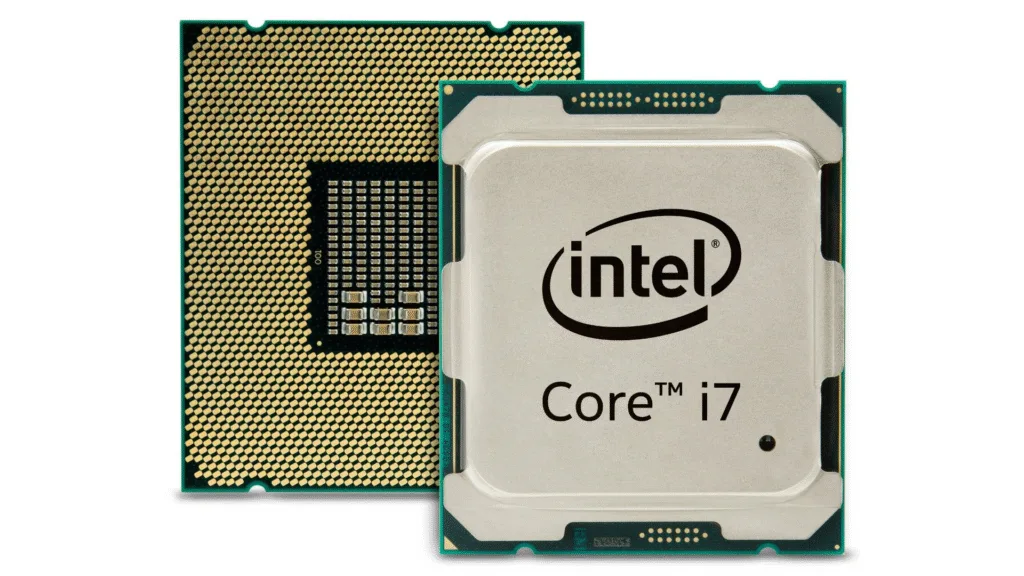
Intel Core i7 / AMD Ryzen 7 — Makes sense if you regularly run demanding software: video editing, 3D modeling, programming with multiple virtual machines, or serious gaming. For everyday tasks, the difference between an i5 and i7 is barely noticeable. That extra $200 to $300 is often better spent on more RAM or faster storage.
A few things to watch out for:
- Pay attention to processor generation. A newer i5 frequently outperforms an older i7. For Intel, look for 13th or 14th gen chips (numbers like “1335U” or “14700H” where the first two digits indicate generation). For AMD, the Ryzen 5000, 6000, and 7000 series are current. Avoid anything more than two generations old unless the price drop is significant.
- Steer clear of laptops running Intel Celeron or Pentium processors. These struggle with modern websites and software, and the money saved upfront gets spent replacing the laptop far sooner than expected.
How Much RAM Is Enough?
RAM (Random Access Memory) determines how many things your laptop can handle at once. Too little means constant slowdowns. Too much is wasted money. Here is where to land:
8GB — The bare minimum for any laptop in 2026. Handles basic browsing, office apps, and media streaming. That said, modern websites and applications are memory hungry, and you will feel the pinch when multitasking gets heavy.
16GB — The comfortable target for most users. Dozens of browser tabs, productivity apps, video calls, and background programmes running at the same time without issues. If you work from home, attend online school, or do any content creation, 16GB keeps things smooth for years.
32GB — Built for power users. Video editors, programmers, designers, and gamers running Adobe Premiere, virtual machines, large datasets, or modern games while streaming will appreciate the headroom.
64GB and above — Professional workstation territory. Scientific computing, 3D rendering, and running multiple demanding applications simultaneously. Average users gain nothing here.
Two things to check before you buy:
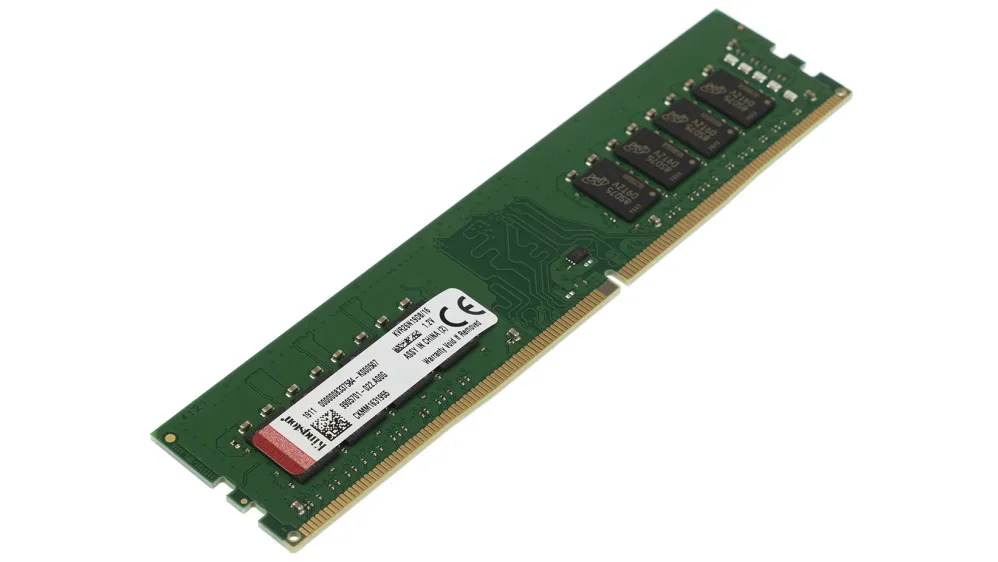
- Upgradeable or soldered? Many modern laptops, especially thin ultrabooks, have RAM soldered directly to the motherboard. You cannot add more later. If you are buying an 8GB laptop with soldered RAM, you may regret it within two years. Upgradeable RAM gives you flexibility to start low and scale up.
- Single channel or dual channel? Dual channel RAM (two sticks) performs noticeably better than single channel (one stick). A laptop with 16GB dual channel RAM can outperform one with 16GB single channel by 10 to 20 percent. It is a small detail that makes a difference.
What Type of Storage Should I Get?
Storage type affects your daily experience far more than storage size. This is where a lot of buyers make expensive mistakes.
SSD vs HDD: This one is non-negotiable
Only buy a laptop with an SSD (Solid State Drive) as the primary drive. A traditional HDD (Hard Disk Drive) is not worth it in 2026, no matter how attractive the price looks. SSDs are five to ten times faster for everyday tasks. Your laptop boots in ten seconds instead of two minutes, applications open instantly, and file transfers happen quickly. No single hardware decision impacts daily performance more than this one.
How much storage do you actually need?
256GB — After the operating system takes up 30 to 40GB, you have around 200GB left. This works if you stream music and movies, use cloud storage for photos and documents, and do not install many large programmes.
512GB — The comfortable middle ground for most users. Room for the operating system, plenty of applications, thousands of photos, and large files without constantly juggling space. Most people never cross this ceiling in actual usage.
1TB — Makes sense if you store large photo libraries, video projects, or game collections locally, or simply do not want to think about storage management. The price gap between 512GB and 1TB has narrowed, often just $50 to $100, making it a worthwhile step up.
NVMe vs SATA SSDs
Both are SSDs, but NVMe is faster. For everyday browsing and office work, the difference is barely noticeable. NVMe becomes relevant for professional work involving large file transfers, video editing, or gaming. If your budget is tight, a SATA SSD still delivers excellent performance over any HDD.
Hybrid storage
Some laptops pair a smaller SSD for the operating system with a larger HDD for file storage. This can work, but every programme must be installed on the SSD side. Accidentally installing software on the HDD half tanks performance.
Cloud storage as a supplement
Services like Google Drive, Dropbox, and OneDrive can extend your effective storage without adding cost to your laptop budget. With a reliable internet connection, keeping files in the cloud and pulling them down as needed lets you comfortably manage with less physical storage on the device.
How to Choose the Right Screen Size and Display Quality
Screen size affects both portability and usability. There is no universal best option, only what fits your lifestyle and how you work.
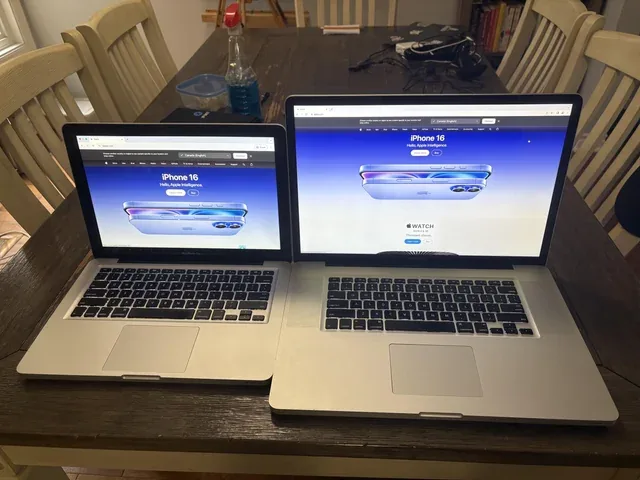
13 inches — Ultra-portable and lightweight at two to three pounds. Fits easily in a backpack, works well on airplane tray tables and coffee shop counters, and is a favourite for students moving between classes and frequent travelers. The tradeoff is limited screen space. Working with multiple windows or detailed content can feel cramped.
15 inches — The sweet spot for most people. Enough screen space for comfortable multitasking and content consumption without the bulk. Most 15-inch laptops weigh between three and a half to five pounds, still manageable for daily carrying. If you are unsure what size to go with, start here.
17 inches — A desktop replacement. Heavy at six to eight pounds and not built for daily commuting. But if your laptop mostly stays on a desk, the large screen makes work more comfortable and gaming more immersive. Content creators and gamers tend to gravitate toward this size.
Resolution: Do Not Compromise Here
The minimum acceptable resolution in 2025 is 1920×1080 (Full HD or 1080p). Anything below that looks fuzzy and pixelated. Text loses crispness, photos lose detail, and your eyes pay the price over long sessions.
Higher resolutions like 2560×1440 (QHD) or 3840×2160 (4K) look stunning, with sharper text and richer detail in photos and videos. The catch is that they drain battery faster and demand more from your components. For most users, 1080p hits the best balance of clarity, performance, and battery life.
Panel Type
- IPS — Good colour accuracy and wide viewing angles. The standard on most decent laptops and a reliable choice.
- TN — Cheaper, with poor viewing angles and washed out colours. Not worth it regardless of the price.
- OLED — Incredible contrast and colour reproduction. Comes at a higher price and consumes more battery, but for creatives and media consumption it is hard to beat.
Brightness
Look for at least 300 nits. Cheaper laptops often ship with screens in the 200 to 250 nits range, which become nearly invisible in bright environments or outdoors.
Matte vs Glossy
This comes down to personal preference and where you work. Glossy screens produce more vibrant colours but reflect light and create glare. Matte screens cut down on reflections but slightly soften colours. For office work and bright spaces, matte is usually the better call. For media consumption in controlled lighting, glossy has the edge.
How Important Is Battery Life?
Very. But the numbers manufacturers advertise are almost always exaggerated. A laptop marketed as having 12 hours of battery life will likely give you six to eight hours of real world use. Companies run their tests under ideal conditions: minimum brightness, basic tasks, and disabled features. Your actual usage will drain the battery faster.
What to aim for by laptop type:
Basic productivity laptops: Look for at least eight hours of advertised battery life. In real use, that translates to five to six hours, enough to get through a workday or school day without hunting for a power outlet.
Ultrabooks and premium laptops: These often advertise ten to fifteen hours, delivering seven to ten hours in practice. A solid pick for travel or all day use away from power.
Gaming and high performance laptops: Battery life here is genuinely poor, often two to four hours of actual use. These machines are built to run plugged in. If you need power and portability without a cable, this is a significant tradeoff to think through before buying.
A few things most buyers overlook:
Battery degradation is real. After two to three years, most laptop batteries hold sixty to eighty percent of their original capacity. A laptop with average battery life when new becomes a frustration after a few years. Starting with good battery life gives you a buffer against the inevitable decline.
Check if the battery is replaceable. Most modern thin laptops have internal batteries that need professional servicing to replace. Budget for a possible battery replacement after three to four years, which can run between $80 and $150.
Fast charging is worth looking for. Some laptops charge to fifty to sixty percent in thirty minutes, which is an advantage when you need a quick top up between meetings or classes.
Should I Care About Build Quality and Design?
Yes, and more than most buyers realise. A well-built laptop with slightly older components will often outlast a flimsy one with newer specs. Build quality shapes your daily experience in ways that do not show up on any spec sheet.
Chassis Material
Plastic — Standard on budget laptops. Fine if you are careful, but plastic flexes, creaks, and develops cracks over time. If your laptop goes in and out of bags daily and takes the occasional knock, plastic will show its age fast.
Aluminium or magnesium alloy — More durable, more resistant to flex, and better at handling bumps without showing damage. The weight difference between plastic and metal is small, roughly half a pound, but the durability gap is significant.
Keyboard Quality
If you type for long stretches, this one is non-negotiable. Visit a store and actually type on the keyboard before buying. The way keys feel, how far they press down, and how much space sits between them is different on every laptop you will touch. Some feel mushy and exhausting after an hour. Others are comfortable for a full day of work. No spec sheet or photo tells you this. You have to feel it yourself.
Trackpad Quality
A poor trackpad is a daily frustration. Cheap ones are jumpy, imprecise, and unreliable. Good ones are smooth, accurate, and responsive. If you plan to use the laptop without an external mouse, test the trackpad in person before committing to anything.
Port Selection
Many thin laptops now ship with USB-C ports only, which means dongles for almost everything else. Before buying, think through what you will plug in: external monitors, USB drives, SD cards, ethernet cables, headphones. Make sure the ports are there, or budget an extra $30 to $80 for a good USB-C hub.
Hinge Quality
A loose or broken hinge is one of the most common reasons laptops get retired early. Cheap hinges loosen over time or snap entirely. You cannot easily test this in a store, but spending time reading reviews that specifically cover long-term durability will tell you what the spec sheet will not.
Webcam Placement and Quality
Remote work and video calls are now a normal part of most people’s lives. Some laptops place the webcam below the screen, which gives everyone on the call an unflattering upward angle. Others have low resolution cameras that make you look grainy regardless of lighting. If video calls are a regular part of your day, check both the placement and the camera quality before buying.
What About Graphics Cards?
Graphics cards (GPUs) handle all visual processing on your laptop. For a large number of users, the integrated graphics that come built into the processor are more than enough.
Integrated Graphics
Intel Iris Xe and AMD Radeon integrated graphics handle everyday tasks without breaking a sweat. Video playback, casual web games, photo editing, and even light video editing all run fine. If gaming and 3D work are not part of your workflow, integrated graphics save you money and preserve battery life.
Dedicated Graphics
A dedicated GPU becomes necessary when your work gets visually demanding. Gaming, video editing, 3D modeling, CAD work, and machine learning all fall into this category. Dedicated cards from NVIDIA (GeForce) and AMD (Radeon) come with their own memory and processing power, separate from the CPU.
Here is a quick breakdown by use case:
Casual gaming (older titles, indie games, esports like League of Legends or Valorant at medium settings) — Entry level cards like the NVIDIA GTX 1650 or RTX 3050 handle this comfortably.
Serious gaming (modern AAA titles at high settings, VR) — You are looking at mid to high range cards like the RTX 4060, 4070, or above. Expect these to add $300 to $800 to the laptop price and take a noticeable toll on battery life.
Professional creative work (Adobe Premiere, DaVinci Resolve, Blender) — NVIDIA RTX cards with CUDA cores accelerate video rendering, 3D work, and AI tasks significantly. If these tools are central to your work, a dedicated GPU is not optional.
One tradeoff worth knowing:
Gaming laptops are thick, heavy, and run loud fans under load. Using one in a quiet library or a meeting is not a great experience. If you want a single laptop for both work and gaming, go in knowing it will not be perfectly suited for either compared to a machine built specifically for one purpose.
What Mistakes Should I Avoid When Buying a New Laptop?
Do not buy based on a single specification. A laptop with a great processor but only 4GB of RAM will still perform terribly. Balance across all components is what produces a good experience, not one impressive number on a spec sheet.
Skip extended warranties from retailers. They are expensive and mostly unnecessary. Manufacturer warranties cover defects, and most hardware issues show up within that window anyway.
Always read recent reviews before buying. Manufacturers sometimes cut corners that never appear in the specifications. Thermal throttling, loud fans, quality control problems, and software issues only surface in reviews from people who have lived with the device for weeks. Do not skip this step.
Avoid touchscreens unless you specifically want one. They add to the cost, reduce battery life, and make screens glossier which means more glare. Most people stop using the touchscreen long after the novelty fades.
More expensive does not always mean better for your needs. A $1,500 gaming laptop will underperform an $800 business laptop for office work because each machine is built for a different purpose. Match the laptop to your actual use case, not the price tag.
Do not buy the moment a new model drops. Launch prices are at their highest, and early production runs sometimes carry issues that get ironed out in later batches. Waiting two to three months lets prices settle and any early problems come to light in user reviews.
Be skeptical of sales that look too good. Some retailers mark laptops up and then advertise steep discounts that only bring the price back to normal market value. Check the price history of any laptop before assuming a deal is real.
More options does not always make the decision easier. But it does mean the right laptop for you is out there. The trick is knowing what you actually need before you start looking.
Pay attention to how you will use the machine day to day, not the specifications that sound impressive on paper. A $700 laptop chosen with your workflow in mind will serve you far better than a $1,200 machine loaded with power you will never touch. Your laptop will be with you daily for the next three to five years. Spending a few extra hours researching now saves you money, frustration, and an early replacement down the road.