
A laptop battery can drop to 20%, so you connect the charger and expect the percentage to start climbing. Instead, the battery stays at the same level, Windows displays “Plugged in, not charging,” or the laptop continues losing power even while connected. It can be confusing, especially when the charger appears to be working normally.
A laptop plugged in but not charging may have a problem with its charger, charging port, battery health, power settings or a software issue. In some cases, a simple restart or power reset is enough to get charging working again.
The right fix depends on what is causing the problem. This guide explains the common reasons a laptop may stop charging while plugged in and shows you how to troubleshoot the issue.
Table of Contents
Why Is My Laptop Plugged In but Not Charging?
Several hardware and software problems can stop a laptop battery from charging. Here are the most common causes.
Faulty Laptop Charger
A damaged charger is one of the first things to check. The cable may have internal breaks, the adapter may have stopped working, or the connector may not be delivering enough power to the laptop. Sometimes, a charger can still power the laptop without supplying enough electricity to charge the battery.
Check for:
- Frayed or exposed wires.
- A loose connection between the cable and adapter.
- A damaged charging connector.
- An unusually hot or noisy power adapter.
- A charging light that switches off when the cable moves.
If your charger shows signs of physical damage, stop using it and get a compatible replacement.
Damaged Charging Port
The charging port connects your laptop to its power adapter. Repeated plugging and unplugging, accidental pulling or physical damage can loosen the connection. You may notice that charging starts and stops when the cable moves. The connector may also feel loose when inserted.
Dust and debris inside the port can also interfere with the connection. Avoid inserting metal objects or forcing the charger into the port.
Worn-Out Battery
Laptop batteries lose capacity as they age. After several years of regular use, a battery may struggle to hold a charge or stop charging completely.
Common signs of battery wear include:
- The battery percentage drops quickly.
- The laptop shuts down unexpectedly.
- The battery stays at the same percentage for a long time.
- The laptop only works when connected to a charger.
- Windows displays a battery warning.
A severely worn battery may need replacement.
Battery Protection or Smart Charging Settings
Some laptops have battery protection features that limit charging to protect battery health. For example, a laptop may stop charging at 80% or 85% even when the charger remains connected. This is intentional and does not necessarily mean anything is wrong.
Manufacturers such as Dell, Lenovo, ASUS and HP provide battery management settings on selected models. Windows 11 also supports Smart Charging on compatible devices. If your laptop stops charging at a particular percentage, check its battery management app before assuming the battery is faulty.
Incompatible or Underpowered Charger
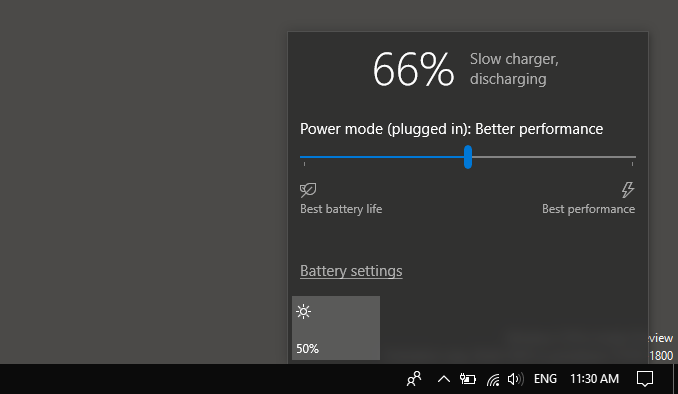
Not every laptop charger can supply enough power to charge every laptop. For example, a USB-C charger designed for a phone may connect to your laptop but deliver less power than the computer needs. Some USB-C ports also support data transfer without supporting charging.
Using an adapter with the wrong wattage can cause slow charging or prevent the battery percentage from increasing. Check your laptop manufacturer’s recommended charger specifications before buying a replacement.
Outdated or Corrupted Battery Drivers
Windows uses battery-related drivers to communicate with your laptop’s power management hardware. An outdated or corrupted driver can cause Windows to display incorrect battery information or fail to manage charging properly. Reinstalling the battery drivers through Device Manager can help resolve some software-related charging problems.
Overheating
High temperatures can affect battery charging. When a laptop gets too hot, its power management system may reduce or pause charging to protect the battery. This can happen during gaming, video editing, heavy downloads or when the laptop’s cooling system is struggling. Place the laptop on a hard, flat surface and allow it to cool before checking the charging status again.
Related Article: Why a Laptop Sounds Like a Jet Engine
How to Fix a Laptop Plugged In but Not Charging
Try these fixes in order, starting with the simplest checks.
Check the Charger and Power Connection
Start by checking the physical connections. A loose cable or faulty wall socket may be responsible for the problem.
Follow these steps:
- Disconnect the charger from your laptop.
- Unplug the adapter from the wall socket.
- Check the cable and adapter for visible damage.
- Plug the charger into another working wall socket.
- Reconnect it firmly to your laptop.
- Check the battery icon to see if charging has resumed.
If you use a USB-C charger, make sure it is connected to a port that supports charging.
Restart Your Laptop
A temporary Windows error can interfere with battery detection and charging information. Restarting the computer can clear some of these issues.
- Save your work and close open applications.
- Open the Start menu.
- Select the Power icon.
- Click Restart.
- Wait for Windows to load.
- Connect your charger and check the battery status.
If the battery still refuses to charge, move to the next fix.
Perform a Power Reset
A power reset can clear temporary hardware and power management problems.
The steps vary by laptop manufacturer, but this general method works on many models:
- Shut down your laptop completely.
- Disconnect the charger.
- Remove connected USB devices and other accessories.
- If your laptop has a removable battery, remove it according to the manufacturer’s instructions.
- Press and hold the power button for about 15 to 20 seconds.
- Reconnect the battery if you removed it.
- Connect the charger.
- Turn on your laptop and check the battery status.
For laptops with built-in batteries, do not attempt to open the computer just to disconnect the battery. Check the manufacturer’s instructions for the correct reset method.
Related Article: Lenovo Laptop Not Turning On: Causes and Step-by-Step Fixes
Reinstall the Microsoft ACPI-Compliant Control Method Battery Driver
Windows uses the Microsoft ACPI-Compliant Control Method Battery driver to communicate with the battery. Reinstalling it can help when Windows has a problem detecting or reporting battery status.
Here’s how:
- Right-click the Start button.
- Select Device Manager.
- Expand Batteries.
- Right-click Microsoft ACPI-Compliant Control Method Battery.
- Select Uninstall device.
- Confirm the action if Windows asks.
- Restart your laptop.
Windows should detect the battery and reinstall the driver automatically. Check the charging status after restarting. If the driver does not reinstall, open Device Manager, select Action and click Scan for hardware changes.
Check Your Battery Health
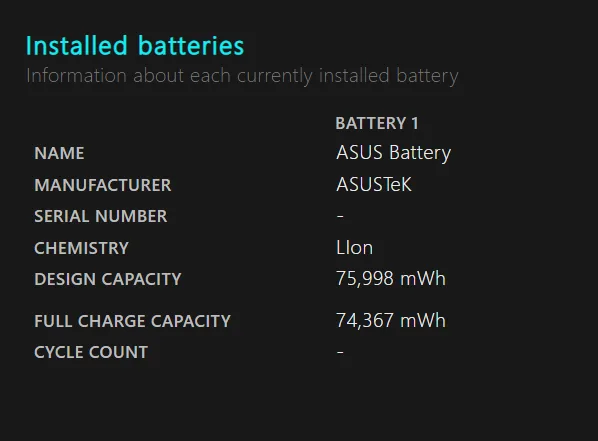
A worn battery may be the reason your laptop is plugged in but not charging. Windows has a built-in battery report that shows information about your battery’s capacity and usage history.
To generate one:
- Open the Start menu.
- Search for Command Prompt.
- Right-click it and select Run as administrator.
- Enter this command: powercfg /batteryreport
- Press Enter.
Windows will generate an HTML battery report and display its file location. Open the report in your browser.
Look for these two entries:
- Design Capacity: The battery’s original capacity when it was new.
- Full Charge Capacity: The amount of energy the battery can currently hold when fully charged.
If the full charge capacity is much lower than the design capacity, your battery has lost a significant amount of its original capacity. You can also use your laptop manufacturer’s diagnostic software. HP, Dell and Lenovo provide battery testing tools for supported devices.
Check Battery Charging Settings
Your laptop may have a battery protection feature that stops charging at a preset percentage. Check the manufacturer’s power management software installed on your computer.
Examples include:
- Lenovo Vantage: Check the battery settings for Conservation Mode or charging thresholds.
- MyASUS: Look for Battery Health Charging.
- Dell Power Manager: Check the battery settings for charging modes and custom limits.
- HP Support Assistant: Check the battery and power management options available for your model.
The names and available settings vary by laptop. If a charging limit is active, your laptop may stop at 60%, 80% or another selected level. You can adjust the setting if you need a full charge, although keeping battery protection active can help reduce battery wear.
Check Windows Smart Charging
Windows 11 supports Smart Charging on compatible laptops. This feature helps protect battery health by limiting how much the battery charges. When Smart Charging is active, Windows may display a heart symbol on the battery icon. The battery can stay below 100% even when the charger is connected.
To check:
- Open Settings.
- Select System.
- Click Power & battery.
- Look for the battery status and Smart Charging information.
Not every laptop supports this feature, and some manufacturers manage charging limits through their own applications. If Smart Charging is active, the laptop may be working as intended. You do not need to disable it unless you need more battery capacity for travel or working away from a power outlet.
Let Your Laptop Cool Down
An overheating laptop may pause battery charging to protect its internal components.
Try these steps:
- Save your work and shut down the laptop.
- Disconnect the charger.
- Place the computer on a hard, flat surface.
- Make sure the air vents are not blocked.
- Allow the laptop to cool.
- Reconnect the charger and check the battery status.
Avoid using your laptop on blankets, pillows or soft surfaces that block airflow. If the laptop regularly overheats, clean its cooling vents and have the cooling system checked.
Update Windows and Your Laptop Drivers
Windows updates can include fixes for power management and hardware compatibility problems.
To check for updates:
- Open Settings.
- Select Windows Update.
- Click Check for updates.
- Install available updates.
- Restart your computer if prompted.
You should also check your laptop manufacturer’s support website for updated chipset, power management and BIOS drivers. Only install BIOS updates intended for your exact laptop model. Keep the charger connected and follow the manufacturer’s instructions during the update. Do not interrupt the process.
Try Another Compatible Charger
If the problem continues, test your laptop with another charger that meets the manufacturer’s power requirements.
Make sure the replacement has:
- The correct connector.
- The required wattage.
- Compatible voltage and power specifications.
- USB-C Power Delivery support if your laptop uses USB-C charging.
If the battery starts charging normally with another compatible adapter, your original charger may be faulty. Avoid using a random charger simply because its connector fits your laptop.
What to Do If Your Laptop Battery Is Still Not Charging
If none of the fixes works, the problem may involve a damaged battery, charging port or internal power circuit.
At this point, consider these options:
Run manufacturer diagnostics: Use the diagnostic software provided by your laptop brand to check the battery and power adapter.
Check the warranty: If your laptop is still under warranty, contact the manufacturer before paying for repairs.
Visit a repair technician: A damaged charging port, battery connector or motherboard charging circuit needs proper inspection.
Replace a faulty battery: If diagnostics confirm that the battery has failed, get a compatible replacement from the manufacturer or an authorised parts supplier.
Do not attempt to open a swollen battery or continue using a laptop with one. A swollen battery can be dangerous and should be handled by a qualified repair professional.
Frequently Asked Questions
Why does my laptop say plugged in but not charging?
This message can appear when the battery is worn out, the charger is incompatible, the charging port is damaged or a battery protection feature has reached its charging limit. Check your charger and battery settings first.
Why is my laptop plugged in but the battery percentage is not increasing?
Your charger may not be supplying enough power, or the battery may have reached a charging limit. A damaged battery, faulty charging port or software issue can also cause this problem.
Can I use my laptop while it is charging?
Yes. Most laptops are designed to work while connected to a charger. However, demanding activities such as gaming and video editing can increase power consumption and heat, which may slow down charging.
Why does my laptop stop charging at 80%?
Some laptops have battery protection features that limit charging to 80% or another preset level. This helps reduce battery wear when the computer stays connected to power for long periods. Check your manufacturer’s battery management application for charging limits.
Can a faulty charger damage my laptop battery?
An incompatible or poor-quality charger can cause power delivery problems and may damage the laptop. Use a charger that meets the voltage, wattage and charging requirements specified by your manufacturer.
How do I know if my laptop battery needs replacing?
Rapid battery drain, unexpected shutdowns, poor battery capacity and battery health warnings can indicate that a replacement is needed. Run your manufacturer’s battery diagnostic tool or generate a Windows battery report to check its condition.
Should I leave my laptop plugged in all the time?
Most modern laptops have charging management features that help protect the battery when connected to power for long periods. If your laptop supports a charging limit, using it can help reduce battery wear.
Why is my laptop losing battery while plugged in?
Your laptop may be using more power than the charger supplies. This can happen with an underpowered adapter, a demanding workload or an incompatible USB-C charger. Check the adapter’s wattage and use the charger recommended for your laptop.
A laptop plugged in but not charging may have a simple problem with the charger, charging port, battery settings or software. Start by checking the power connection, restarting your laptop and testing the battery health. If these steps do not fix the issue, have a technician inspect the battery and charging port.