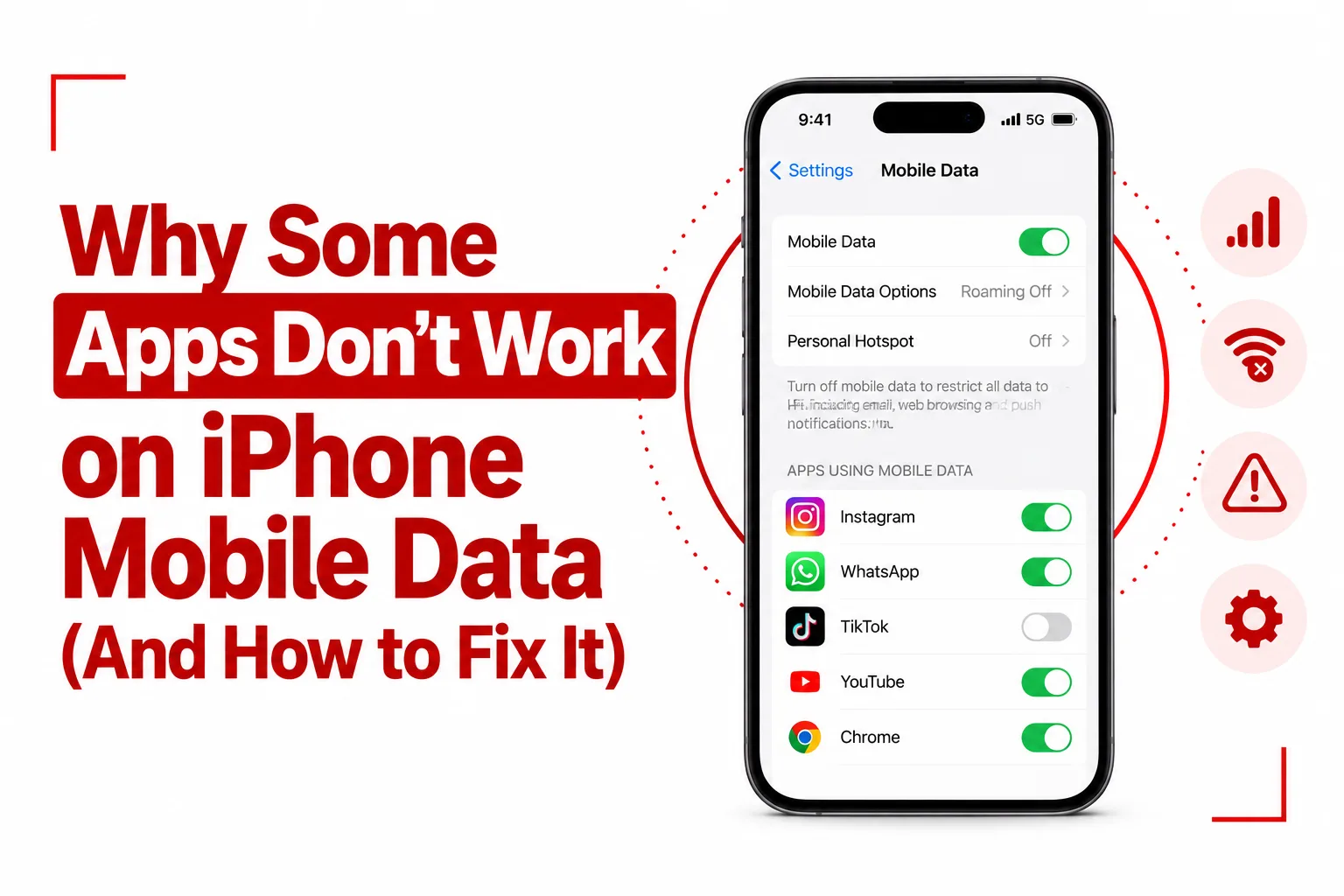

When your iPhone works normally on mobile data but one or two apps refuse to load, the problem can be surprisingly difficult to pinpoint. Web browsing may work, messages may arrive, and other apps may connect without any issue, leaving you wondering why only certain apps are affected.
Apps don’t work on iPhone mobile data for several reasons, including app specific cellular restrictions, Low Data Mode, Screen Time settings, VPN configurations, carrier settings, or network configuration problems. In many cases, the app itself is not broken. A setting on the iPhone is preventing it from using the cellular connection correctly.
You can usually troubleshoot the problem without deleting the affected app or losing your data. The steps below cover the most common causes, starting with settings that are quick to check before moving on to network resets and carrier updates.
Table of Contents
Why Some Apps Don’t on iPhone Mobile Data
App Specific Cellular Data Is Disabled
iOS lets you control cellular data access for individual apps. This means an app can be blocked from using mobile data while continuing to work normally over Wi Fi. If the affected app has been disabled in your cellular settings, it will not connect when your iPhone is using a mobile network.
Low Data Mode Is Enabled
Low Data Mode reduces cellular data usage by limiting certain background activities. It can defer automatic updates, synchronization and other data intensive operations. Some apps may also reduce or delay high bandwidth content while Low Data Mode is active. If an app works normally over Wi Fi but struggles on mobile data, this setting is worth checking.
Screen Time Restrictions Are Blocking Changes
Screen Time includes controls that can prevent changes to cellular data settings. If cellular data changes is restricted, you may not be able to modify the cellular access assigned to individual apps. This can be especially confusing if you did not configure the restriction yourself or if the iPhone is managed with parental controls.
VPN or Security Profiles Are Interfering
A VPN, ad blocker or security profile can interfere with network traffic when the iPhone switches from Wi Fi to a cellular connection. A VPN connection that is not working correctly can prevent some apps from reaching their servers even though other internet services continue to function.
Carrier Settings or Network Configuration Is Outdated
Carrier settings control parts of how your iPhone connects to your mobile network. Outdated carrier settings or damaged network configuration can cause problems with cellular connectivity. This can sometimes leave general internet access working while particular services or apps fail to connect correctly.
Related Article: What to Do When iMessage Refuses to Activate on Your iPhone
How to Fix Apps That Don’t Work on iPhone Mobile Data
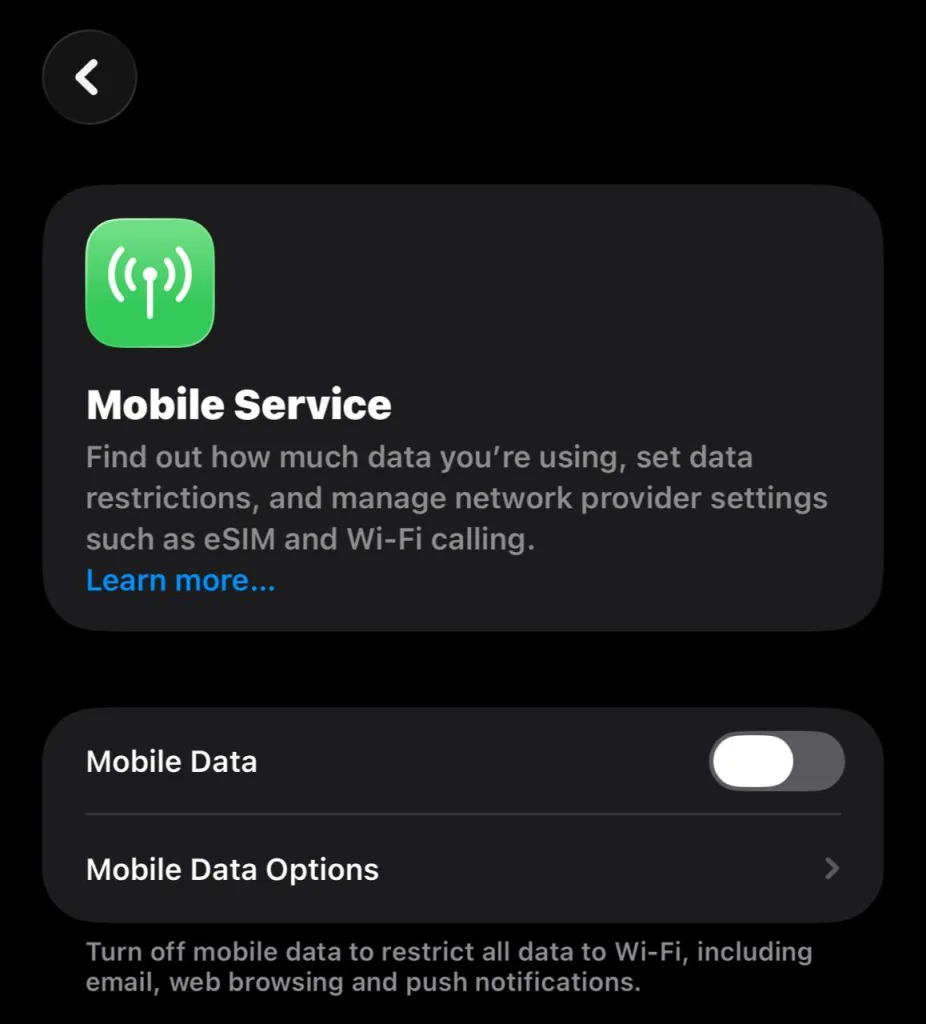
1. Enable Cellular Data for the App
Start by checking the cellular permission for the affected app.
- Open Settings.
- Tap Mobile Service.
- Scroll down to the list of apps.
- Find the app that is not working.
- Make sure its cellular data toggle is turned on.
Try opening the app again after enabling cellular access.
2. Turn Off Low Data Mode
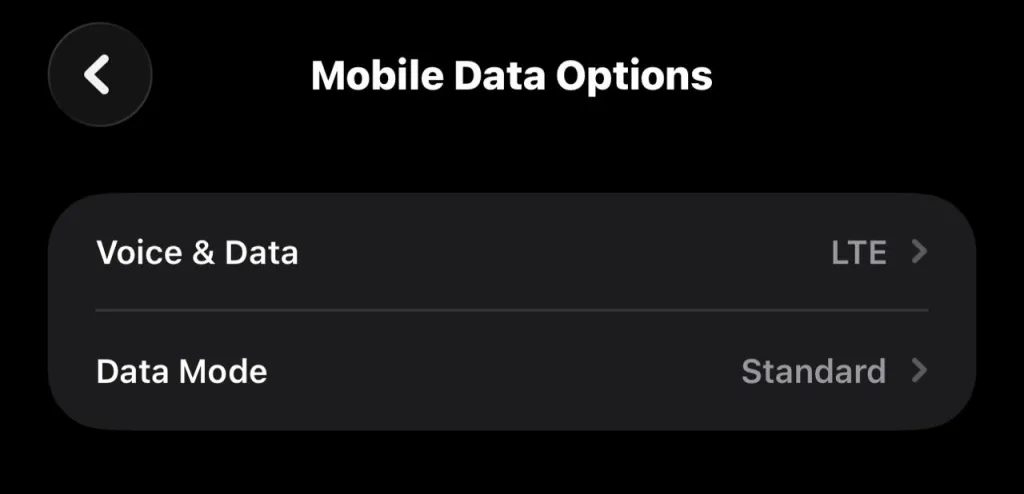
Low Data Mode can restrict certain types of network activity. Turning it off can help if the affected app needs more background or high bandwidth access.
- Open Settings > Mobile Service.
- Tap Mobile Data Options.
- Select Data Mode.
- Change Low Data Mode to Standard or Allow More Data on 5G when that option is available.
Test the app again after changing the setting.
3. Disable Active VPNs and Security Profiles
A VPN or security profile can interfere with an app’s cellular connection.
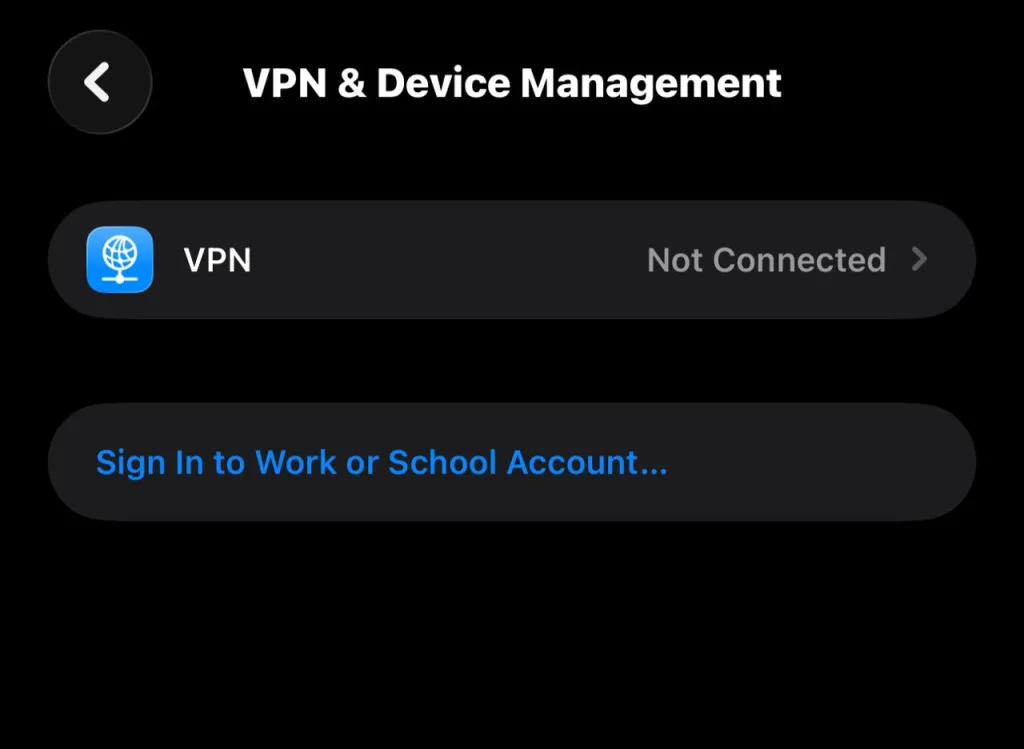
- Open Settings > General > VPN & Device Management.
- Check for an active VPN or configuration profile.
- Turn off the VPN if one is active.
- If the connection problem continues, open the VPN profile details and remove the VPN if you no longer need it.
If the problem disappears after disabling the VPN, the VPN configuration was likely interfering with the app’s network connection.
Related Article: Travel Guide: Countries Where VPNs Are Illegal
4. Check Background App Refresh
Background App Refresh controls how apps update content when they are not actively open.
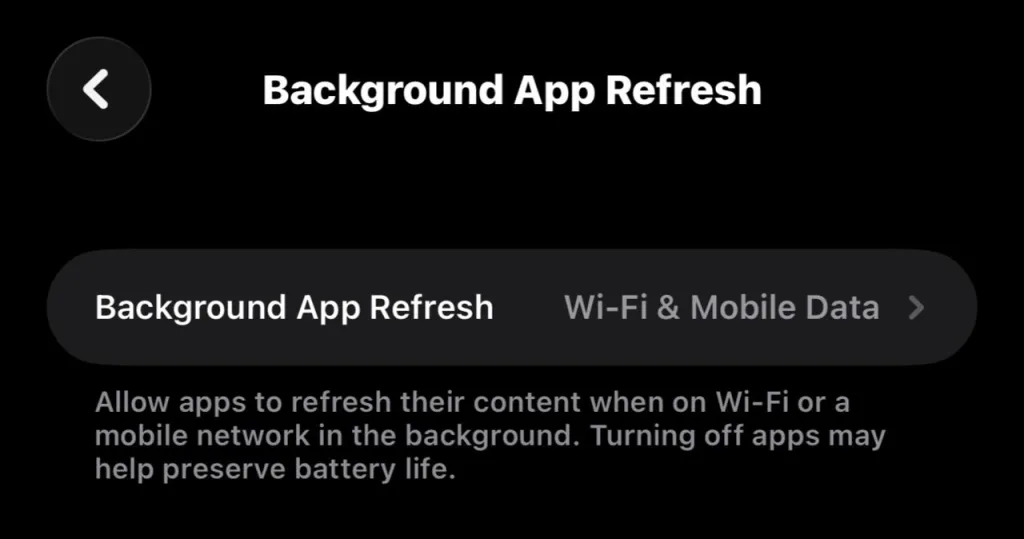
- Open Settings > General > Background App Refresh.
- Tap Background App Refresh at the top.
- Select Wi-Fi & Mobile Data.
You can then check that Background App Refresh is enabled for the affected app. This setting does not control an app’s basic ability to use cellular data while you are actively using it, but it can affect background updates and other activity when the app is not open.
5. Check Screen Time and Content Restrictions
Screen Time can prevent changes to cellular data settings.
- Open Settings > Screen Time.
- Tap Content & Privacy Restrictions.
- Look for Mobile Data Changes.
- Set it to Allow.
If the setting is already allowed, continue with the other troubleshooting steps.
6. Reset Network Settings
A network settings reset can help when the problem comes from damaged or incorrect network configuration.
- Open Settings > General > Transfer or Reset iPhone.
- Tap Reset.
- Select Reset Network Settings.
- Enter your iPhone passcode if prompted.
- Confirm the reset.
This removes saved Wi Fi networks and passwords, Bluetooth pairings and cellular network configuration. Your photos, apps, messages and other personal files remain on the iPhone. After the reset, reconnect to your Wi Fi networks and test the affected app over mobile data.
7. Update Carrier Settings
Your carrier may provide updates that improve how the iPhone connects to its mobile network.
To check for an available carrier update:
- Connect the iPhone to Wi Fi.
- Open Settings > General > About.
- Stay on the About screen for a moment.
- If a carrier settings update is available, a ‘Carrier Settings Update’ prompt will appear.
- Tap Update.
After the update finishes, switch back to mobile data and test the app.
What to Check If Only One App Still Fails
If other apps work normally over mobile data but one specific app still cannot connect, check the app itself before making further system changes. Make sure the app is updated through the App Store and check if its service is experiencing an outage. You can also close and reopen the app, restart the iPhone, and check if the problem occurs only on mobile data.
If the app works on another network but not on your carrier’s mobile connection, the issue may be related to the cellular network path, DNS handling, VPN configuration or the app’s connection to its servers.
Apps don’t work on iPhone mobile data for several reasons, but the cause is often a setting that limits cellular access for the affected app. Checking the app’s cellular toggle and Low Data Mode is a good place to start, followed by VPN settings, Screen Time restrictions and Background App Refresh.
If those steps do not solve the problem, resetting network settings and checking for a carrier settings update can address deeper connectivity issues. Once the affected setting or network configuration is corrected, the app should be able to use mobile data normally again.