
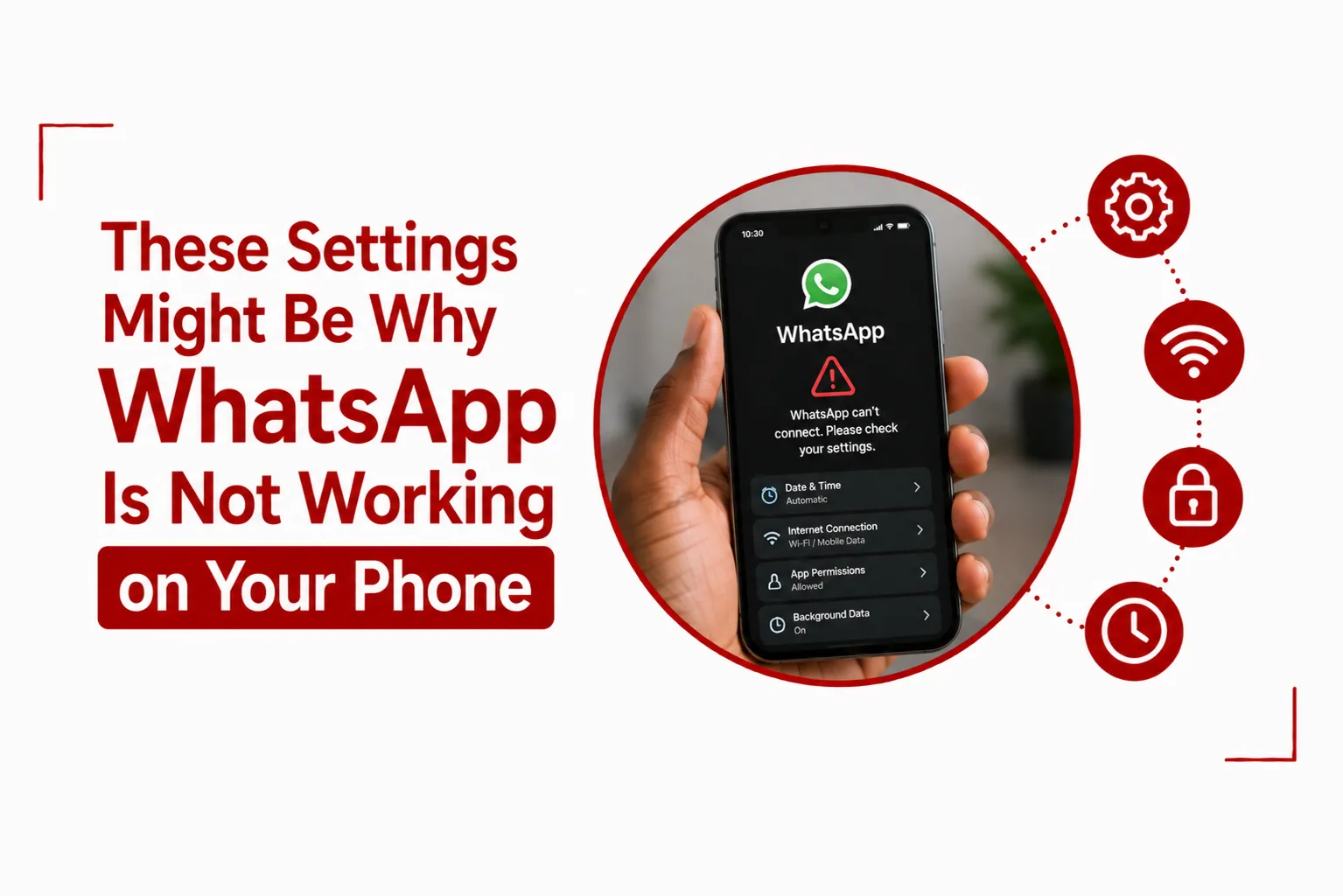

WhatsApp can stop working properly for several reasons, even when your phone itself seems to be working normally. Messages may stay stuck on sending, calls may fail to connect, notifications may stop arriving, or the app may close unexpectedly. Sometimes the problem has nothing to do with WhatsApp itself and comes from a setting on your phone.
Permissions, background data, battery restrictions, notification settings and network access can all affect how WhatsApp functions. A setting that limits the app from running in the background can also prevent messages and calls from coming through normally.
If WhatsApp is not working on your phone, checking these settings can help you find the cause before you try more complicated fixes. The steps are slightly different on Android and iPhone, but the main settings are easy to check.
Table of Contents
Is Your Internet Connection Stable?
This is usually the first thing to confirm. WhatsApp needs an active and stable internet connection to work properly. A weak Wi-Fi signal or poor mobile data can stop it from sending or receiving messages.
- Switch between Wi-Fi and mobile data to see if it helps.
- Run a quick speed test to confirm your internet isn’t unusually slow.
- Try opening another app like YouTube or Instagram to check if the internet is working there.
If WhatsApp works once you switch your connection type, then the issue is likely with your current network.
Background Data Might Be Turned Off
WhatsApp needs to stay connected in the background to receive messages and notifications. If background data is restricted, the app might only work when you open it.
To check this:
- Go to your phone Settings
- Select Apps or App Management
- Find WhatsApp
- Tap on Data Usage and make sure “Background data” is enabled
Also, if you use battery saver or data saver mode, it might block WhatsApp from syncing in the background.
Storage Space Could Be Full
A phone that is out of storage space might not allow WhatsApp to function properly. This can affect message delivery, media downloads, or even app updates.
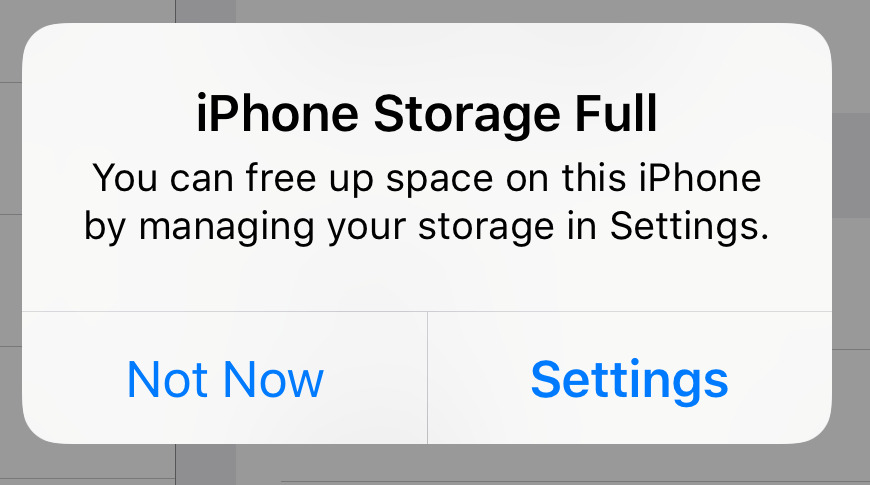
Check your storage:
- Go to Settings
- Look under Storage or Device Maintenance
- Free up space by deleting old files, large videos, or unused apps
WhatsApp may also stop working if it can’t save media files, so it’s important to leave enough room for it to operate smoothly.
Your WhatsApp Version Might Be Outdated
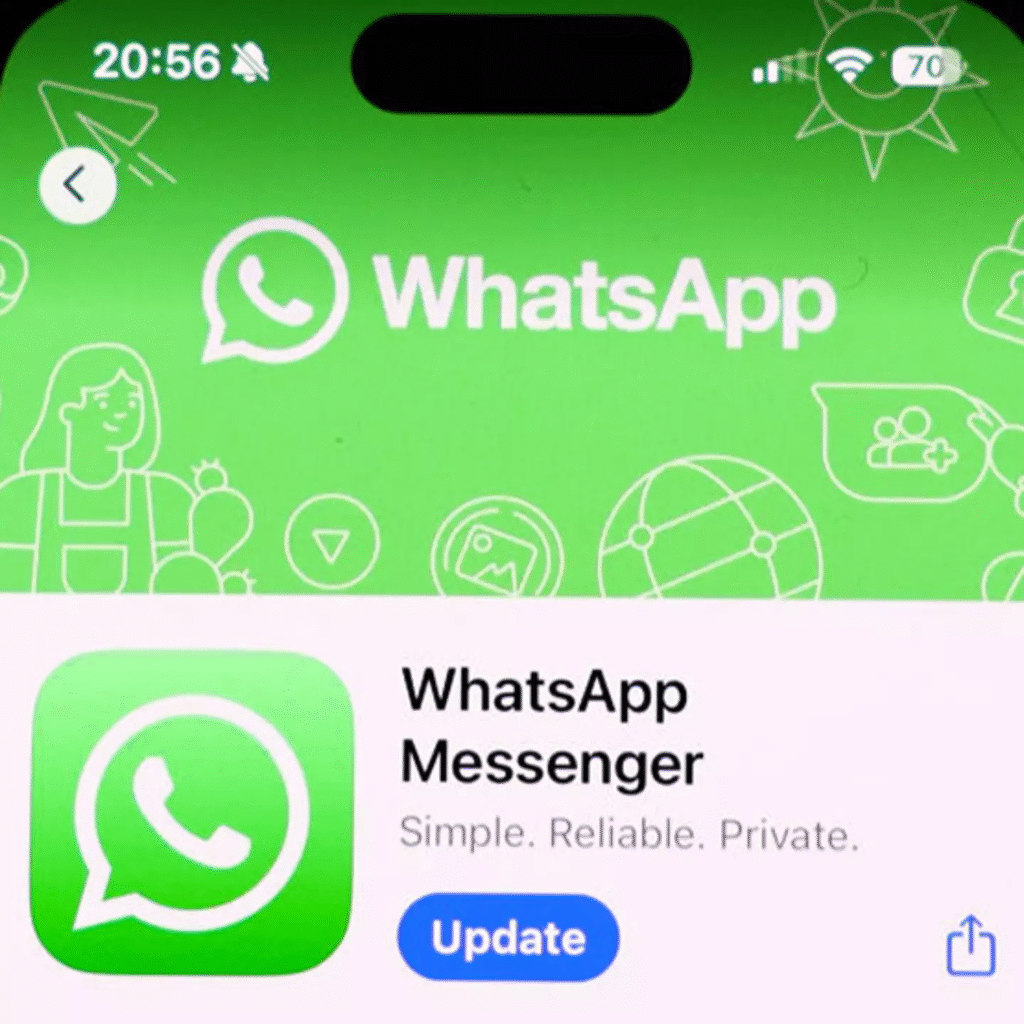
An outdated version of WhatsApp might cause crashes or prevent it from working as it should. Make sure you always have the latest version installed.
To check:
- Open Google Play Store (for Android) or App Store (for iPhone)
- Search for WhatsApp
- Tap “Update” if an update is available
App updates often come with important fixes and compatibility improvements.
App Permissions Could Be Off
If WhatsApp doesn’t have the right permissions, it may struggle to access your contacts, camera, microphone, or storage.
To fix this:
- Go to your phone Settings
- Tap Apps > WhatsApp > Permissions
- Make sure permissions for Contacts, Camera, Microphone, and Storage are all allowed
Without these, certain features in WhatsApp might fail or the app might not open correctly.
Is WhatsApp Down for Everyone or Just You?
Sometimes the issue is not from your phone. WhatsApp can have outages that affect users globally. When this happens, all you can do is wait for the app to come back online.
To confirm:
- Ask a friend if theirs is working
- Check Twitter or websites like Downdetector for updates
Are You Using a VPN?
Using a VPN can affect WhatsApp functionality, especially if it routes your internet through a region where WhatsApp is restricted. Try turning off your VPN to see if it helps.
Related Article: Travel Guide: Countries Where VPNs Are Illegal
Dual Apps or Cloned WhatsApp Can Cause Conflicts
If you are using dual apps or cloned WhatsApp via third-party tools, it can lead to bugs and syncing issues. Stick to one instance of WhatsApp and avoid using unofficial methods to duplicate the app.
WhatsApp Issues in Nigeria
WhatsApp remains one of the most used apps in Nigeria, but network issues, outdated devices, and limited storage often affect how smoothly it runs.
If you’re in Nigeria:
- MTN, Airtel, and Glo sometimes have data throttling or downtime
- Check if WhatsApp is part of your active data plan
- Disable battery optimization for WhatsApp under your phone settings
These simple steps can go a long way in fixing app delays or connection problems.
What to Do if WhatsApp Still Doesn’t Work
If you’ve tried all the above and WhatsApp still won’t work:
- Restart your phone
- Clear WhatsApp cache (under App Info > Storage)
- As a last resort, uninstall and reinstall the app
Make sure your chats are backed up before uninstalling. You can check backup settings under WhatsApp > Settings > Chats > Chat Backup.
A small phone setting can stop WhatsApp from working properly. Data restrictions, disabled permissions, background limits and notification settings can all affect how the app works, even when everything else on your phone seems normal. A few quick fixes might save you hours of confusion or frustration. Once sorted, WhatsApp usually goes back to working as expected.