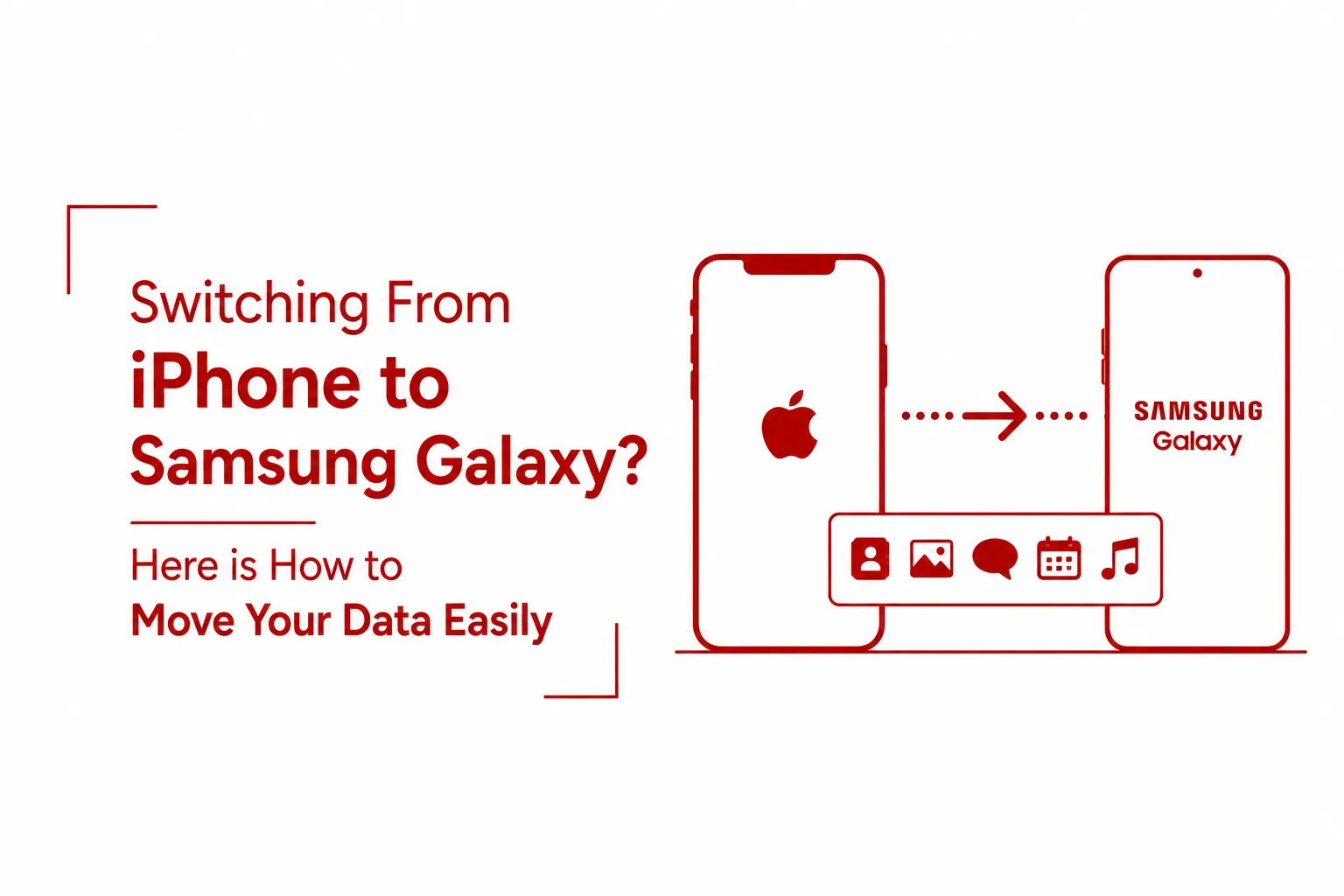

Switching from iPhone to Samsung Galaxy is one of the most common device transitions in the smartphone market, and it is also one of the most misunderstood. Many users put it off assuming the process will be painful: lost contacts, missing photos, apps that will not carry over. The reality is considerably more straightforward. Samsung built a dedicated migration tool called Smart Switch specifically to handle this transition, and when used correctly, it moves the content that matters most with very little manual effort on your part.
This guide covers the complete process of transferring your data from an iPhone or iPad to a new Samsung Galaxy device using Smart Switch. It includes both the cable and wireless transfer methods, plus the key preparation steps that prevent the most common problems people run into mid-transfer.
What Samsung Smart Switch Transfers
Before getting into the steps, it helps to know what Smart Switch actually moves across and what it does not.
Smart Switch handles the content most users care about: photos, videos, contacts, text messages, apps, and certain device settings. It organises everything on arrival, so your new Galaxy device does not feel like a blank slate the moment setup is complete.
There are two categories of content that will not make the journey. Passwords and Apple Keychain data do not transfer, so you will need to log back into accounts manually on your new device. Apple-exclusive apps cannot migrate directly either, since they are not available on Android. However, many apps that exist on both platforms, including Apple Music, can simply be downloaded again from the Google Play Store once you are set up.
Before You Start: Three Things to Do on Your iPhone
Taking a few minutes to prepare your iPhone before the transfer begins will save you from running into the most common frustrations halfway through.
1. Turn off iMessage
If you plan to use your Galaxy as your primary device going forward, deactivating iMessage on your iPhone beforehand is important. When iMessage is active, text messages sent from other Apple users route through Apple’s servers to your phone number. Once you switch to an Android device, those messages may not arrive correctly until iMessage is fully deactivated. Go to Settings > Messages and toggle iMessage off before starting the transfer.
2. Check your iPhone photo storage settings
iPhones set to Optimise Storage do not keep full-resolution photos on the device itself. Instead, lower-resolution versions are stored locally while the originals sit in iCloud. If you transfer while this setting is active, Smart Switch will only move the compressed versions of your photos. To avoid this, go to Settings > Photos and switch from “Optimise iPhone Storage” to “Download and Keep Originals”. Give your phone enough time to download everything from iCloud before proceeding.
3. Back up WhatsApp to iCloud
WhatsApp data does not transfer automatically during a Smart Switch migration. To move your chat history and media to your Galaxy, open WhatsApp on your iPhone, go to Settings > Chats > Chat Backup, and run a manual backup to iCloud. You will then be able to restore this backup when setting up WhatsApp on your new Samsung device.
Setting Up Your New Galaxy Device
When you power on your Samsung Galaxy for the first time, it walks you through a standard setup sequence. Work through the following steps in order:
- Select your preferred language.
- Read and accept the terms and conditions.
- Connect to a Wi-Fi network.
- Sign in to your Google account if you have one. This step is optional, but completing it connects you to Google services immediately and is worth doing at this stage.
- When the setup wizard asks about your previous device, select “iPhone or iPad”.
- At this point, you will be given the option to transfer via cable or wirelessly. The sections below cover both.
Method One: Transferring via Cable
A wired transfer is generally the faster of the two options, particularly if you have a large photo library or a significant amount of video content.
What you will need: A Lightning-to-USB-C cable if your iPhone uses a Lightning port, or a USB-C-to-USB-C cable if your iPhone uses USB-C (iPhone 15 and later).
Steps:
- On your Galaxy, select “Cable” when prompted and tap “Copy” to agree to the necessary permissions.
- Connect your iPhone to your Galaxy using the appropriate cable.
- Your iPhone will display a prompt asking “Trust This Computer?” Tap “Trust” and enter your iPhone passcode if prompted.
- Your Galaxy will scan the iPhone and display a list of available content to transfer. Select the categories you want to move across and tap “Transfer”.
- Leave the cable connected and both devices undisturbed until the transfer completes. Disconnecting early can interrupt the process.
- Once the transfer finishes, you will have the option to carry over personalised navigation settings and Samsung Keyboard preferences.
Method Two: Transferring Wirelessly
The wireless method works well if you do not have the right cable to hand, though it will generally take longer than a wired transfer for large data sets.
Steps:
- On your iPhone, download and open the Samsung Smart Switch app from the Apple App Store.
- Open the app, grant the requested permissions, and select “Wireless” as your transfer method.
- On your Galaxy device, a QR code will appear on screen. Use the Smart Switch app on your iPhone to scan this code. This pairs the two devices without requiring a cable.
- Your Galaxy will then scan the iPhone for transferable content. Once the list appears, select what you want to transfer and tap “Transfer”.
- As with the cable method, you will be given the option to bring over navigation and keyboard settings once the transfer is complete.
During a wireless transfer, keep both devices close together and connected to the same Wi-Fi network to maintain a stable connection throughout.
Final Steps
Once Smart Switch has finished moving your content, there are a few remaining steps to complete your setup.
Sign in to your Samsung account. If you already have a Samsung account, sign in now to access Samsung services. If you do not have one, you can create an account directly from your Galaxy during this stage.
Sign in to iCloud on your Galaxy. During setup, Samsung gives you the option to connect your iCloud account directly. Doing this allows any content stored in iCloud, such as photos or contacts that were not on your iPhone locally, to be imported to your Galaxy as well.
Re-download apps from Google Play. Apps that exist on both iOS and Android will need to be downloaded again from the Google Play Store. Smart Switch transfers the app list so you can see what needs reinstalling, but Android versions of apps install fresh from the Play Store instead of copying directly from iOS.
Log back into your accounts. Since passwords and Keychain data do not transfer, plan to spend a few minutes signing back into your most-used apps. A password manager, if you use one, will make this considerably faster.
Quick Reference: What Transfers and What Does Not
| Content Type | Transfers via Smart Switch |
|---|---|
| Photos and videos | Yes (ensure originals are downloaded first) |
| Contacts | Yes |
| Text messages | Yes (turn off iMessage first) |
| Apps (available on Android) | List transfers; re-download required |
| WhatsApp chats | Yes (iCloud backup required first) |
| Apple Keychain and passwords | No |
| Apple-exclusive apps | No |
Moving from an iPhone to a Samsung Galaxy does not have to mean starting over. Smart Switch handles the heavy lifting for the files that actually count, and the steps that fall outside its scope, such as WhatsApp and photo storage settings, are easy to prepare for in advance. Follow the preparation steps before you begin, choose the transfer method that suits your setup, and the transition should be smooth from start to finish.