
A Windows update that refuses to install can turn a routine restart into a long wait. The download may get stuck at a certain percentage, an error code may appear during installation, or the computer may keep restarting without completing the update. These problems can leave you wondering what went wrong and how to get your PC back to normal.
Windows 11 Update problems often come down to limited storage, corrupted system files, unstable internet connections, outdated drivers or software conflicts. The error message on your screen can also point to the cause.
For anyone dealing with Windows 11 update errors, a Windows update stuck on downloading or installing, or Windows 11 update not installing at all, this guide covers the common problems and the steps to fix them.
Table of Contents
Common Windows 11 Update Problems
Windows updates can fail at the download stage, during installation or after the computer restarts. Here are some problems you may encounter.
Windows Update Is Stuck at 0% or 100%
The download may stay at 0% for a long time, or the installation progress may reach 100% without completing. A slow internet connection, insufficient storage or damaged update files can cause this. Before trying advanced fixes, give the update some time. Large updates can take longer to download and install, especially on slower connections.
Windows 11 Update Keeps Failing
You may see a message saying the update failed, followed by an error code. Restarting the computer and trying again may fix a temporary problem. Repeated failures can point to corrupted files, driver conflicts or issues with Windows Update services.
Windows 11 Update Is Not Installing
Some updates download successfully but fail during installation. This can happen when your PC does not have enough free storage, an earlier update is still pending or system files are damaged.
Windows Update Keeps Restarting the PC
Some updates need several restarts to finish installing. If your computer keeps restarting without reaching the desktop, the installation may have run into a problem.
Give the computer enough time to complete the process. If it keeps returning to the same screen, you may need to use Windows recovery options to repair the installation.
How to Fix Windows 11 Update Problems
Try these fixes in order. Start with the simpler steps before moving on to commands and manual repairs.
Restart Your Computer
A restart can clear temporary errors and finish pending update tasks.
- Open the Start menu.
- Select the Power icon.
- Click Restart.
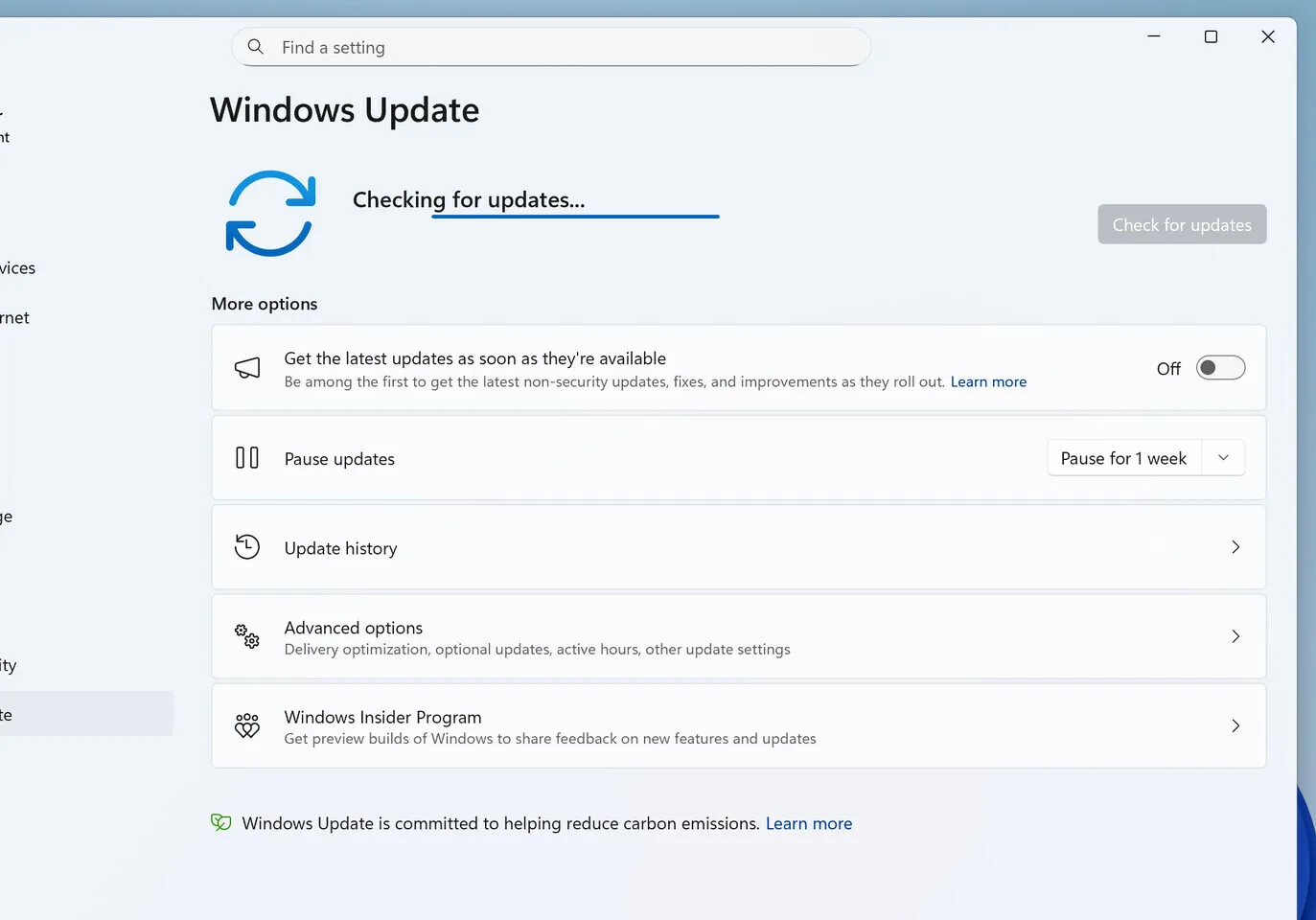
- After Windows loads, open Settings.
- Go to Windows Update.
- Select Check for updates.
If the update installs successfully, you can stop here. If it fails again, try the next fix.
Check Your Internet Connection
Windows needs a stable internet connection to download update files. A weak Wi-Fi signal or interrupted connection can leave the download stuck or cause an installation error.
Try these steps:
- Open a browser and visit a website to confirm that your internet works.
- Restart your router if the connection keeps dropping.
- Move closer to the router or connect your PC through an Ethernet cable.
- Pause large downloads and streaming activities while updating.
- Disconnect from a VPN temporarily if you use one, then try the update again.
You can also restart the download by going to Settings > Windows Update and selecting Check for updates.
Free Up Storage Space
Windows needs enough free space to download, unpack and install update files. A nearly full system drive can prevent an update from completing.
To check your available storage:
- Open Settings.
- Select System.
- Click Storage.
- Check how much space is available on your main drive.
If your drive is almost full, use these steps to free up space:
- Open Settings > System > Storage.
- Select Temporary files.
- Review the files Windows has selected.
- Remove files you no longer need.
- Empty the Recycle Bin.
- Move large videos, photos and documents to an external drive if necessary.
Be careful when selecting files for removal. Do not delete Downloads or other personal folders unless you have checked their contents. After freeing up space, restart your PC and try installing the update again.
Run the Windows Update Troubleshooter
Windows 11 has a built-in troubleshooter that can detect and fix some update problems. It is a good option when downloads fail or updates refuse to install.
Follow these steps:
- Open Settings.
- Select System.
- Click Troubleshoot.
- Select Other troubleshooters.
- Find Windows Update.
- Click Run.
- Follow the instructions on your screen.
Windows 11 may also direct you to the Get Help app, which can run automated checks for update problems. Restart your computer after the troubleshooting process and check for updates again.
Clear the Windows Update Cache
Windows stores downloaded update files in a folder called SoftwareDistribution. Damaged or incomplete files in this folder can cause repeated download and installation errors.
You can clear the update cache and allow Windows to download fresh files.
- Press Windows + R on your keyboard.
- Type services.msc and press Enter.
- Find Windows Update in the services window.
- Right-click it and select Stop.
- Open File Explorer.
- Go to C:\Windows\SoftwareDistribution.
- Open the Download folder and delete its contents.
- Return to the Services window.
- Right-click Windows Update and select Start.
- Restart your computer.
Deleting the contents of the Download folder removes temporary update files. Windows can download them again when you check for updates.
Repair Corrupted Windows System Files
Damaged or missing system files can prevent Windows updates from installing. Windows has two built-in command-line tools that can help repair these files: DISM (Deployment Image Servicing and Management) and System File Checker (SFC).
First, run DISM:
- Open the Start menu.
- Type Command Prompt.
- Right-click it and select Run as administrator.
- Click Yes if Windows asks for permission.
- Enter this command: DISM /Online /Cleanup-Image /RestoreHealth
- Press Enter and allow the process to finish.
Next, run System File Checker:
In the same Command Prompt window,
- Enter this command: sfc /scannow
- Press enter and wait for the scan to reach 100%.
- Restart your computer.
Go to Settings > Windows Update and check for updates again.
Check the Date and Time Settings
Incorrect date, time or time zone settings can interfere with Windows Update.
To correct them:
- Open Settings.
- Select Time & language.
- Click Date & time.
- Turn on Set time automatically.
- Turn on Set time zone automatically if the option is available.
- Select Sync now under Additional settings.
Restart your computer and try downloading the update again.
Update Your Device Drivers
Outdated or incompatible drivers can cause Windows updates to fail. This is particularly common when a major Windows version upgrade conflicts with graphics, network or storage drivers.
To check for driver updates:
- Right-click the Start button.
- Open Device Manager.
- Expand the category for the device you want to check.
- Right-click the device.
- Select Update driver.
- Choose Search automatically for drivers.
You can also visit your computer manufacturer’s support website to download drivers for your exact PC model. Avoid downloading drivers from unfamiliar websites. Incorrect drivers can cause additional problems.
Related Article: How to Fix Bluetooth Pairing Issues on Windows 11
Install the Update Manually
If Windows Update keeps failing, you can download the update package from Microsoft’s Update Catalog.
This is useful when a particular update refuses to install through Settings.
- Open Settings > Windows Update.
- Select Update history.
- Find the update that failed and note its KB number.
- Visit the Microsoft Update Catalog website.
- Enter the KB number in the search box.
- Find the package that matches your Windows version and system architecture.
- Download the correct package.
- Open the downloaded file and follow the installation instructions.
- Restart your computer after installation.
Do not download a package meant for another Windows version or system architecture. If you are unsure which package to choose, check your Windows specifications under Settings > System > About.
Common Windows 11 Update Error Codes and Their Fixes
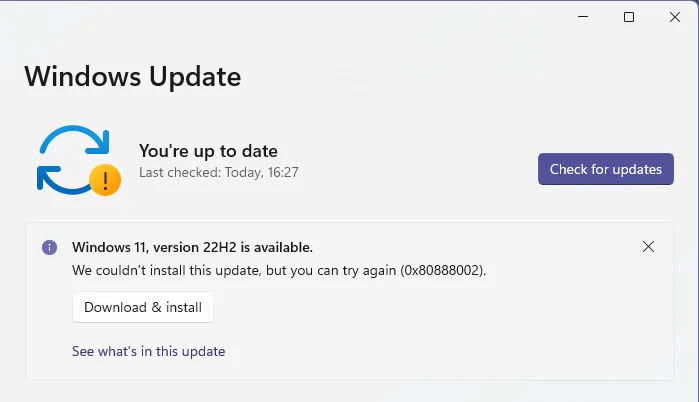
An error code can help you narrow down the cause of an update failure. Here are some codes you may encounter and what to try.
| Error code | Possible cause | What to try |
|---|---|---|
| 0x8007000d | Damaged or missing update files | Run the troubleshooter and clear the update cache. |
| 0x800705b4 | Update timed out or was interrupted | Check your internet connection and restart the update process. |
| 0x800f0922 | Insufficient storage or a problem with update components | Free up disk space and try again. |
| 0x80070005 | Access denied or permission problem | Check your administrator access and repair system files. |
| 0x80070002 | Missing or damaged update files | Restart your PC and run the Windows Update troubleshooter. |
| 0x80248014 | Windows Update database or service problem | Check the Windows Update service and run the troubleshooter. |
| 0xC1900101 | Driver compatibility problem | Update your drivers and disconnect unnecessary external devices. |
| 0x80240034 | Incomplete download or connection problem | Check your internet connection and reset the update cache. |
If an error code keeps returning after these fixes, check Microsoft’s support page for that specific code before making further changes.
What to Do If Windows 11 Update Is Still Not Working
If the steps above have not fixed the problem, try these additional options.
Disconnect External Devices
Printers, USB drives, external storage devices and other connected accessories can sometimes interfere with a major Windows upgrade. Disconnect devices you do not need, leaving your keyboard, mouse and monitor connected. Restart the PC and try the update again.
Perform a Clean Boot
A clean boot starts Windows with a limited set of drivers and startup programs. It can help identify conflicts caused by third-party software.
To perform one:
- Press Windows + R.
- Type msconfig and press Enter.
- Open the Services tab.
- Tick Hide all Microsoft services.
- Select Disable all.
- Open the Startup tab and select Open Task Manager.
- Disable the enabled startup apps.
- Close Task Manager and select OK in the System Configuration window.
- Restart your computer and try the update.
After troubleshooting, restore your normal startup settings by reversing the changes.
Use Windows Recovery Options
If a failed update has left your computer unable to start properly, Windows Recovery Environment may help.
You can access recovery options from the sign-in screen by holding Shift while selecting Power > Restart. You can also use Windows installation media if the computer cannot reach the sign-in screen.
From the recovery menu, select Troubleshoot > Advanced options. Depending on your situation, you may be able to use Startup Repair or Uninstall Updates. Uninstall Updates lets you remove a recently installed quality or feature update if it caused startup problems. Back up important files before attempting major recovery changes.
Frequently Asked Questions
Why is my Windows 11 update stuck at 100%?
The installation may still be processing files in the background, even when the progress indicator reaches 100%. Give it more time, especially during a major update. If the screen does not change for an unusually long period, restart the PC only when it is safe to do so, then check Windows Update again.
Why does Windows 11 keep failing to install updates?
Common causes include insufficient storage, corrupted update files, unstable internet connections, outdated drivers and software conflicts. Run the Windows Update troubleshooter first, then try clearing the update cache and repairing system files.
Will clearing the Windows Update cache delete my personal files?
No. Clearing the contents of the SoftwareDistribution Download folder removes temporary update files, not your personal photos, documents or videos. Windows downloads the necessary update files again when you check for updates.
Can I use my PC while Windows 11 updates?
You can usually continue using your computer while updates download in the background. During installation and restarts, Windows may close apps or temporarily prevent access to the desktop. Save your work before starting an update.
How long should a Windows 11 update take?
The time depends on the update size, internet speed, computer hardware and available storage. Small security updates may finish quickly, while major feature updates can take considerably longer. A progress indicator that has not moved for a long time may point to a problem.
Is it safe to skip a Windows 11 update?
Skipping an update temporarily is possible, but delaying security updates for too long can leave your PC exposed to known vulnerabilities. If an update keeps failing, try to fix the installation problem and check Microsoft’s update guidance.
Windows 11 Update problems can come from something as simple as a poor internet connection or a full drive, but damaged system files and driver conflicts can also prevent installation.
Start with a restart, check your internet connection and free up storage space. If those steps do not work, run the troubleshooter, clear the update cache and repair system files with DISM and SFC. For updates that still refuse to install, Microsoft’s Update Catalog and Windows recovery options provide further ways to deal with the problem.