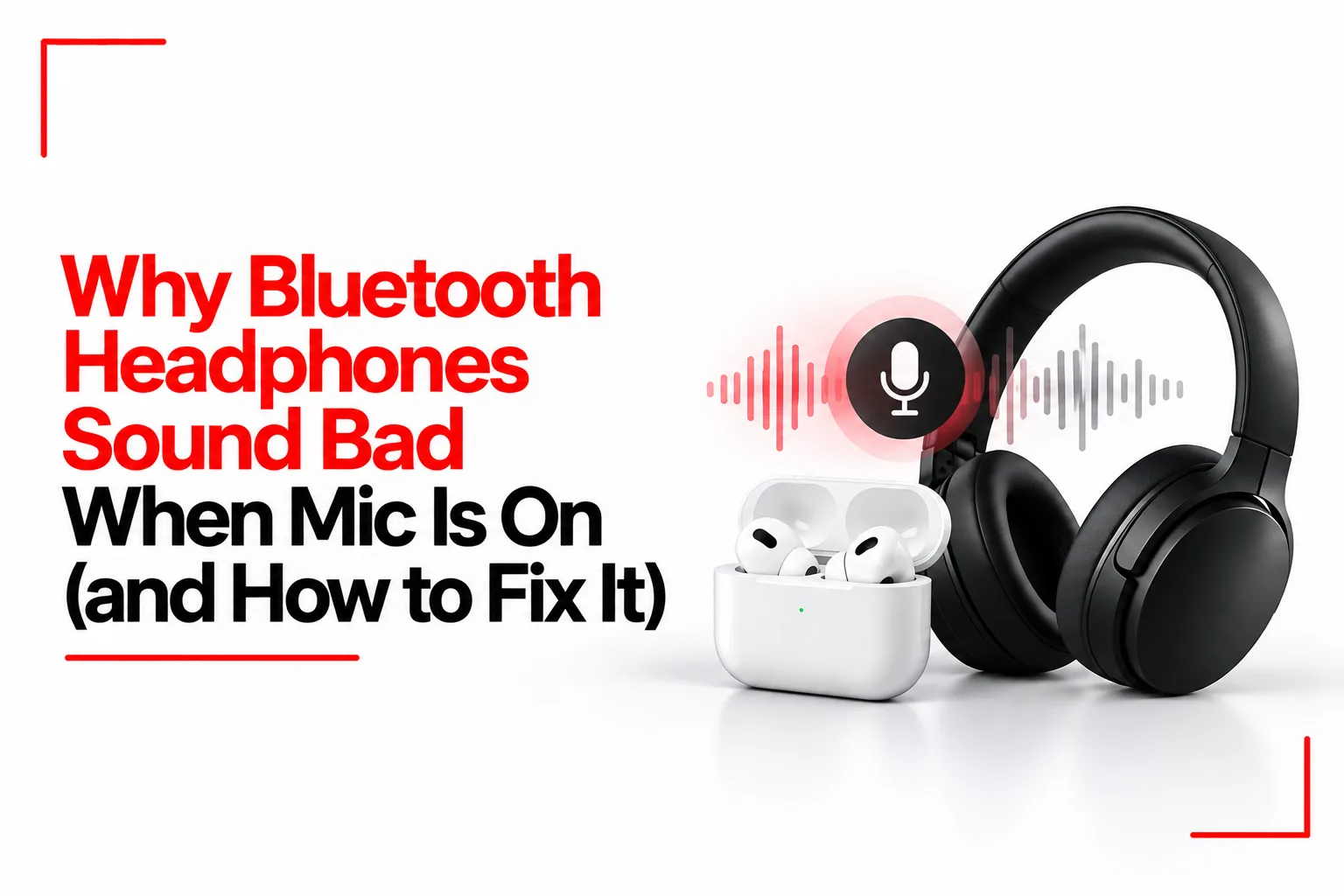

You could be listening to music through your Bluetooth headphones with no issues, then join a Discord call or switch on your microphone during a game. Suddenly, the bass drops, music sounds flat, and even voices become harder to hear clearly. Disconnect the call, and the sound goes back to normal.
If your Bluetooth headphones sound bad when Mic is on, you may wonder if the headphones are faulty or if your Bluetooth connection is failing. In many cases, neither is the problem. Your device is switching to a different Bluetooth audio mode to handle microphone input and sound playback at the same time.
This happens with many traditional Bluetooth headphones, particularly when using voice chat, video calls or recording apps. The audio settings on your computer or phone can affect the switch, and a few changes may help restore better sound.
Table of Contents
Why Bluetooth Headphones Sound Bad When the Mic Is On
Most traditional Bluetooth headphones use two main audio profiles: Advanced Audio Distribution Profile (A2DP) and Hands-Free Profile (HFP). A2DP handles music, videos and other high-quality stereo audio. It is designed for sending sound from your phone or computer to your headphones. However, it does not support microphone input.
HFP handles two-way audio, allowing you to speak through your headphone microphone while listening to the other person. Music may sound flatter, lose detail and no longer play in stereo. When an app activates your headphone microphone, your computer or phone may switch from A2DP to HFP. That is why music can suddenly sound compressed, thin or less detailed during a call or voice chat.
How to Fix Bluetooth Headphones Sounding Bad When the Mic Is On
The best fix depends on the device you are using. Here are some options for Windows, Mac, iPhone and Android.
Use Your Computer’s Built-In Microphone
If you use Bluetooth headphones with a Windows laptop or Mac, try using the computer’s built-in microphone while keeping your headphones as the audio output device.
This allows your headphones to play audio through the stereo profile without using their own microphone.
On Windows 11:
- Open Settings.
- Select System, then Sound.
- Under Output, choose your Bluetooth headphones.
- Under Input, select your laptop’s built-in microphone.
- Open your calling or gaming app and check its audio settings.
- Set the microphone to your laptop’s built-in mic and the speaker output to your Bluetooth headphones.
On a Mac:
- Open the Apple menu and select System Settings.
- Select Sound.
- Open the Input tab.
- Choose your Mac’s built-in microphone.
- Open the Output tab and select your Bluetooth headphones.
- Check the microphone and speaker selections in your calling app.
Your headphones should now handle playback while your computer handles voice input.
Related Article: Noise-Canceling vs. Noise Isolation: Are You Using the Right Headphones?
Check the Audio Settings in Your Apps
Apps such as Discord, Zoom, Microsoft Teams and Google Meet have their own audio settings. They may select your Bluetooth headphone microphone automatically when you join a call.
You can change this from the app’s audio settings.
For example, in Discord:
- Open Discord.
- Select User Settings.
- Go to Voice & Video.
- Under Input Device, select your computer’s built-in microphone.
- Under Output Device, select your Bluetooth headphones.
- Test the microphone and audio playback.
The exact menu names can change between app versions, but look for the input and output device settings.
Check Bluetooth LE Audio Support on Windows 11
Newer Bluetooth technology has started addressing the old limitation. Bluetooth Low Energy Audio (LE Audio) supports improved sound quality during calls and can allow stereo playback while the microphone is active.
Microsoft supports stereo playback during microphone use on compatible Windows 11 computers with the necessary LE Audio hardware, drivers and supported headphones.
To check the available settings:
- Open Settings.
- Select System, then Sound.
- Find your Bluetooth headphones under Output.
- Open the device’s properties.
- Look for Format when microphone is active.
- If the option is available, select Stereo (2 channels).
If you cannot find this setting, your computer or headphones may not support the feature. Having Windows 11 alone does not guarantee LE Audio support. Also install available Bluetooth driver updates from your computer manufacturer’s website.
Close Apps That Are Using Your Headphone Microphone
Some apps keep the microphone active even after you finish a call. This can prevent your headphones from returning to their normal high-quality playback mode.
On a Mac, Apple recommends closing apps that use the Bluetooth headphone microphone.
You can try this:
- Close video conferencing and voice chat apps.
- Check if any other open app is using the microphone.
- Make sure System Settings is not open on the Sound page.
- Select your Mac’s internal speakers from Control Centre under Sound.
- Select your Bluetooth headphones again.
Play some music and check if the sound quality has returned.
Disconnect and Reconnect Your Headphones
A Bluetooth connection can sometimes fail to switch audio modes correctly. Reconnecting your headphones may help.
Try these steps:
- Turn off your Bluetooth headphones.
- Disconnect them from your phone or computer.
- Turn Bluetooth off on the connected device.
- Wait a few seconds and turn Bluetooth back on.
- Switch on your headphones and reconnect them.
- Test the sound with the microphone off and on.
If the problem continues, remove the headphones from your device’s saved Bluetooth list and pair them again.
Use a Separate Microphone for Gaming and Calls
If you regularly play games or attend online meetings, a separate microphone can help you avoid the audio quality drop. You can use a USB microphone, your laptop’s built-in microphone or a wired microphone while keeping your Bluetooth headphones for listening. This is particularly useful for PC gaming. You can hear game audio in stereo while the separate microphone handles voice chat.
Another option is a wireless gaming headset that uses a dedicated USB receiver or 2.4GHz wireless connection. These headsets do not rely on the same Bluetooth Classic audio profile switch, although their sound quality and microphone performance still depend on the model.
Check If Your Headphones Support Bluetooth LE Audio
If you plan to buy new headphones, check for Bluetooth LE Audio support. LE Audio uses the LC3 codec and supports newer two-way audio features. With compatible headphones, computer hardware and software, it can provide better playback quality while the microphone is active.
Do not assume that every Bluetooth 5.2 or newer headset supports LE Audio. The headphones and the connected device must both support the feature, and their software and drivers must be compatible.
Related Article: Trouble with Noise-Canceling? Here’s What Might Be Wrong
Can You Keep High-Quality Stereo Sound While Using a Bluetooth Headphone Mic?
Yes, but it depends on the Bluetooth technology and the devices involved. With traditional Bluetooth Classic audio, using the headphone microphone usually triggers a switch to the hands-free profile. This often reduces playback quality and changes stereo sound to mono.
Bluetooth LE Audio can support stereo playback while the microphone is active, but both the headphones and connected device need compatible hardware and software. If your current devices do not support this feature, using a separate microphone is one of the simplest ways to keep high-quality stereo playback during calls and gaming.
Frequently Asked Questions
Why does my Bluetooth audio become muffled during calls?
Your headphones may switch from the A2DP stereo profile to the HFP hands-free profile when the microphone becomes active. HFP handles microphone input and playback at the same time, but its traditional Bluetooth Classic implementation has lower playback quality.
Why do my Bluetooth headphones sound worse on Discord?
Discord may automatically select your headphone microphone when you join a voice channel. This can trigger the hands-free audio profile. Try selecting your computer’s built-in microphone as the input device and your Bluetooth headphones as the output device.
Does turning off the headphone microphone improve sound quality?
It can. If your device stops using the headphone microphone, it may switch back to A2DP for higher-quality stereo playback. You can also select a separate microphone to keep speaking while listening through your headphones.
Does Bluetooth LE Audio fix the microphone quality problem?
It can improve the experience. LE Audio supports better two-way audio and stereo playback while the microphone is active on compatible devices. You need supported headphones, computer hardware and software to use these features.
Is my Bluetooth headset faulty if the sound changes when I use the microphone?
Not necessarily. A drop in sound quality when the microphone becomes active is a known limitation of traditional Bluetooth classic audio. If the sound stays distorted after you stop using the microphone, check the connection, audio settings and headphone firmware.
Bluetooth headphones do not always deliver the same sound quality during music playback and voice calls. If the microphone is causing the drop, try using a separate microphone first. If your devices support LE Audio, check its settings for an option that allows stereo playback during calls.